Variation swatches
For variable products, Themeasy turns the plain attribute dropdowns into clickable swatches. A product's variations load with the page, so picking options feels instant: the price, the picture and the add-to-cart button follow each choice.
How an attribute looks is decided by its type, which you set once per attribute. Whether swatches also show on product cards — and in which layout — is set in Themeasy → Settings → WooCommerce, under Variation Swatches. See the WooCommerce settings.
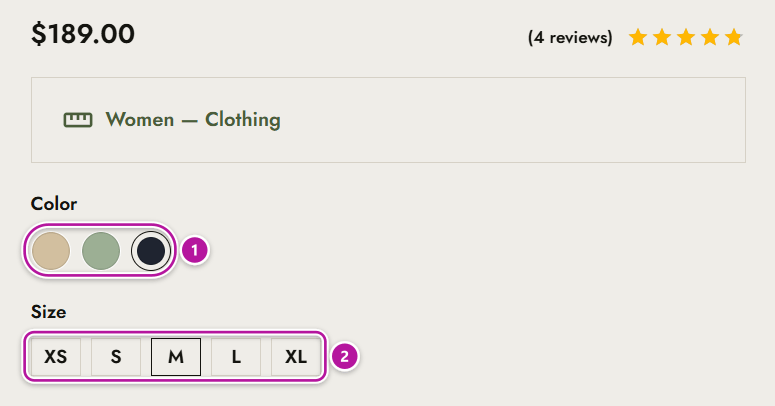
Swatch types
There are three swatch types. The button-style chip is the Label type — there's no separate "button" type.
| Type | What shoppers see |
|---|---|
| Color | A color chip showing the option's color. Its name appears on hover. |
| Image | A small image thumbnail for the option. Its name appears on hover. |
| Label | A text, button-style chip showing the option's name. |
An attribute left on the Select type keeps the regular WooCommerce dropdown, so you can mix swatches and dropdowns on the same product.
Setting up swatches
- Go to Products → Attributes and add or edit an attribute.
- Set its Type to Color, Image or Label. Leave it on Select to keep the dropdown.
- Open the attribute's terms (Configure terms). For a Color attribute, choose a Color for each term; for an Image attribute, use Upload image. Label swatches use the term's name.
To make one product different from the rest, open that variable product and use the Swatches tab in the Product data box. For each attribute you can pick another Attribute Type — or leave it on Default — and give every option its own label text, color or image, then Save. Reset returns the product to your global attribute setup. The tab lists the attributes that are used for variations and visible on the product page.
How swatches behave
- Picking a swatch selects that option; picking it again clears it.
- Once every option is chosen, the price and the product image switch to the matching variation.
- Options that are out of stock, or that don't exist in combination with what's already picked, are shown as unavailable.
- A Clear link next to the last attribute resets the whole selection.
Where swatches appear
| Place | What shoppers see | Controlled by |
|---|---|---|
| Single product page | Swatches in the summary, just above the add-to-cart button — in a Quick View too. | The attribute's type |
| Product cards | Swatches after the price, in the shop and category grids and in the related products, up-sells and cross-sells carousels. | Enable Variation Swatches, Swatches on Product Cards |
| AJAX product filter | Color and image chips in the filter sidebar — see Shop & catalog. | Enable AJAX Product Filter |
| WooCommerce attribute filters | WooCommerce's own layered navigation filters show color, image or label chips instead of plain links. | The attribute's type |
Swatches on product cards
Enable Variation Swatches puts the options of variable products on your product cards; Swatches on Product Cards then picks the layout:
- Compact (Quick Add) — the default. Color and image swatches stay on the card, one line per attribute, with a +N chip for the ones that don't fit. The other options, such as size, open in a quick add panel over the image when the shopper presses the add-to-cart button — one tap on a size adds the product to the cart.
- Full — every attribute is listed on the card.
List view always shows every attribute, whichever layout is set. The full walkthrough of quick add is on Product cards.
Where to go next
Head back to Themeasy for WooCommerce, or see how swatches sit on listings in Product cards. To change the card layout, open the WooCommerce settings.
Was this article helpful?