The Theme Builder
What Theme Builder is
Theme Builder is the visual dashboard for building every part of your site that surrounds the page content — your header, footer, sidebars, archives, single-post areas, WooCommerce product areas and more. Everything you create here is a Global Section: a reusable block, designed in Elementor, that fills one slot of your site and replaces the theme's default for that slot wherever your display rules say it belongs. Theme Builder is the friendly front door for creating and organizing those sections, and the same dashboard opens your mega menu panels.
Availability
Theme Builder, Global Sections and Mega Menu are premium features. You get them with a Themeasy theme whose license is active, or with a Pro or Agency plan of the plugin. If you don't see them in the Themeasy menu, check installing the plugin.
Before you start
- Install the Themeasy plugin and the Themeasy theme.
- Activate Elementor — sections and mega menus are designed in Elementor.
- Set your colors and fonts in the Settings panel first, since your sections use them.
Open Theme Builder
In the WordPress admin sidebar, open Themeasy → Theme Builder. You need to be a site administrator to open the dashboard; editing the sections themselves only requires the ability to edit posts.
The same Themeasy menu also holds the lists behind the dashboard:
| Menu item | Opens |
|---|---|
| Sections | The full list of every Global Section you've built. |
| Header | The Sections list, filtered to your header sections. |
| Footer | The Sections list, filtered to your footer sections. |
| Mega Menu | Your mega menu panels — see Mega Menu. |
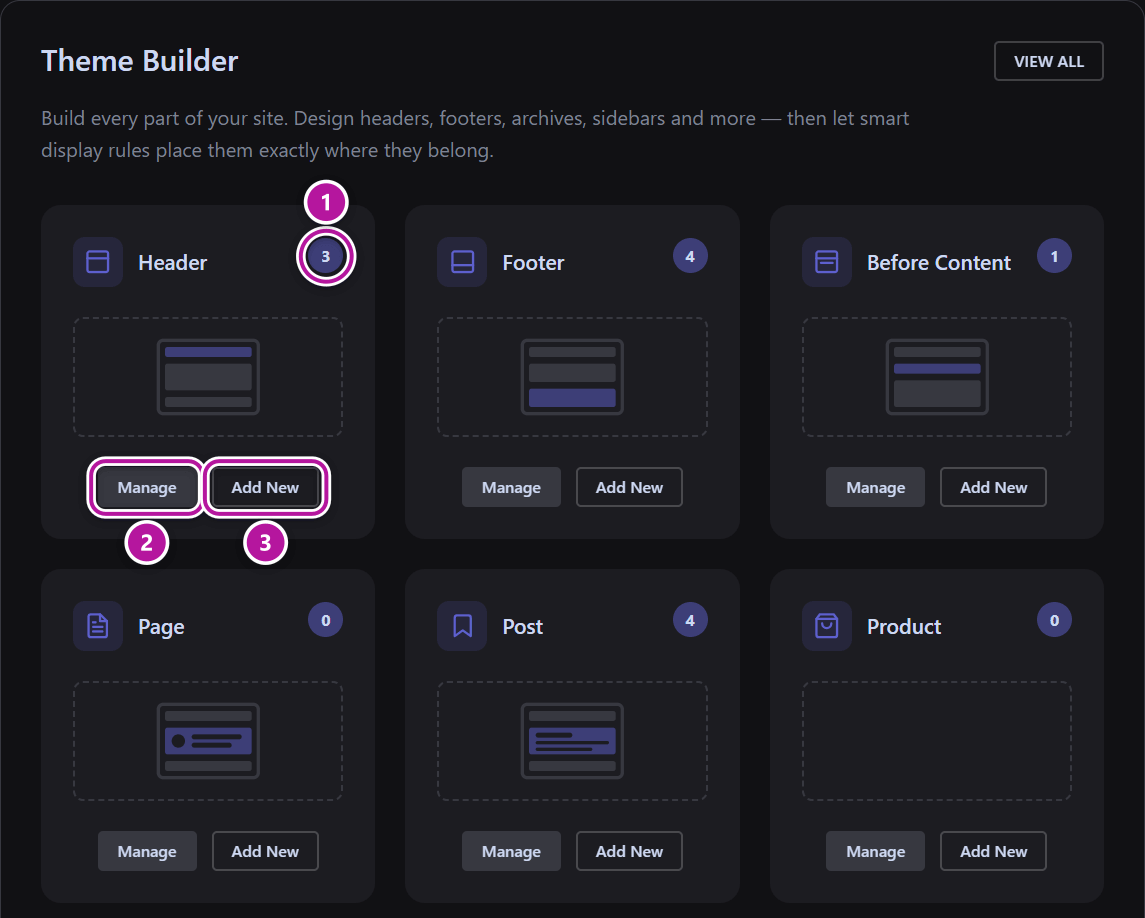
The slot dashboard
The dashboard opens with a short intro and a VIEW ALL button (it opens the full Sections list), followed by a grid of cards — one per slot. Each card shows:
- the slot name;
- a count of the templates you've published for that slot;
- a small wireframe showing where the slot sits on a page;
- a Manage button, which opens the list filtered to that slot, and an Add New button, which starts a new one.
Slots you haven't published anything for yet appear muted, with a dashed outline.
| Card | What you build there |
|---|---|
| Header | The site header, plus strips above it. |
| Footer | The site footer, plus strips above it. |
| Before Content | The area between the header and the content. |
| Page | Parts of single pages — the title area, featured image, footer and comments. |
| Post | Parts of single posts — the same four areas. |
| Product | The product page summary and the related, up-sell and cross-sell product lists. This card appears only when WooCommerce is active. |
| Sidebar | The left and right sidebars. |
| Archive | Post listings, search results and — with WooCommerce — the shop and product archives. |
| 404 Page | The body of the "not found" page. |
| Mega Menu | Dropdown panels for your navigation menu. |
Note
A card groups related slots. The Header card covers both Header and Before Header; Footer covers Footer and Before Footer; and Sidebar covers Left Sidebar and Right Sidebar. You choose the exact slot when you pick the section's type — see Section types.
The Mega Menu card
Mega Menu is the one card that isn't a Global Section. A mega menu panel isn't placed by display rules — you design it here, then attach it to a menu item. Its Manage and Add New buttons open the mega menu list instead of the Sections list. See Mega Menu.
Where to go next
Was this article helpful?