Build a header with containers
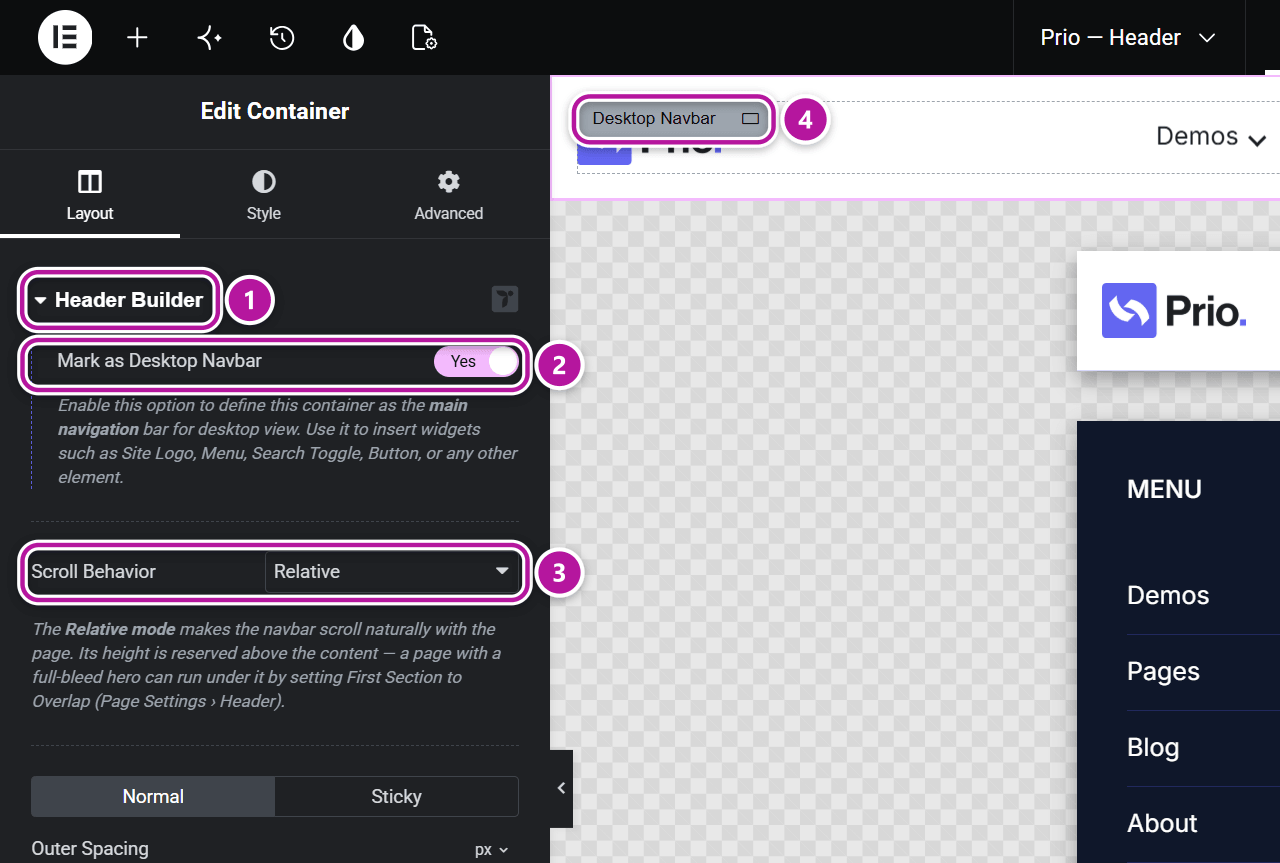
When you edit a Header or Before Header Global Section in Elementor, Themeasy adds a Header Builder section to the Container's Layout and Style tabs. You mark each container for its job — desktop navbar, mobile navbar or slide-in panel — and the pieces connect automatically.
Availability
Header Builder is part of the full Themeasy toolkit: you need a Themeasy theme and a Pro or Agency plan (a Themeasy theme bought on its own unlocks it too). It isn't included in Themeasy Lite or the Themeasy Widgets plan. The controls show up only while you're editing a header section.
How a header is put together
A header section is a stack of top-level containers, and each one gets one role. Switching a role on hides the other two, so a container is never two things at once.
| Role | Use it for | What goes inside |
|---|---|---|
| Mark as Desktop Navbar | The main navigation bar on desktop. | Site Logo, Menu, Search Toggle, a Button — any widget you need. |
| Mark as Mobile Navbar Trigger | The navigation bar on smaller screens (the responsive view). | Site Logo and a Menu Toggle (required — it opens the offcanvas panel). |
| Mark as Offcanvas Panel | A slide-in panel: mobile menu, search, mini cart or custom content. | Mobile Menu, Site Search, Mini Cart, or anything else. |
The editor labels each container on the canvas with its role (Desktop Navbar, Mobile Navbar, Offcanvas Panel) and hints at what's missing — for example a mobile navbar without a Menu Toggle, or a panel without a name.
Layout tab
Select a top-level container and open the Layout tab. Header Builder is the first section.
Scroll Behavior
Both navbar roles add a Scroll Behavior control. Set it separately for the desktop and the mobile navbar.
| Option | What it does |
|---|---|
| Relative | The navbar scrolls away naturally with the page. Its height is reserved above the content. |
| Absolute (overlaps first section) | The navbar sits on top of the first section, overlapping the content below — on every page that uses this header. |
| Always Fixed | The navbar stays visible at the top of the page at all times, even while scrolling. Its height is reserved above the content. |
| Smart Hide/Show | The navbar hides when you scroll down and comes back when you scroll up. Its height is reserved above the content. |
Tip
Inside the editor, Always Fixed and Smart Hide/Show behave like Relative, so the bar never covers what you're editing. Click Elementor's Preview Changes to see the real scroll behavior.
A single page can override how the header sits above its content — see First Section in per-page settings.
Desktop navbar options
- Outer Spacing — the space above the bar. Set it on the Normal tab and again on the Sticky tab, for when the bar is pinned while scrolling.
Offcanvas panel options
A panel stays hidden until a toggle widget opens it.
| Control | What it does |
|---|---|
| Use as Site Search Panel | Makes this panel the search area. Put a Site Search widget inside it and open it with a Search Toggle in your navbar. |
| Use as Mini Cart Panel | Makes this panel the cart area (WooCommerce). Put a Mini Cart widget inside it and open it with a Mini Cart Toggle. |
| Auto Open on Add to Cart | Opens the mini cart panel automatically when a product is added to the cart. |
| Offcanvas Panel Name | A unique name for a menu or custom panel, for example custom-panel. Type the same name in the toggle widget's Target Panel Name to connect them. |
| Panel Side | The edge the panel slides in from: Top, Bottom, Left or Right. |
| Content Width | Boxed or Full Width. |
| Width | The panel width when Content Width is Boxed. |
| Min Height | A minimum height for the panel, per device. |
A search panel and a mini cart panel need no name — their toggles find them on their own.
Pin From This Row
For a navbar set to Always Fixed or Smart Hide/Show: everything above the container scrolls away, and only this container — with anything below it in the navbar — stays pinned. Use it when your header has a top bar (contacts, a promo line) that shouldn't follow the visitor down the page. Turn it on for the navbar itself or for a row inside it.
Note
The Sticky Outer Spacing doesn't apply when the pinned row is inside the navbar.
Style tab
Once a container has a role, the Style tab shows a matching Header Builder section.
| Role | Controls |
|---|---|
| Desktop navbar | Background Color and Backdrop Blur, each on a Normal and a Sticky tab. |
| Mobile navbar | Background Color on a Normal and a Sticky tab. |
| Offcanvas panel | Background Color for the panel; Backdrop Color and Backdrop Blur for the dimmed page behind it; and the Close Menu Button — Width, Line Thickness, Offset, plus its Color on Normal and Hover tabs. |
Tip
For gradients, borders, border radius and box shadow, use Elementor's own Background and Border sections, just below the Header Builder controls.
Put it together
- In a header section, add a container, switch on Mark as Desktop Navbar and drop in a Site Logo and a Menu.
- Add a second container, switch on Mark as Mobile Navbar Trigger and add a Site Logo and a Menu Toggle.
- Add a third container, switch on Mark as Offcanvas Panel, give it an Offcanvas Panel Name and place a Mobile Menu inside.
- Select the Menu Toggle and type the same name in Target Panel Name.
- Pick a Scroll Behavior for each navbar, then style the bars and the panel on the Style tab.
Need a hand? See the Themeasy help center.
Where to go next
Was this article helpful?