Themeasy Motion: animations for widgets and containers
Themeasy Motion is the animation layer built into Themeasy. Elements glide in as they scroll into view, headlines reveal letter by letter, cards react to the pointer, and sections move with the scroll — all set up from the Elementor panel, with no code and no extra animation plugin.
| Family | What it does | Where you'll find it |
|---|---|---|
| Entrance | Plays once, when the element scrolls into view. | Widgets and Containers |
| Text | Reveals text by character, word or line. | Text widgets |
| Hover | Makes the element react to the pointer. | Widgets and Containers |
| Scroll | Ties movement to the scroll position. | Containers and scroll-based widgets |
Which plan includes Motion
| Plan | Motion on widgets | Motion on Containers |
|---|---|---|
| Themeasy Lite | No | No |
| Themeasy Widgets | Yes, on any theme | No |
| Pro and Agency | Yes | Yes, on a Themeasy theme |
A Themeasy theme bought on its own unlocks both columns too.
On Themeasy Lite, widgets that support animation show a Motion section on the Advanced tab with a short notice and a Compare Plans link in place of the controls. See Themeasy Widgets for what that plan adds.
Where to find it
On a widget
Select a Themeasy widget and open the Advanced tab. Depending on the widget you'll see one or both of:
- Motion — Animation — the entrance, and any animation specific to that widget.
- Motion — Hover Interactions — what happens on hover.
A widget shows only the families that suit it, so not every widget has both. Widgets that are animations in themselves — Scroll Stack, Horizontal Showcase, Scroll Sequence, Sticky Scroll-Sync and similar — keep their controls in a plain Motion section on the Content tab instead.
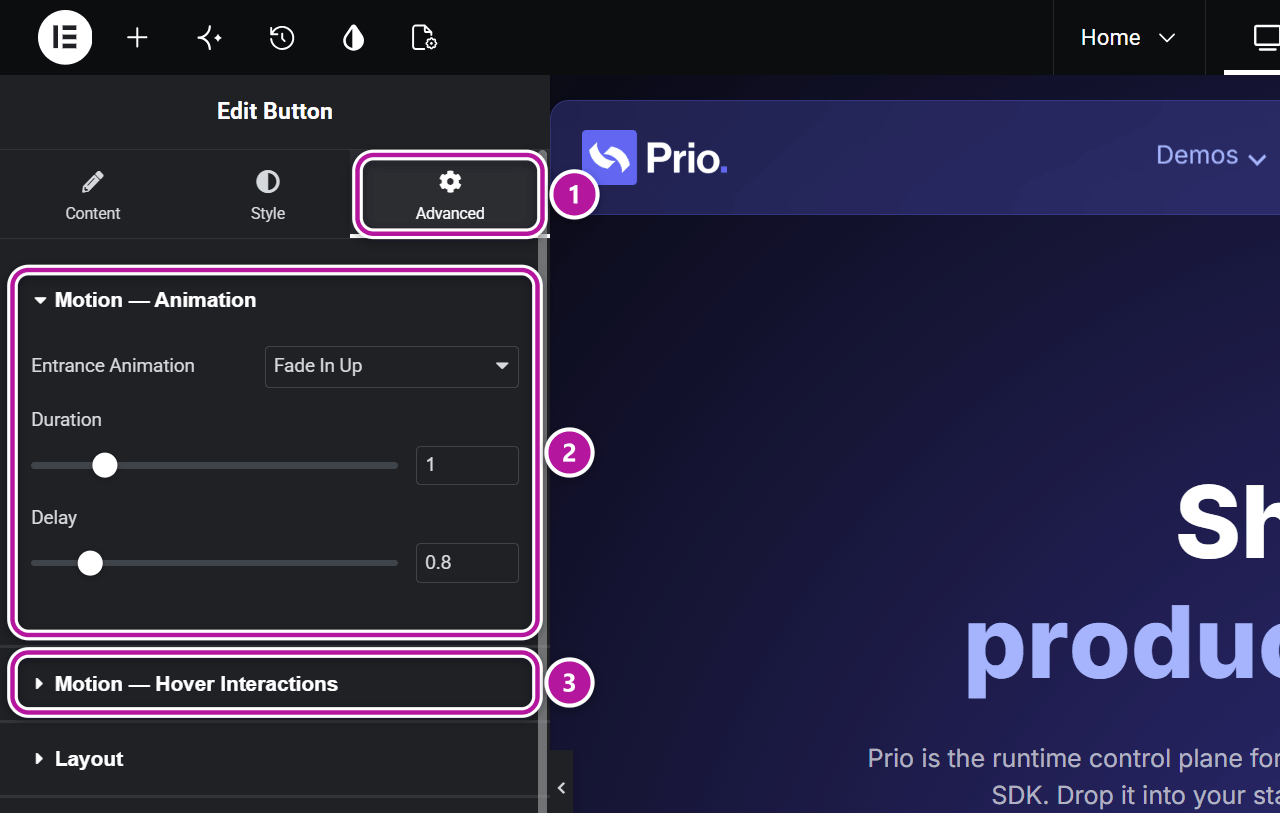
Info
These sections are separate from Elementor's own Motion Effects section, which sits on the same tab.
On a Container
Select any Container and open its Advanced tab: the same two sections appear there, with a few container-only options. Container effects & animations covers them, along with the background effects on the Style tab.
Entrance animations
Pick an effect in Entrance Animation. It plays once, the first time the element scrolls into view.
Effects: Blur In, Blur Reveal, Fade In, Fade In Up, Zoom In, Zoom In Up, Pop In, Slide In Up, Slide In Left, Slide In Right, Bounce.
| Control | What it does |
|---|---|
| Entrance Animation | The effect. None switches it off. |
| Duration | How long the animation takes, in seconds. |
| Delay | How long to wait before it starts. |
| Stagger Delay | The gap between items when several animate in sequence — on widgets made of repeated items, such as Steps, Gallery, Timeline or Badge List. |
| Animate | Containers only: Child Elements plays the effect on each direct child in turn; This Container animates the container once. |
Tip
For a row of cards, put the entrance on the parent Container with Animate set to Child Elements and a small Stagger Delay. The cards arrive one after another, and you manage a single setting instead of one per card.
Text animations
Text widgets — Headline, Section Intro, Text Editor, Post Title and the Slider's text — animate the text itself. Where a widget has several text parts, each one gets its own group under Motion — Animation: for example Pre-Title, Title and Description on the Headline.
Effects: Cascading, Elastic, Blur In, Blur Reveal, Fade In, Fade In Up, Fade Random, Zoom In, Zoom In Up, Pop In, Slide In Up, Slide In Left, Slide In Right, Sliding, Fade In Slow, Flipping, Twirl, Bounce, Scroll Fade.
| Control | What it does |
|---|---|
| Entrance Animation | The text effect. |
| Animation Target | What moves as a unit: Character Level, Word Level, Line Level or Block Level. |
| Duration | How long each unit takes. |
| Stagger Delay | The gap between one character, word or line and the next. |
| Delay | How long to wait before the first unit starts. |
| Disable Animation | Headline only: turn it on at Tablet or Mobile to keep the text static on that device. |
Scroll Fade is the scroll-driven one of the set: the text fades in gradually as the visitor scrolls past it, instead of playing once.
Hover interactions
Pick an effect in Hover Animation.
Effects: Float, Slide Up, Slide Up Elastic, Zoom In, Zoom In Elastic, Pulse, Flip, Flip X, Tilt, Bounce, Wobble, Skew, Glitch, Rotate 3D, Magnetic, View Cursor.
View Cursor swaps the motion for a label that follows the pointer while it is over the element. It adds four controls:
| Control | What it does |
|---|---|
| Cursor Text | The label, VIEW by default. |
| Width | The size of the label. |
| Background Color | The label's fill. |
| Text Color | The label's text color. |
On a Container, Animate decides whether each child reacts on its own (Child Elements) or the container reacts as one block (This Container).
Button-style widgets — Button, Card, Card Extended, Pricing Table and Slider — also offer Scroll Text Animation (Vertical or Horizontal) among their button options: the label rolls over when hovered.
Scroll effects
| Effect | Where | What it does |
|---|---|---|
| Enable Inertia Scroll | Container → Advanced → Motion — Animation | Moves the container as the page scrolls. Set a Direction, the Inertia Intensity and an optional Scale. |
| Parallax Layers | Container → Style | Floating text, icon or image layers that drift with the scroll and the mouse. |
| Scroll Fade | Text widgets → Entrance Animation | Text fades in as it is scrolled through. |
| Draw the Line | Divider → Motion — Animation | Draws the divider's line. Draw Mode chooses Play when visible or Scrub with scroll, where the visitor's scrolling controls the drawing. |
| Motion (Content tab) | Scroll-based widgets | Each scroll showcase widget has its own options there. |
Widget-specific animations
Some widgets add controls of their own to Motion — Animation:
| Widget | Extra controls |
|---|---|
| Icon | Loop Animation — Spin, Pulse, Wiggle, Float or Draw Stroke — with Loop Trigger (On View or On Hover), Loop Duration and Loop Delay. Draw Stroke needs an SVG icon with strokes. |
| Divider | Draw the Line with Draw Mode, Draw From, Draw Duration, Draw Delay, Easing, Scrub Smoothing, Draw Start and Draw End. Available when Skin is SVG Shape and Shape Style is Line. |
| Image Reveal | Reveal Animation — Slide Right, Slide Left, Zoom In Right, Zoom Out Right, Center — Horizontal, Center — Vertical or Diagonal — Top Right. |
| Slider | A separate entrance for each slide part: Image, Pre-Title, Title, Description and Button. |
| Before / After | A Motion — Transition section with Transition Duration and Easing. |
Preview your animations
Entrance, text and hover animations replay in the editor canvas as you change them, so you can tune the timing on the spot.
Scroll-driven effects need the live page. When you turn on Enable Inertia Scroll, the panel asks you to click Elementor's Preview Changes button (top right) to see the animation as visitors will. Some scroll-based widgets work the same way — Horizontal Timeline, for example, notes in its Motion section that it animates on the published page only.
Note
Inertia Scroll runs on screens 768px and wider. On smaller screens the container stays put.
Accessibility
Motion respects the visitor's reduced-motion preference. When a device asks for less motion, entrance and text animations are skipped and the content simply appears in place, while hover animations, icon loops and parallax layers stay still. You don't need to configure anything.
Where to go next
Was this article helpful?