Widget Manager
The Widget Manager lets you choose which Themeasy Elementor widgets are available on your site, so the widget panel in the Elementor editor shows only what you actually use.
You'll find the tab in the Settings panel, under Themeasy → Settings. Click Save Changes to apply your selection; a "Settings saved." notice appears when it's saved.
How the list is organized
Every Themeasy widget has its own switch, shown with the widget's icon and name. The switches are grouped into accordion sections that match the widget categories in the Elementor editor, in the same order:
- Text & Typography
- Images & Media
- Elements
- Blocks & Cards
- Sliders & Showcase
- Data & Conversion
- Post & Portfolio
- WooCommerce — appears only when WooCommerce is active
- Header
- Footer
- Site Utilities
- Megamenu
Click a group's header to expand it. Inside a group, the widgets are listed in the same order as in the Elementor panel. In the editor the same groups carry the plugin's name in front, for example Themeasy — Text & Typography.
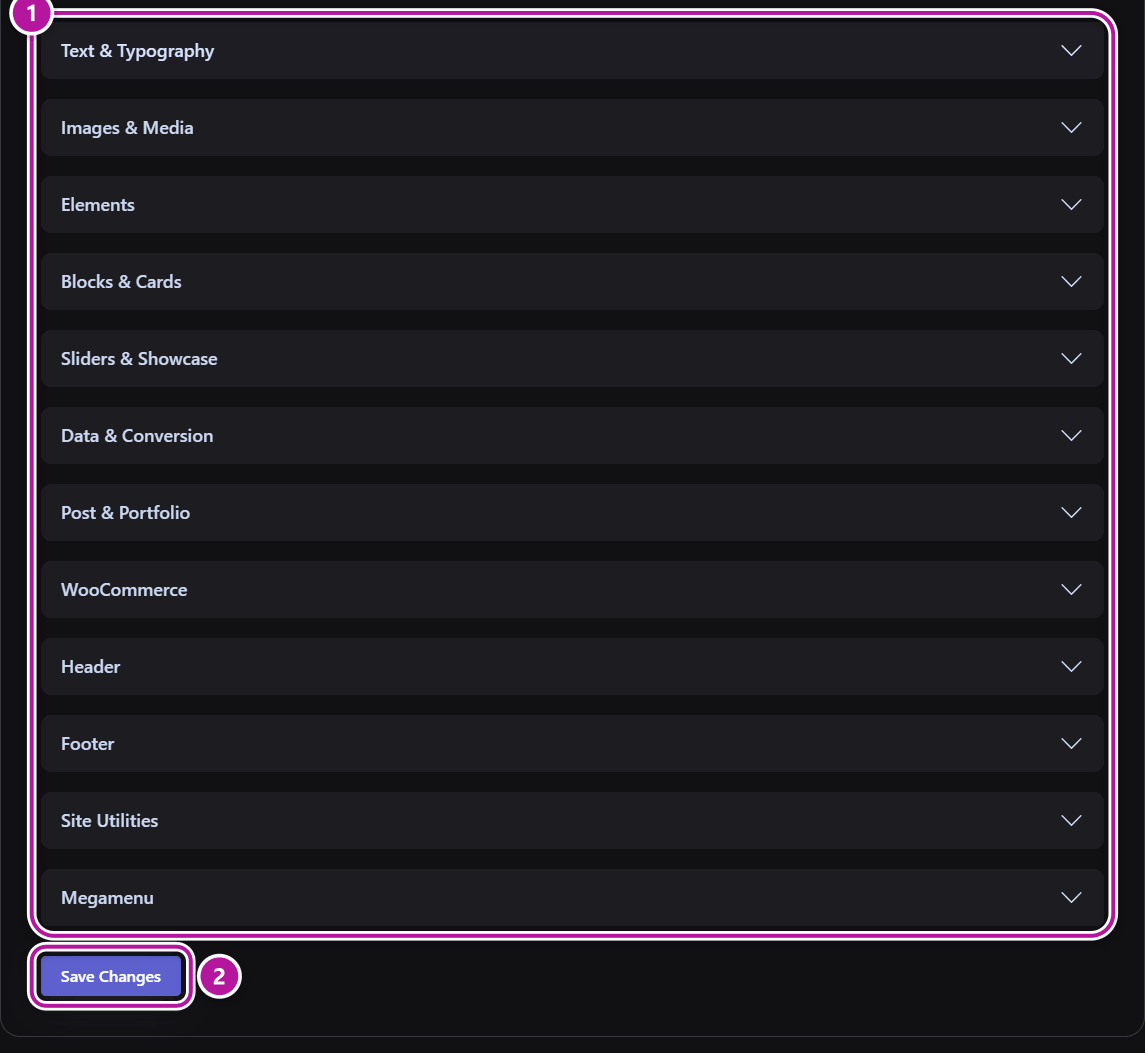
The list is built from the widgets installed with your current version, so it always reflects exactly what you have. For what each widget does, see Themeasy widgets for Elementor.
Turn a widget on or off
Every widget is on by default. To change one:
- Open the group that holds the widget.
- Flip the widget's switch off (or back on).
- Click Save Changes.
Check that a widget is not in use first
A widget you switch off is no longer loaded at all. It disappears from the Elementor panel, and any copy of it already placed on a page stops showing on your site. Switch a widget off only when no page uses it, and switch it back on if something goes missing.
Back to the Settings panel overview.
Was this article helpful?