Global colors & fonts sync
Themeasy and Elementor share one brand. When you save your colors and fonts in Themeasy, they're pushed into Elementor's own global pickers — set your brand once, and use it everywhere.
Availability
The sync is part of the full Themeasy toolkit: you need a Themeasy theme and a Pro or Agency plan (a Themeasy theme bought on its own unlocks it too). It isn't included in Themeasy Lite or the Themeasy Widgets plan.
How it works
Every time you save the Themeasy Settings panel, three things are copied into Elementor's Site Settings:
| From Themeasy | To Elementor |
|---|---|
| Colors | Global Colors |
| Typography — font groups, Text Presets and Button | Global Fonts |
| Content Width (General tab) | Layout → Content Width |
The sync is one-way, from Themeasy to Elementor. Change your brand in the Settings panel, not in Elementor's Site Settings — the values Themeasy owns are written again at the next save. Global colors and fonts you add yourself in Elementor are left alone.
Tip
On a new site the Themeasy entries appear in Elementor after your first save of the Settings panel. Importing or resetting settings from Tools runs the sync too.
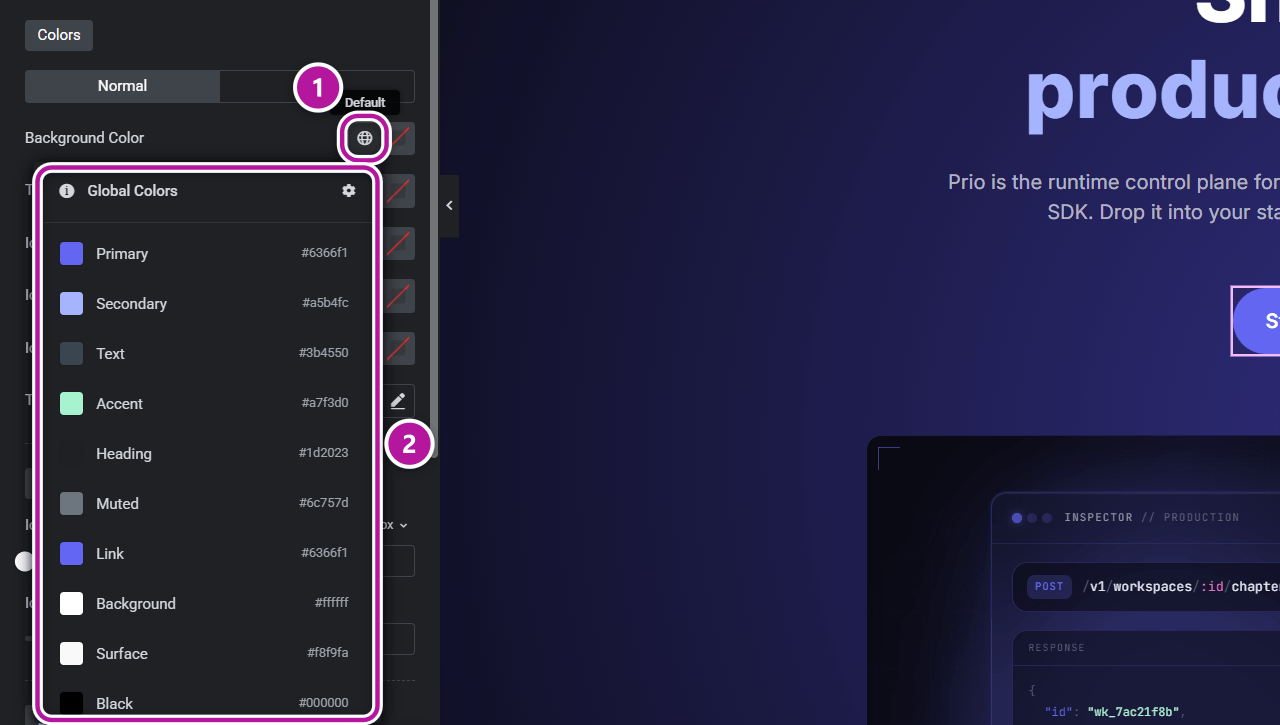
Colors
- Four of your colors fill Elementor's system swatches.
- The rest of your palette is added as named custom colors, including the dark-mode variants, so you can pick the right one by name.
| Elementor system color | Themeasy color |
|---|---|
| Primary | Primary Color |
| Secondary | Secondary Color |
| Text | Body Color |
| Accent | Accent Color |
The custom colors are named Heading, Muted, Link, Background, Surface, Black, White, Border, Strong Border, Button Background, Button Text, Info, Success, Warning and Danger.
The dark-mode variants carry a (Dark) suffix: Body, Heading, Muted, Link, Background, Surface, Border, Strong Border, Button Background and Button Text. Pick one explicitly when you design a section that is always dark.
Fonts
Themeasy writes two kinds of Global Fonts.
System fonts
Your three font groups set Elementor's four system fonts:
| Elementor system font | Themeasy font group |
|---|---|
| Primary | Primary (Body) |
| Secondary | Secondary (Headings) |
| Text | Primary (Body) — it mirrors Primary |
| Accent | Accent |
Each one carries the group's family, weight, line height and letter spacing. Font size is left out on purpose, so Themeasy's responsive heading and body sizes keep deciding how type scales across screens.
Text Presets and Button
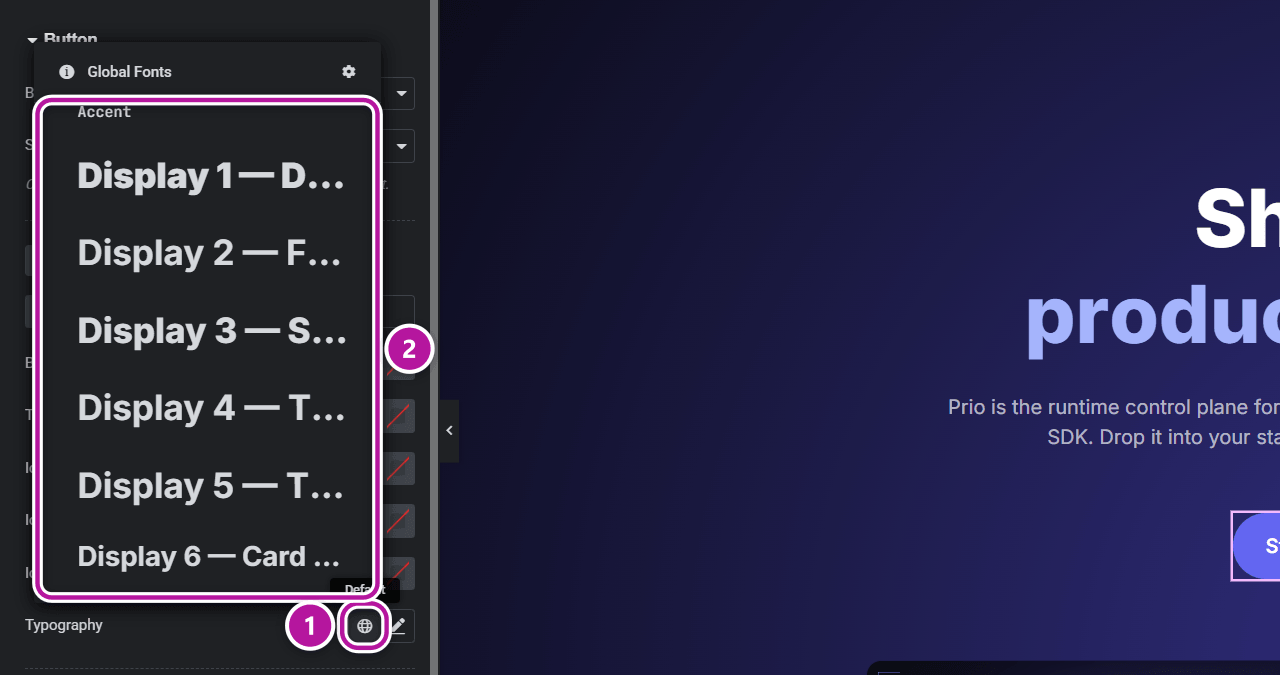
The eight Text Presets and the Button style are published as named custom Global Fonts: Display 1 to Display 8, and Button. Unlike the system fonts, each is a complete preset:
- font family
- font size for desktop, tablet and mobile
- weight, transform and style
- line height, letter spacing and word spacing
To use one, open any Typography control in Elementor, click the globe icon and choose Display 1–8 or Button — on a Themeasy widget or any other. Edit the preset later in Themeasy and every element using it updates after you save.
Tip
Give a preset a Name in the Typography tab — Hero, Figure, Quote, Label — and Elementor lists it as, for example, "Display 3 — Figure", so you can tell at a glance what each level is for.
Content width
Content Width, on the General tab of the Settings panel, sets the exact content width of the theme's own templates — blog, archives, header, footer and WooCommerce. When you fill it in, the same value is written to Elementor's Site Settings → Layout → Content Width, so Elementor pages and theme templates line up.
Leave the field empty and nothing is pushed: the theme follows whatever width Elementor's Site Settings has.
Info
When you import a demo, the Setup Wizard offers to set the recommended container width (1240px). That option writes the same Elementor Content Width.
Where to go next
Was this article helpful?