Themeasy Widgets: Pro widgets in any theme
Themeasy Widgets is a yearly plan of the Themeasy plugin. It unlocks 87 Elementor widgets (the 18 free ones plus the Pro content widgets) and Themeasy Motion, the entrance, hover, scroll and text animations, in the theme you already use: Hello Elementor, Astra, Twenty Twenty-Five, and so on.
It does not include the Themeasy themes or the site toolkit (the theme builder, global sections, the settings panel, the WooCommerce features). Those come with Pro, and most of them run only on a Themeasy theme. For prices, see the pricing page.
Already on a Themeasy theme?
If your site runs a Themeasy theme whose license is active, that theme license already unlocks every Themeasy widget on the site. Themeasy Widgets adds nothing there.
Before you start
- An administrator account on the site.
- Elementor installed and active. The free version from WordPress.org is enough.
- Hosting that meets the server requirements.
- Any theme works. There is nothing to change in your theme.
Install the plugin
- Download the Themeasy plugin
.zip. Use the link in your purchase email, or sign in to your Themeasy Hub account, open My products, select Themeasy and click Download on the Latest version card. - In WordPress, go to Plugins → Add Plugin → Upload Plugin, choose the
.zipand click Install Now. - Click Activate.
New to the Hub? Sign up with the email address you bought with, and your purchase is linked to your account. Installing the Themeasy plugin has the full install and update guide.
Coming from Themeasy Lite?
Install Themeasy the same way. Activating it deactivates Themeasy Lite for you, and your pages keep their widgets. You can then delete Themeasy Lite.
Activate your license
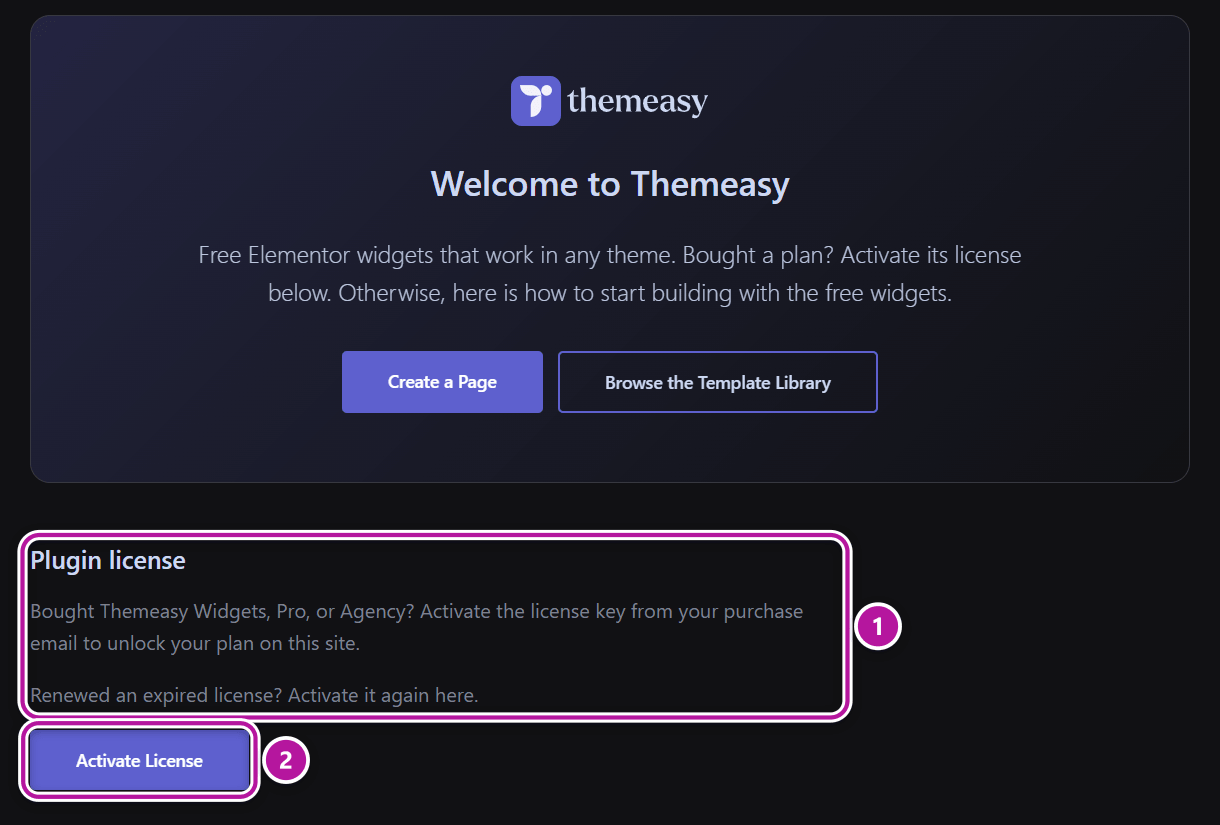
- In the WordPress admin, open Themeasy → Getting Started. The menu sits just above Appearance.
- In the Plugin license section, click Activate License.
- Paste the license key from your purchase email and confirm. The first time, the button reads Agree & Activate License.
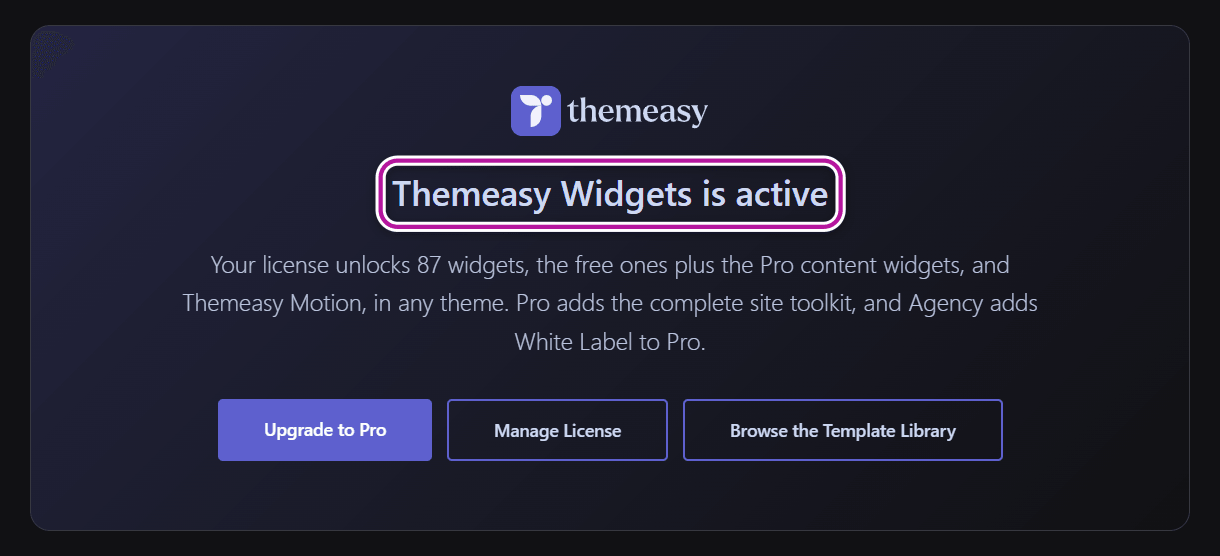
- The page now reads Themeasy Widgets is active, and its menu item is called Upgrade.
Good to know:
- If the dialog lists licenses from your account and the new one isn't there, choose Other and paste the key.
- Can't find the key? In your Hub account, open My products, select Themeasy and click Reveal on the License key card.
- On a theme that isn't a Themeasy theme, the plugin's row on the Plugins screen also has an Activate License link until a license is active. It opens the same dialog.
- On a Themeasy theme, the Plugin license section adds a reminder: the license key of a theme goes in Appearance → Theme Setup, never in this dialog.
- While the license is active, plugin updates arrive in Dashboard → Updates and on the Plugins screen, like any plugin's.
What's included
| Included | Notes |
|---|---|
| 87 Elementor widgets | The 18 free widgets plus the Pro content widgets: text and headlines, images and galleries, buttons and elements, cards and blocks, sliders and showcases, counters, charts, pricing tables and other data widgets. |
| Themeasy Motion | Entrance, hover, scroll and text animations on those widgets, the free ones included. See Themeasy Motion. |
| Any theme | Hello Elementor, Astra, Twenty Twenty-Five, and more. The widgets pick up your theme's fonts and start from neutral colors; restyle each one from its Style tab. |
| Unlimited sites | Activate the same key on every site you build. |
| Free templates of the Themeasy Library | Inserted in one click from the editor. See the Themeasy Library. |
| Plugin updates | For as long as the license is active. |
Where the widgets are in the editor
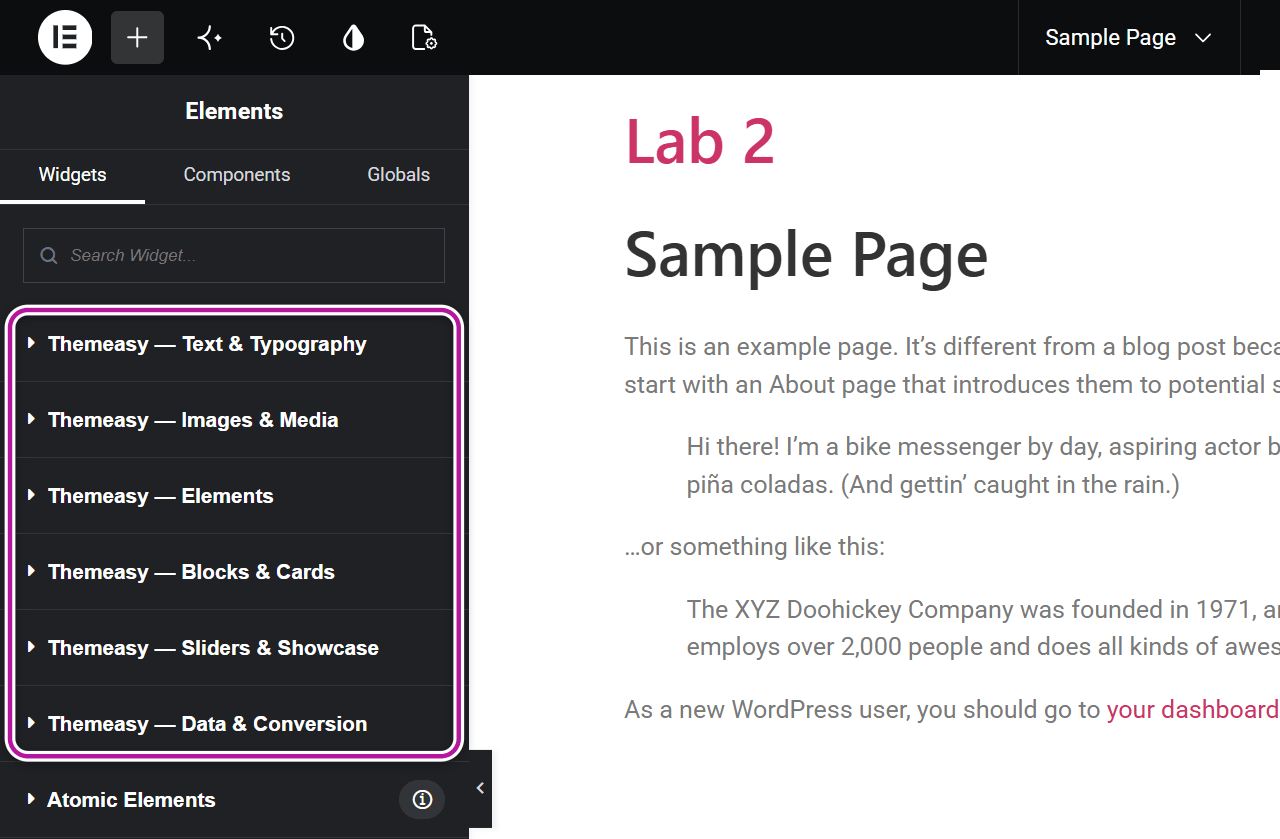
In the Elementor panel, the widgets sit in six categories, each prefixed with the plugin's name:
- Themeasy — Text & Typography
- Themeasy — Images & Media
- Themeasy — Elements
- Themeasy — Blocks & Cards
- Themeasy — Sliders & Showcase
- Themeasy — Data & Conversion
Without a license, the free widgets sit in a single Themeasy — Essentials category instead. Themeasy widgets for Elementor is the guide to the library.
What's not included
| Not in Themeasy Widgets | Unlocked by |
|---|---|
| The Pro templates of the Themeasy Library (they show a lock and Upgrade to insert) | Pro or Agency |
| The Themeasy themes | Pro or Agency (every theme), or buying one theme |
| The theme builder (custom headers and footers) and global sections | Pro or Agency, on a Themeasy theme |
| Header, footer, post, site and mega menu widgets | Pro or Agency |
| WooCommerce widgets, and the header's cart widgets | Pro or Agency, on a Themeasy theme |
| Container controls (sticky columns, scroll and hover animations, background effects) | Pro or Agency, on a Themeasy theme |
| The Themeasy settings panel (global colors, typography, performance, custom code) | Pro or Agency, on a Themeasy theme |
| The Form widget for Contact Form 7 | Pro or Agency (its Contact Form 7 styling on a Themeasy theme) |
| WooCommerce enhancements (variation swatches, custom fields, and more) | Pro or Agency, on a Themeasy theme |
| White Label (your brand in place of Themeasy's) | Agency |
Note
Even on a Themeasy theme, a Themeasy Widgets license unlocks the widgets only.
Manage, upgrade or renew
Manage your license
Manage License, on the Themeasy page, opens the Themeasy product in your Themeasy Hub account. There you find the License key card (click Reveal to see the key) and the Active sites card, which lists every site the license is active on. Deactivate next to a site takes the license off it: the site keeps its content but loses the paid features until you activate the key there again. See your products and managing your licenses.
Upgrade to Pro or Agency
The Themeasy page offers Upgrade to Pro and Upgrade to Agency. When the administrator who activated the license clicks one, the checkout upgrades the license you already have: your key stays the same, the unused part of your current plan is credited, and you are not billed twice.
Upgrade from the right account
For any other user, the button opens a regular checkout, which sells a second license and leaves the first one running. Upgrade while signed in as the administrator who activated the license, or use Change plan on the Billing page of your Hub account, which upgrades the license you already have. See billing & invoices.
After the upgrade, open Themeasy in the WordPress admin again: the page checks your license and switches to the new plan.
If your license expires
The site goes back to the free widgets. Your pages keep their content, the free widgets keep rendering without their animations, and the Pro widgets stop showing until the license is active again.
The Themeasy page then reads Your license expired, with a Renew License button that opens the Hub. After renewing, activate the key again in Plugin license: a renewed license does not come back to the site on its own.
The 3-day trial
On a site without a license, the Themeasy page offers Start 3-day trial for this plan. A card is required, and the plan is billed yearly after 3 days unless you cancel. You can cancel from the Billing page of your Hub account.
The trial isn't offered while the page reads Your license expired: that site renews instead.
Troubleshooting
▸ The Pro widgets don't show in the editor
Open Themeasy in the WordPress admin. The page must read Themeasy Widgets is active. If it still shows Getting Started, activate your key in the Plugin license section. If it reads Your license expired, renew the license and activate the key again.
▸ A full-page template from the Library sits in a narrow column
This happens on themes that box the page content, such as Twenty Twenty-Five. The message shown after the insert says how to fix it: open the page settings in Elementor and set Page Layout to Elementor Full Width.
▸ The insert message says an element was left out
After inserting a template you may read "Template inserted, but 1 element was left out. Left-out widgets need the Pro plan." The template uses a widget that isn't part of this plan, often a site logo or another header widget. Everything else in the template was inserted. To get the missing widgets, upgrade to Pro.
Where to go next
Was this article helpful?