Your products
The My products area (heading "My products", subtitle "Everything you own, in one place.") gathers every theme and plugin you own. Each product has its own workspace that pulls together its license, downloads, release info and support in one place.
The products grid
Open /account/products to see one card per product you own. Each card shows:
- The product name.
- A type badge — Theme, Plugin or, for a plugin you hold through a subscription, Subscription.
- A line describing what you hold (see the table below).
- A status / expiry badge when the product needs attention — for example "License expires in 7 days", "Support ended" or "Access ends June 12, 2027". Healthy entitlements show no badge.
- An Open → link that takes you into the product workspace.
Click anywhere on a card to open that product.
The line under the product name reads differently depending on how you own it:
| You see | It means |
|---|---|
| "Pro · renews June 12, 2027" | A subscription — the plan name and its next renewal. |
| "Included in Themeasy Bundle" | A theme unlocked by your bundle subscription. |
| "updates expire December 12, 2026" | A theme bought on its own — see the updates period. |
| "Perpetual license" | A license with no end date and no updates period recorded. |
| "expires June 12, 2027" | A license that ends on that date. |
Bundles
The Themeasy Bundle is a membership, not a product of its own: it doesn't get a card. Instead, the plugin and every theme it unlocks each appear here with their own workspace. The bundle and its key are listed on the licenses page.
No products yet?
If you haven't linked anything, the page reads "You have not linked any products yet." and offers an Add a license link. Paste a license key or purchase code on the licenses page to attach a product to your account.
The product workspace
Selecting a product opens its workspace at /account/products/{product}. A back link (All products)
returns you to the grid. The page leads with the product name, its type badge and the same descriptive
line as the card. An at-risk expiry badge appears here too when something is due.
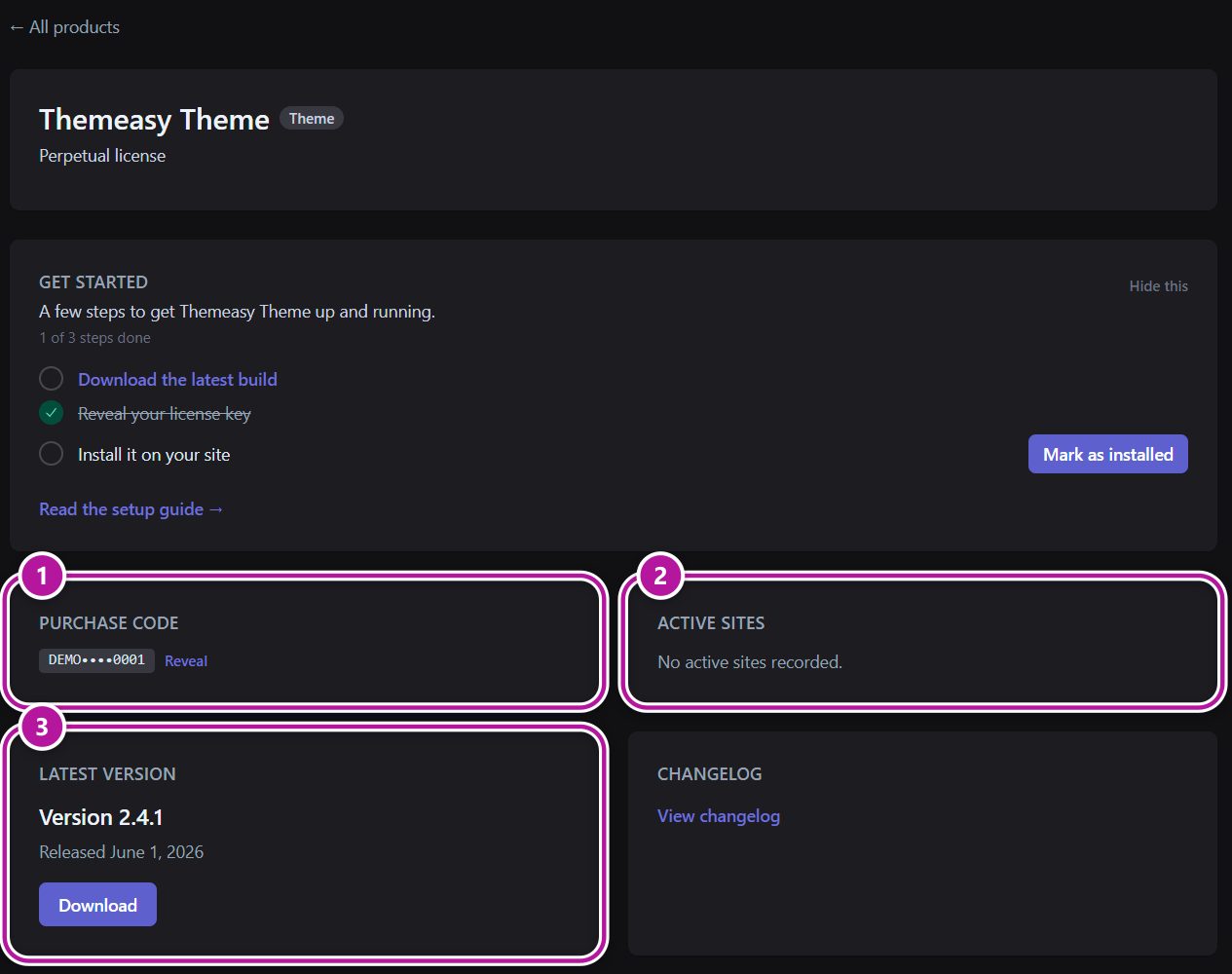
Depending on the product, the workspace shows the panels below.
Get started checklist
Until you've finished setting a product up, a Get started checklist appears near the top ("A few steps to get product up and running."). It tracks up to three steps:
- Download the latest build — a link to your downloads. Downloading a build of the product ticks this off.
- Reveal your license key — a link to your licenses. Revealing the key, there or in the License key card on this page, ticks this off.
- Install it on your site — use the Mark as installed button when you've installed the product; it switches to Undo "installed" if you change your mind.
A progress line ("1 of 3 steps done") tracks how far along you are, and Read the setup guide links to the product's setup documentation. When every step is done, the card collapses to "You're all set". Prefer to skip it? Click Hide this to dismiss the checklist; a Show getting-started steps link brings it back later. The same checklist appears on your dashboard.
Where to go next
Installing a theme? Follow installing the theme and then the setup wizard. Installing the plugin? See installation.
License key
For licensed products, a card shows your License key (or Purchase code for Envato purchases) masked by default, with a Reveal button to un-mask it and a Copy button once it's shown. That includes a Themeasy plugin subscription (Widgets, Pro or Agency) and each product of the Themeasy Bundle. If you own the product more than once, each license gets its own key and sites under a "License 1 of 2" heading that also names its plan. See managing your licenses for more on keys and where to activate them.
Active sites
The Active sites card lists where your license is currently in use — each site's domain, the version it runs and when it was last seen. If nothing is recorded yet, it reads "No active sites recorded."
For most licenses, small badges at the top of the card count your seats: "1 of 1 production sites" on a license with a site limit, or "2 production sites — unlimited" on one without. Local and staging installs are counted separately ("1 local site — unlimited"), carry a Local tag and never use a production seat — they are free and unlimited.
Next to each site, Release frees that seat so you can activate the key on another site. On a license with unlimited sites (every Themeasy plugin plan and the Themeasy Bundle) the button reads Deactivate: it takes your license off that site, which keeps its content but loses the paid features until you activate the key there again. The site picks up the change the next time it syncs its license.
When a site runs an older build than the latest release, the card flags it — "1 of 2 need updating" in the heading, or Update available next to the site. See updating the theme and installation for how updates reach a site.
Latest version
The Latest version card shows the newest release ("Version 2.4.0"), its release date, and a Download button that opens your downloads. If no build is published yet, it reads "No downloadable build is available for this product yet."
Changelog
The Changelog card links to the product's public changelog via View changelog. The first time you open a product's workspace, you're also subscribed to that product's release notifications — you can unsubscribe on the changelog page. For the full story, see release notes.
Your recent tickets
The Your recent tickets card lists your latest support requests with their status, plus a Need help with product? Open a ticket link. If you have none, it reads "You have no recent tickets." Learn more in tickets.
Documentation & guides
When relevant articles exist, a Documentation & guides section shows recommended knowledge base articles, with Browse the knowledge base to see everything.
The updates period of a theme license
A theme bought on its own never expires: the theme and every feature keep working on your site. What has an end date is its updates and support period — six months from the purchase, or the support period you hold on ThemeForest. That's the date in "updates expire December 12, 2026".
- In the last days of the period, the product shows a "Support expires in 7 days" badge, then "Support ended" once it has passed.
- To keep receiving new versions after that date, use the Extend support link in the expiry banner, or open a ticket — our team extends the period for you.
Subscriptions (a Themeasy plugin plan or the Themeasy Bundle) work differently: updates continue for as long as the subscription renews. Manage them on billing.
Related
Was this article helpful?