Container effects & animations
Themeasy layers extra sections onto any Elementor Container, so you can add motion and rich backgrounds without leaving the editor or writing code. Select a container and look across its Advanced, Layout and Style tabs for the sections below.
Availability
The container sections are part of the full Themeasy toolkit: you need a Themeasy theme and a Pro or Agency plan (a Themeasy theme bought on its own unlocks them too). They aren't included in Themeasy Lite or the Themeasy Widgets plan.
| Tab | Sections Themeasy adds |
|---|---|
| Advanced | Motion — Animation, Motion — Hover Interactions |
| Layout | Sticky Column |
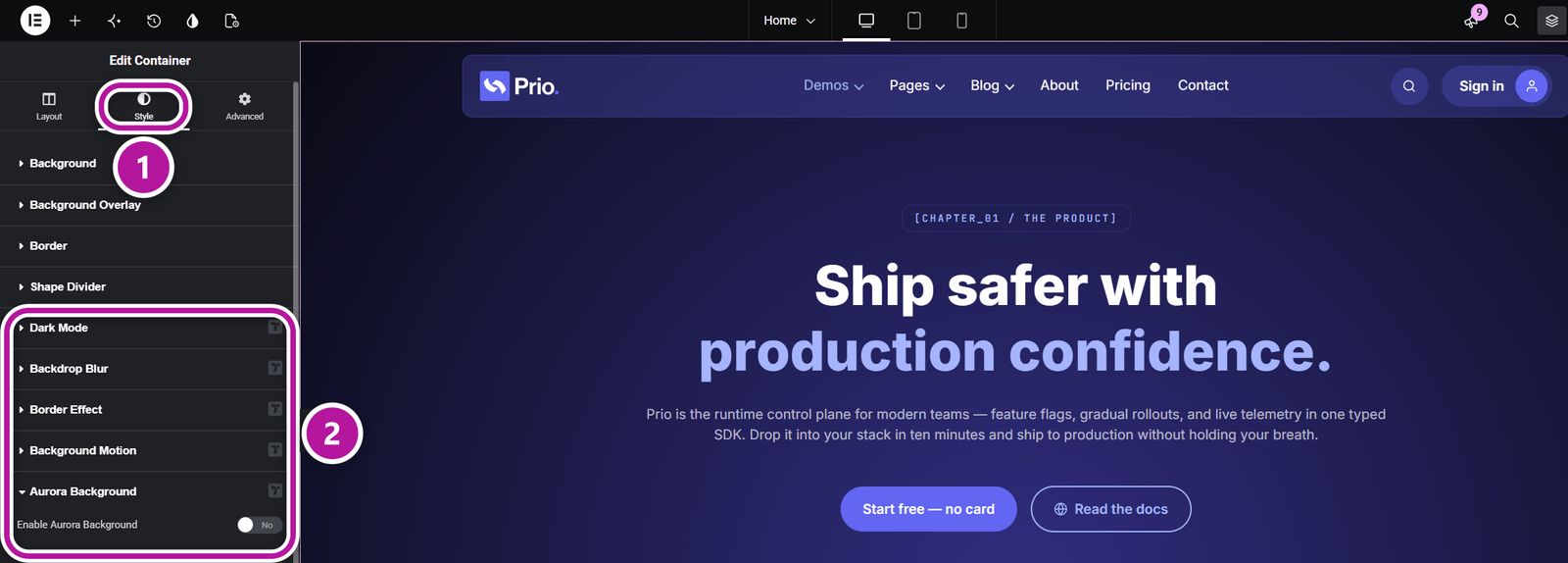
| Style | Dark Mode, Border Effect, Background Motion, Aurora Background, Texture, Grid Pattern, Parallax Layers |
Info
While you edit a Header or Before Header section, containers show the Header Builder controls instead of these.
Motion (Advanced tab)
The two Motion sections are the Container side of Themeasy Motion — that guide explains the animation families and lists every effect. On a container you get:
| Section | What it does | Controls |
|---|---|---|
| Motion — Animation | Plays an entrance animation when the container scrolls into view, and can move the container with the scroll. | Entrance Animation, Animate, Duration, Stagger Delay, Delay; Enable Inertia Scroll, Direction, Inertia Intensity, Scale |
| Motion — Hover Interactions | Reacts when the visitor hovers. | Hover Animation, Animate; with View Cursor: Cursor Text, Width, Background Color, Text Color |
Two controls are specific to containers:
- Animate — choose Child Elements to play the effect on each direct child in sequence (cards, columns, list items), with Stagger Delay as the gap between them, or This Container to animate the container once as a single block.
- Enable Inertia Scroll — moves the container as the page scrolls. Pick a Direction (Top, Bottom, Left, Right or Rotation), set the Inertia Intensity (the distance or strength), and optionally a Scale for a zoom —
1.1zooms in,0.9zooms out. It runs on screens 768px and wider; on smaller screens the container stays put.
Warning
Inertia Scroll and an entrance animation set to This Container both move the same element and fight each other. Set Animate back to Child Elements, or turn Inertia Scroll off.
Sticky Column (Layout tab)
Pins a column in place so it stays visible while the rest of the row scrolls past.
| Control | What it does |
|---|---|
| Enable Sticky Column | Makes this column sticky while scrolling. |
| Stick To | Top pins the column once its top edge reaches the offset. Top (Scrollable) does the same, but limits the column to the screen height so a column taller than the screen can be scrolled through. Not Sticky releases the column. Set per device — handy on mobile, where a row collapses into a stack. |
| Offset | The distance kept from the top edge, per device. |
Background and style effects (Style tab)
| Section | What it does | Controls |
|---|---|---|
| Dark Mode | Applies your dark-mode colors to that one container. | Enable Dark Mode |
| Border Effect | A decorative accent on each child of the container — a colored block peeking out from one corner, or bracket marks on all four corners. | Border Effect, Corner, Width, Height, Offset, Bracket Length, Bracket Thickness, Color, Primary Color, Secondary Color |
| Background Motion | A two-color glow that follows the visitor's pointer across the container (desktop only). | Background Motion, Primary Color, Secondary Color |
| Aurora Background | Soft, blurred color orbs behind the content, with an optional grain. | Enable Aurora Background, Blur Radius, Orb Opacity, Orb Size; Noise Texture, Noise Opacity, Noise Scale; an Orbs list (Color, Position X, Position Y, Scale) |
| Texture | A film-grain overlay that adds depth to flat colors and gradients. | Enable Noise Texture, Opacity, Grain Scale, Blend Mode, Layer |
| Grid Pattern | A subtle pattern behind the content, with optional pointer and motion accents. | Enable Grid Pattern, Pattern Type, Color, Cell Size, Line Count, Thickness, Cross Size, Dot Size, Fade Mask; Cursor Spotlight, Spotlight Size, Base Visibility; Line Drip, Drip Color, Drip Length, Drip Duration |
| Parallax Layers | Floating text, icon or image layers that drift with the scroll and, optionally, the mouse. | Enable Parallax Layers, Effect Intensity, Mouse Parallax, Mouse Strength; a Layers list |
Border Effect options
| Border Effect | Result |
|---|---|
| Solid Color Edges | A solid block behind one Corner of each child. Size it with Width and Height; Offset sets how far it sticks out. |
| Gradient Edges | The same block, filled with a gradient from Primary Color to Secondary Color. |
| Corner Brackets | Thin bracket marks on all four corners of each child. Adjust Bracket Length, Bracket Thickness, Offset and Color. |
A child with its own background shows only the edge of the block; a transparent child shows the whole block.
Grid Pattern options
- Pattern Type — Grid, Vertical Lines, Dots, Crosses or Diagonal Stripes. The size controls follow the type: Cell Size sets the spacing (Vertical Lines use Line Count instead), Thickness the line weight, and Dots and Crosses add Dot Size and Cross Size.
- Fade Mask — None, Center Spotlight, Fade Top or Fade Bottom, to blend the pattern into the section background.
- Cursor Spotlight — reveals the pattern around the pointer. Spotlight Size sets the radius and Base Visibility how much shows without a pointer, as on touch devices.
- Line Drip (Vertical Lines only) — a slow highlight runs down one random line at a time. Tune it with Drip Color, Drip Length and Drip Duration.
Texture and Parallax layers
- Texture → Layer places the grain Behind Content, keeping text and media clean, or Above Content, for a film look over the whole frame. Blend Mode can be Overlay, Soft Light, Screen, Multiply or Normal.
- Each item in the Parallax Layers list has a Type (Text, Icon or Image) and its own Color, Position X, Position Y, Size, Rotation, Opacity, Scroll Speed, Rotate On Scroll, Blend Mode and Z Position (Behind Content or Above Content).
Previewing your effects
Most of these effects show up in the editor canvas as you change them. Scroll-driven ones need the live page: when you turn on Enable Inertia Scroll, the panel reminds you to click Elementor's Preview Changes button (top right) to see the animation as visitors will.
Visitors who ask their device for reduced motion get a calmer page: entrance animations are skipped, parallax layers stay still, and effects such as Line Drip and Cursor Spotlight fall back to a static state.
Where to go next
Was this article helpful?