Product cards
A product card is how a product appears in a listing — the shop and category grids, and the related products, up-sells and cross-sells carousels. Themeasy's cards add quick actions, flexible image modes and variation swatches with a one-tap quick add.
Every element here is switched on and positioned in Themeasy → Settings → WooCommerce, under Product Card and Variation Swatches — this page describes what shoppers see. See the WooCommerce settings for the options themselves.
Quick actions
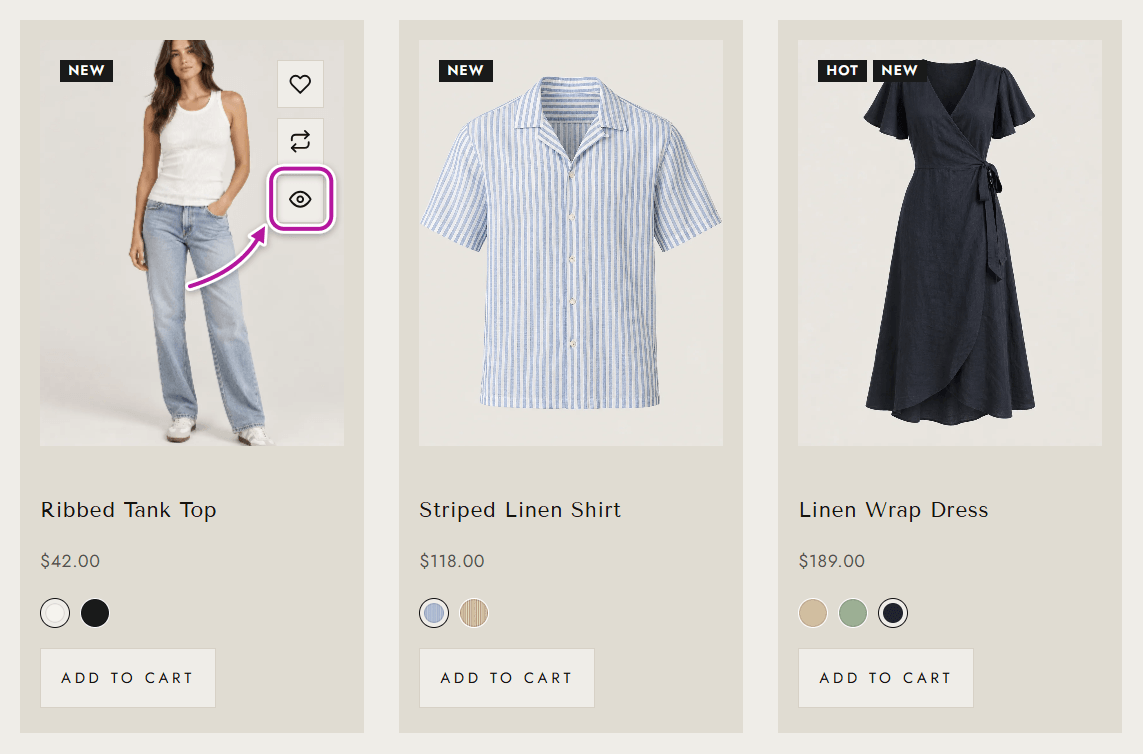
The quick actions sit over the product image. Each icon shows its name when you hover over it.
| Feature | What shoppers see | Setting / dependency |
|---|---|---|
| Quick View | An eye icon that opens a pop-up with a compact version of the product page — image slider, price, options and add-to-cart — without leaving the listing. | Quick View |
| Wishlist | A heart icon to save the product for later. | Wishlist Button — requires WPC Smart Wishlist |
| Compare | A compare icon that adds the product to a side-by-side comparison. | Compare Button — requires WPC Smart Compare |
| Sale badge | A "Sale" badge on products that are currently discounted. | Sale Badge |
| Add to cart | A button that adds the product without a page reload. It sits below the price or over the image. Out-of-stock products don't show it. | Add to Cart Position (After Price or Overlay the Image) |
Note
The Wishlist and Compare buttons depend on free third-party plugins — WPC Smart Wishlist and WPC Smart Compare. Until the matching plugin is installed and active, its toggle is disabled in the settings and the button doesn't appear on your cards.
Image and content
| Feature | What shoppers see | Setting |
|---|---|---|
| Image display | One of three behaviors: Single (one image), Slides (a small carousel of the product's gallery, with previous and next arrows) or Change on Hover (the first gallery image appears on hover). Products without gallery images always show a single image. | Image Display Mode |
| Price | The product price. | Price |
| Rating | The average star rating, placed before the title or after the price. | Rating, Rating Position |
| Categories | The product's categories as small badges, placed before the title or after the price. | Categories, Categories Position |
| Short description | The product's short description. List view always shows it; turn the setting on to show it in the grid too. | Description |
Swatches and quick add
With Enable Variation Swatches on, variable products show their options right on the card, after the price. Swatches on Product Cards picks how:
| Layout | What shoppers see |
|---|---|
| Compact (Quick Add) | The default. Color and image swatches stay on the card, one line per attribute; swatches that don't fit hide behind a +N chip that expands the row. The other options, such as size, move to a quick add panel that the add-to-cart button opens over the image — one tap on a size adds the product to the cart. |
| Full | Every attribute is listed on the card. Shoppers pick each option, then press the add-to-cart button. |
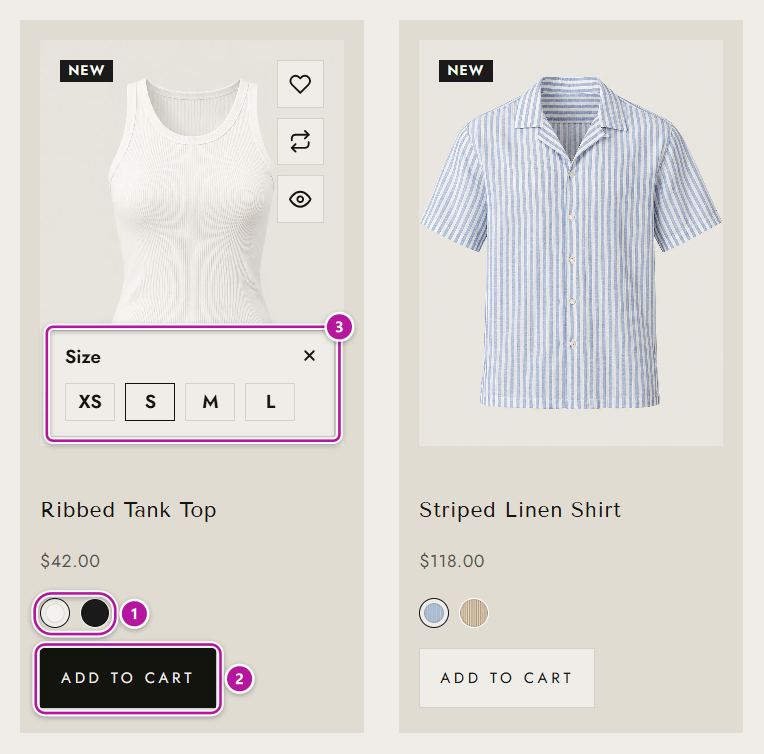
A few details make quick add safe and fast:
- A size that is preselected by default is never added unseen — the shopper confirms it with a tap in the panel.
- If a choice on the card is still missing, such as the color, the card points to it and adds the product as soon as it's picked.
- The panel closes with its close button, the Esc key, or a click outside the card.
- List view always shows every attribute on the card, whichever layout is set.
In both layouts, picking an option updates the card's price and — when that variation's image is part of the product gallery — its picture. Options that are out of stock are shown as unavailable. See Variation swatches for the swatch types and how to set them up.
Cards in widgets and your own designs
The Product Grid and Product Carousel widgets use the same card and carry their own card options, so a widget can look different from the shop — see the WooCommerce widgets. Where a Product Archive Global Section designs your shop, its widgets' card options apply instead of the Product Card settings — see Section types and the areas they replace.
Where to go next
Head back to Themeasy for WooCommerce, or open the full single product page. To change what cards show, open the WooCommerce settings.
Was this article helpful?