Installing the Themeasy theme
All Themeasy themes install the same way. This guide takes you from downloading the theme .zip
to the moment the Setup Wizard takes over.
Before you start
- An administrator account on your WordPress site.
- The theme
.zip— see the next section. - Hosting that meets the server requirements.
Get the theme zip
Where you bought the theme decides where you download it:
- Themeasy Hub — sign in to your account at hub.themeasy.co and open My downloads: every product you own is listed there, newest version first — click Download next to the one tagged Latest. You can also start from My products: open the theme and use the Download button on its Latest version card. Theme not in your account yet? Add your license key or purchase code under My licenses first. Open My downloads
- ThemeForest — on your Downloads page, download the "Installable WordPress file only". If
you grabbed "All files & documentation" instead, that's a bundle — unzip it and use the inner
theme
.zip.
The download is a single .zip named after the theme and its version. Keep it zipped — you upload
the .zip itself.
Note
Bought on themeasy.co? Your purchase confirmation email has your license key. Keep it handy — the Setup Wizard asks for it right after you activate the theme. ThemeForest buyers use their Envato purchase code instead.
Install from the WordPress admin (recommended)
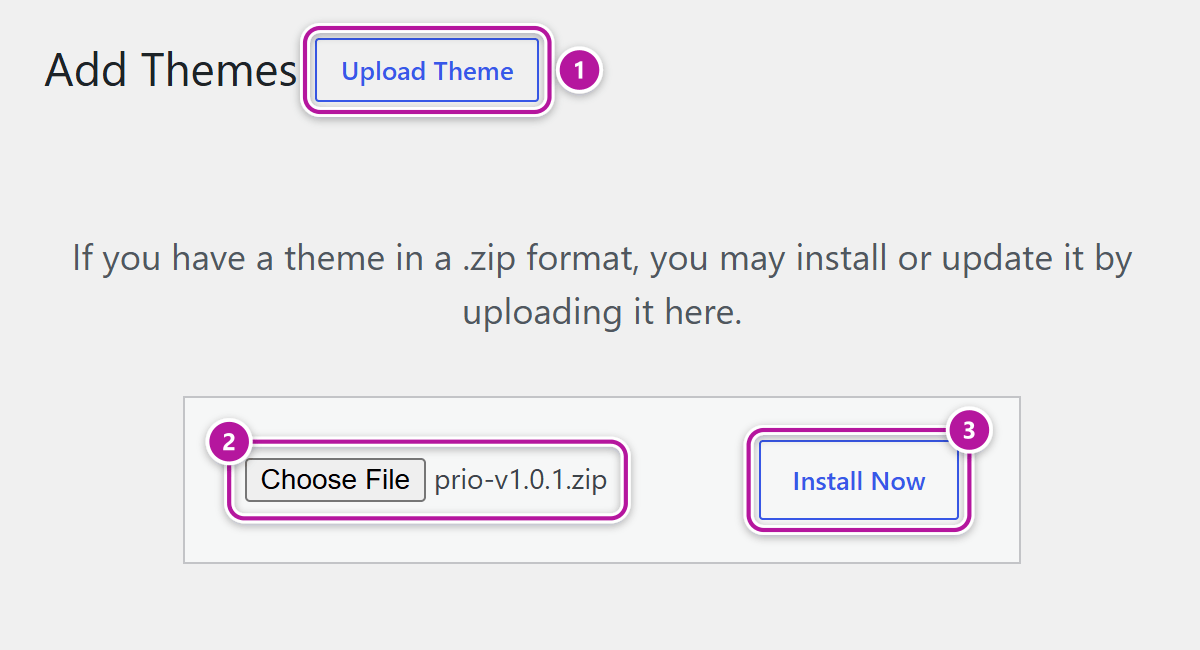
- Go to Appearance → Themes, click Add Theme, then Upload Theme.
- Choose the theme
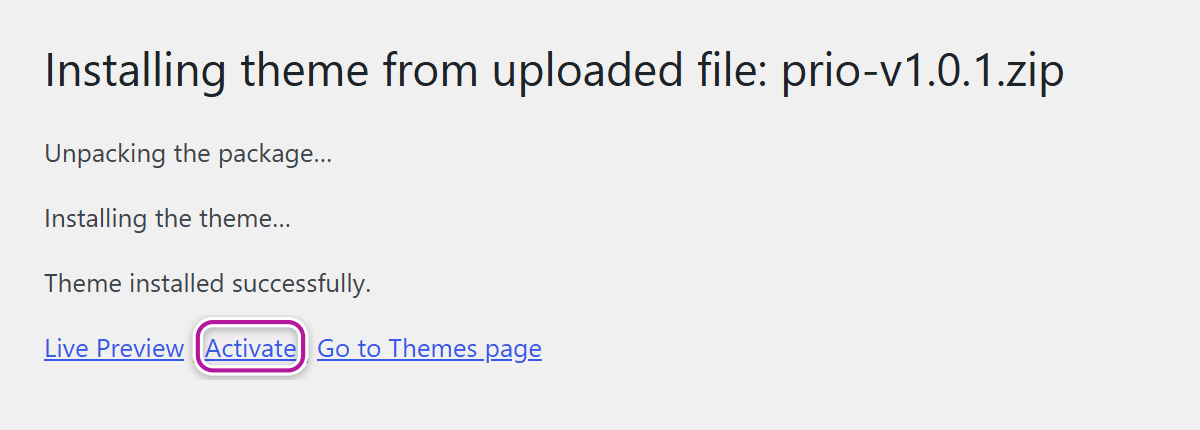
.zipand click Install Now. - When the install finishes, click Activate.
Tip
Installing on a live site? Activate on a staging copy first, confirm everything looks right, then repeat on production.
Install via FTP (alternative)
If your host's upload limit rejects the .zip, or you can't upload through the admin, install the
files directly:
- Extract the
.zipon your computer — you get a single theme folder. - With your FTP/SFTP client, upload that folder to
/wp-content/themes/on your server. - In WordPress, go to Appearance → Themes and activate the theme.
After activation — the Setup Wizard takes over
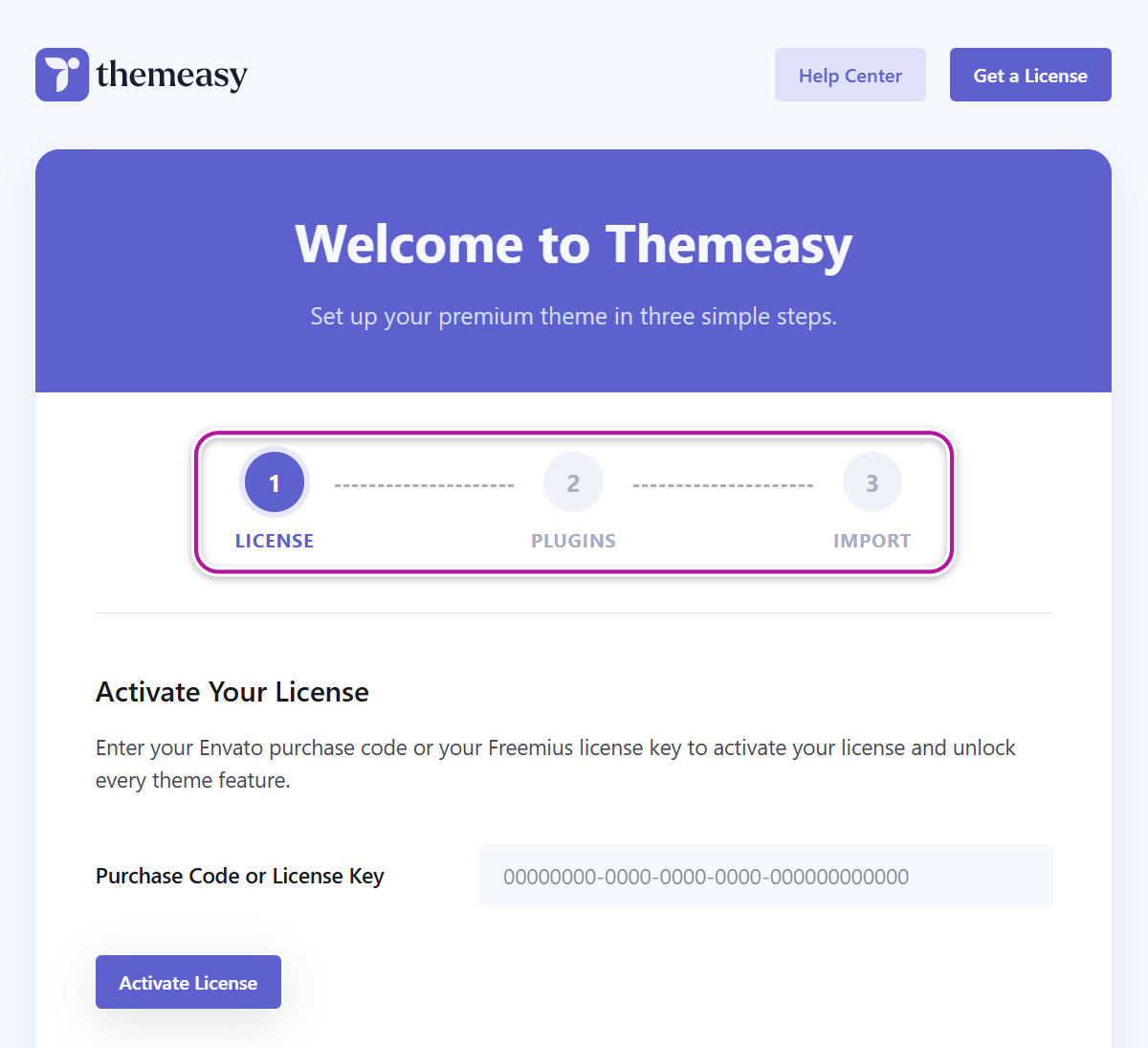
Right after you activate the theme, it redirects you (once, on the next admin page load) to the Setup Wizard — the screen headed "Welcome to Themeasy". That's where everything else happens: activate your license, install the required plugins (Elementor and Themeasy, plus WooCommerce on a store theme) and import a starter demo. You can reopen it any time at Appearance → Theme Setup. Follow the theme setup wizard from here.
Note
If the required plugins aren't installed yet, a dismissable reminder also appears on the Plugins screen — but the wizard is the recommended path.
Once your site is set up, keep the theme current — see updating the Themeasy theme. Prefer installing the companion plugin by hand? See installing the Themeasy plugin.
Troubleshooting
▸ "The package could not be installed. The theme is missing the style.css stylesheet."
You uploaded the full bundle or the wrong .zip. Unzip the file you downloaded and upload only
the inner theme .zip.
▸ "The link you followed has expired." — or the upload fails midway
The .zip exceeds your host's upload limit. Ask your host to raise upload_max_filesize and
post_max_size (see the recommended PHP settings), or use the FTP
path above.
▸ The Setup Wizard didn't open after activation
The redirect happens only once, for the administrator who activated the theme. Open the wizard yourself at Appearance → Theme Setup — it picks up at the first step you haven't finished.
Was this article helpful?