The theme setup wizard
When you activate a Themeasy theme, a setup wizard gets your site ready in four screens: License → Plugins → Import → Setup Complete. The first three are the numbered steps — activate your license, install the required plugins, and import a starter demo — and they are sequential and locked: each one unlocks the next. The last screen is the finish line.
Tip
Haven't installed the theme yet? Start with installing the Themeasy theme, then come back here.
When the wizard appears
Right after you activate the theme, the wizard opens automatically the next time an admin page loads. You need to be an administrator. The page is headed "Welcome to Themeasy" — "Set up your premium theme in three simple steps." — and the top bar carries two buttons, Help Center and Get a License.
There's no "skip" button, but you can navigate away at any time. Each step stays locked until it's genuinely done, so reopening the wizard drops you back on the first step you haven't finished.
Note
You can reopen the wizard whenever you like at Appearance → Theme Setup — for example to re-import the demo or manage your license.
Step 1 — Activate your license
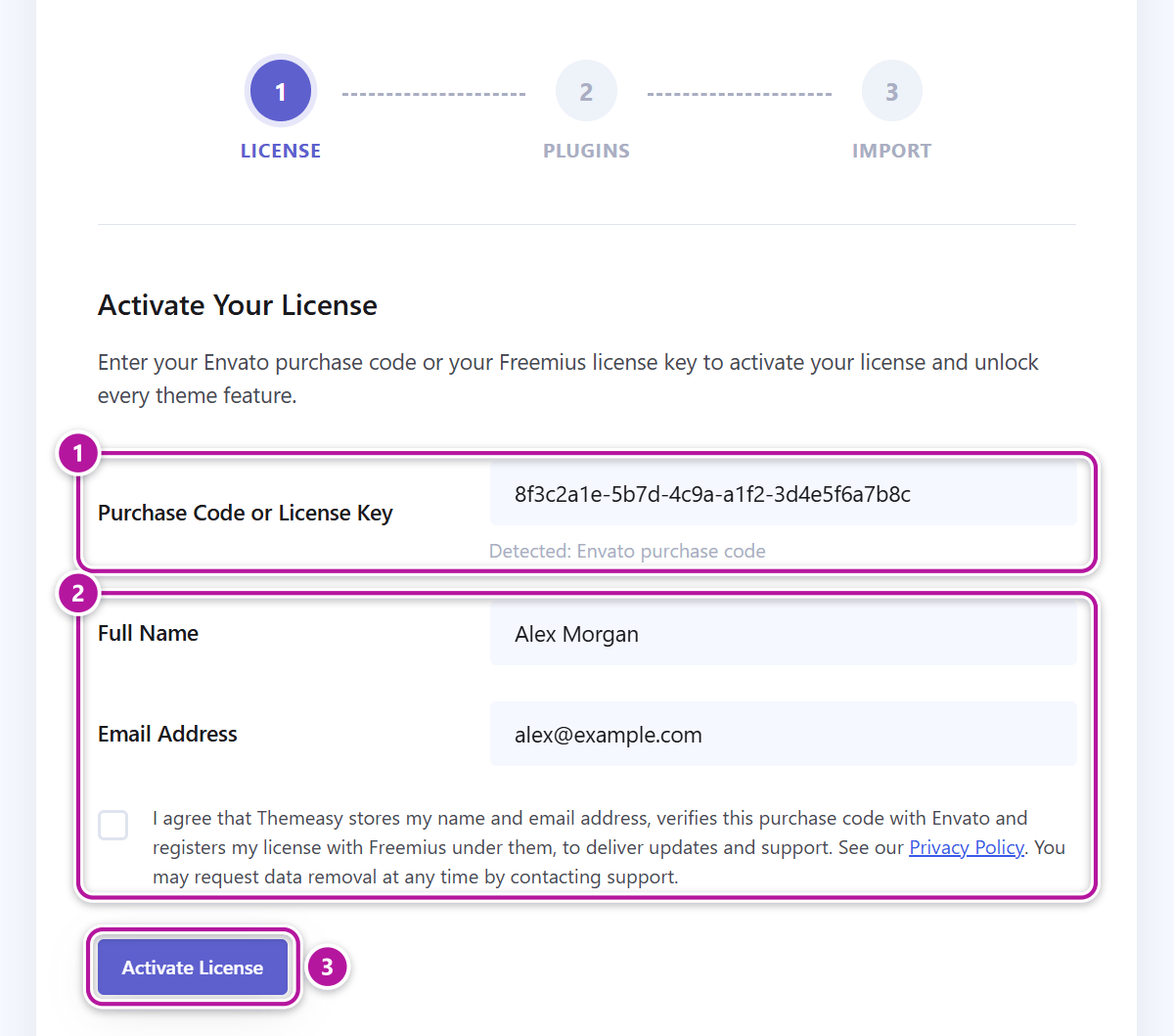
The first panel, Activate Your License, unlocks every theme feature and the rest of the wizard.
- In Purchase Code or License Key, paste your Envato purchase code or your Themeasy license key. The field detects which one you entered and shows a short "Detected: …" hint under it.
- If you entered an Envato purchase code, three more fields appear: Full Name and Email Address (prefilled from your WordPress user — adjust them if needed) and a consent checkbox with a Privacy Policy link, which you must tick. A Themeasy license key needs none of these — it already carries your account.
- Click Activate License.
The Plugins and Import steps stay locked until your license is active. Once it is, the wizard moves you straight on to the next unfinished step.
▸ Where do I find my purchase code or license key?
- ThemeForest — your Envato purchase code is on the license certificate you can download next to the theme on your ThemeForest Downloads page.
- themeasy.co — your license key is in your purchase confirmation email. You can also copy it from the Themeasy Hub: open My products, pick the theme and click Reveal on the License key card. See managing your licenses.
"This license is already active on another site"
If the license has no free site left, the error comes with a Manage your license in the Themeasy Hub link. It opens your product page in the Hub in a new tab: under Active sites, click Release next to the site you no longer use, then come back to the wizard and click Activate License again. See your products for the product page.
After activation — License Information
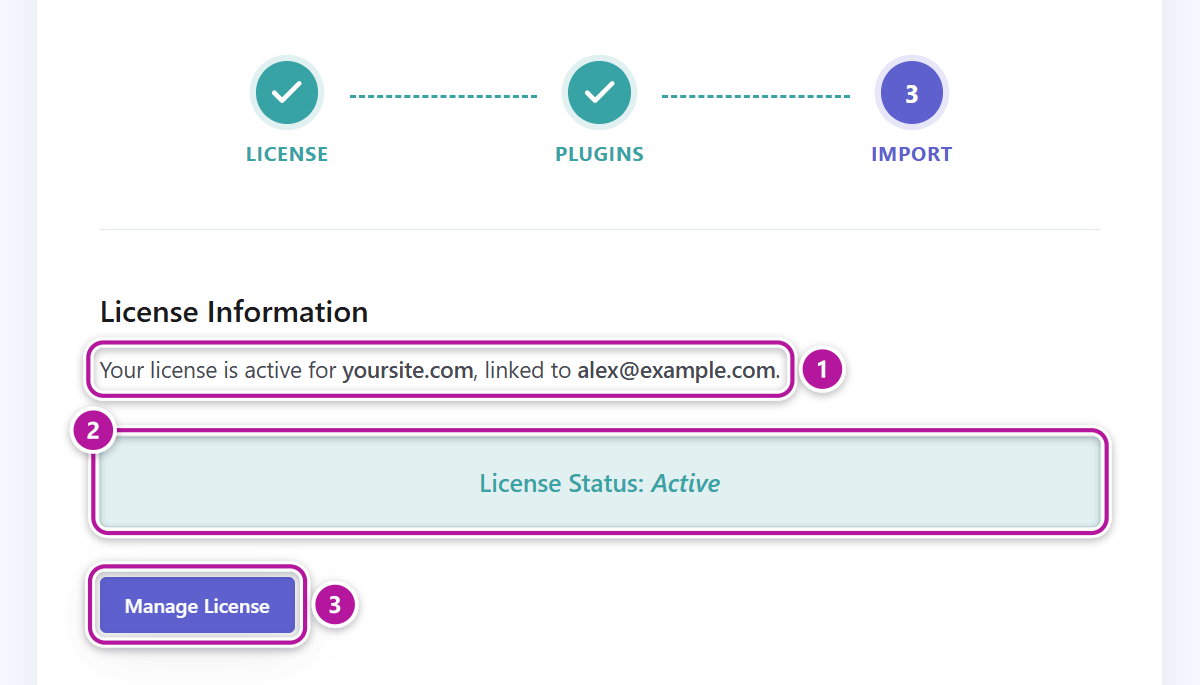
With the license active, the panel's title changes to License Information. It shows the licensed domain, the account email the license is linked to (when known — that's the account to sign in to the Themeasy Hub with), a License Status: Active badge and a Manage License button.
Manage License opens the theme's page in your Themeasy Hub account (hub.themeasy.co), where you see the license, its active sites and the latest downloads. To move the license to another site, release this site there (Active sites → Release) and activate the license on the new site.
Tip
The wizard re-checks the license on its own. If you release this site in the Hub while the wizard is open in another tab, it notices within seconds — as soon as you switch back — and returns to the activation form. No manual refresh needed.
Step 2 — Install required plugins
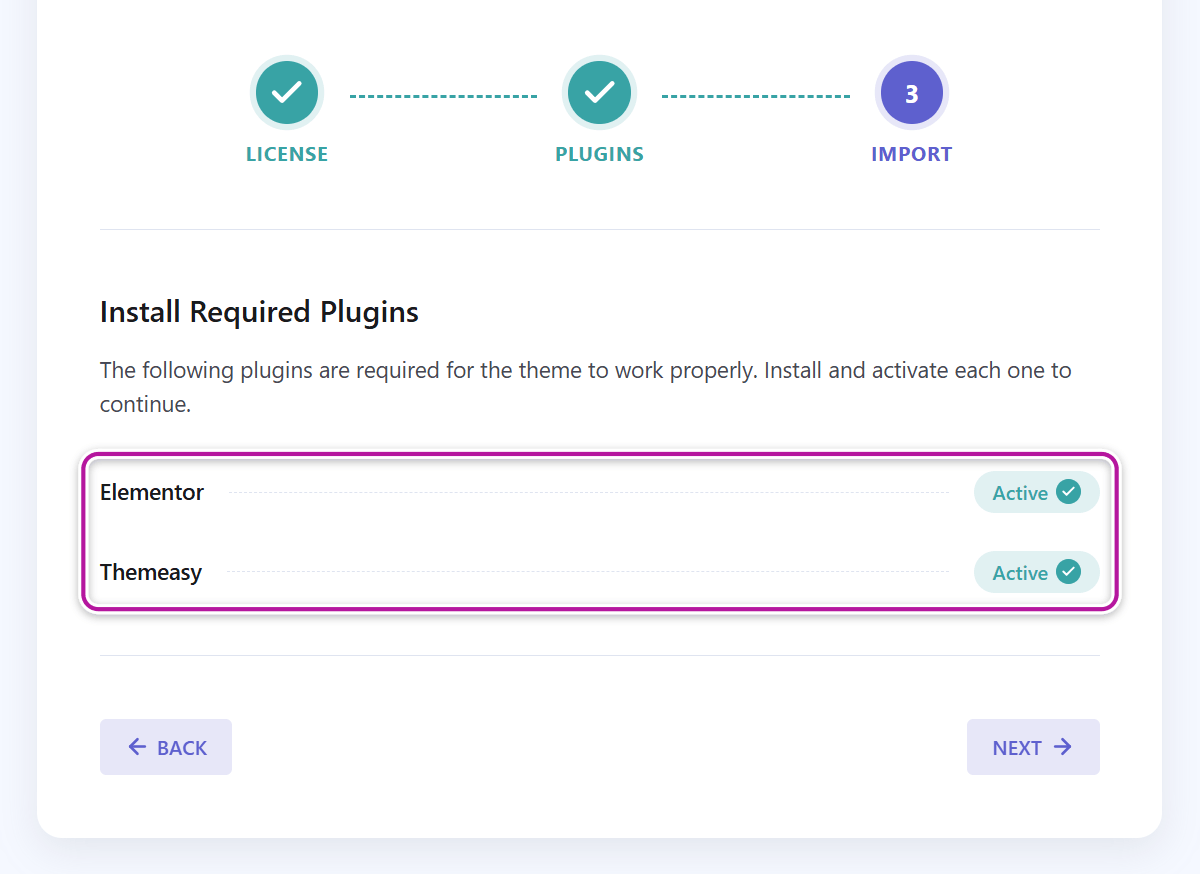
The Install Required Plugins panel lists the plugins the theme can't work without, each with its own button:
- Elementor — the page builder, from WordPress.org.
- Themeasy — the companion plugin that powers the theme's features. It comes with your theme license; there's no separate key to enter.
- WooCommerce — listed only on a store theme.
Each button moves through its states as you go: Install & Activate → Activate (installed but not yet active) → Active. As soon as the last one is active, the wizard moves on to the import step.
Note
Every plugin listed must be active before you can continue. A theme's optional, recommended plugins aren't offered in the wizard — look for them in the reminder on the Plugins screen.
▸ A plugin fails to install
An error next to the plugin — for example "The plugin could not be downloaded right now. Please try
again in a moment." — is usually temporary: click the button again. If it keeps failing, check that
your server allows outgoing HTTPS connections and has the zip extension (see the
server requirements), or install the plugin by hand — see
installing the Themeasy plugin.
Step 3 — Import demo content
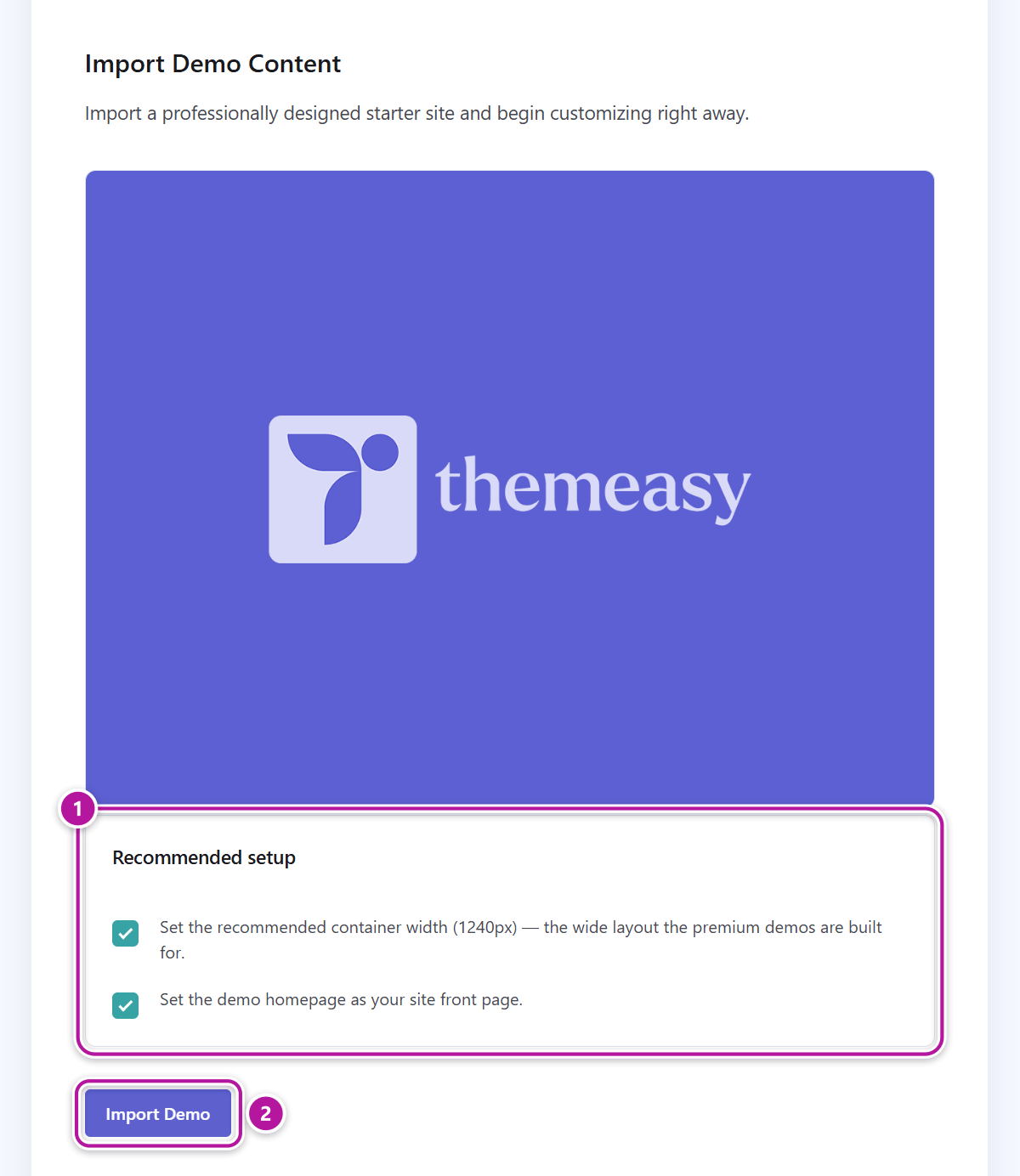
The Import Demo Content panel installs a professionally designed starter site so you can begin customizing right away.
Under Recommended setup, two options are ticked by default — untick either one before importing if you don't want it:
- Set the recommended container width (1240px) — the wide layout the demos are built for.
- Set the demo homepage as your site front page.
Click Import Demo and confirm the prompt. A progress bar runs through two stages:
- Importing content and media — the demo's pages, posts and images.
- Applying site settings — permalinks and menus, plus the options you left ticked above.
When it finishes, the panel lists what was applied, shows a Demo Status: Imported badge, and the wizard moves on to the final screen. If something goes wrong, an error message appears with a Try Again button.
Re-importing the demo
Once the demo is in, the button reads Re-import Demo. Running it again asks you to confirm first, because existing demo pages may be duplicated.
▸ The import stalls or keeps failing
The usual cause is a low PHP memory_limit or max_execution_time on your hosting. Ask your host
to raise them to the values in the server requirements, then click
Try Again.
Setup complete
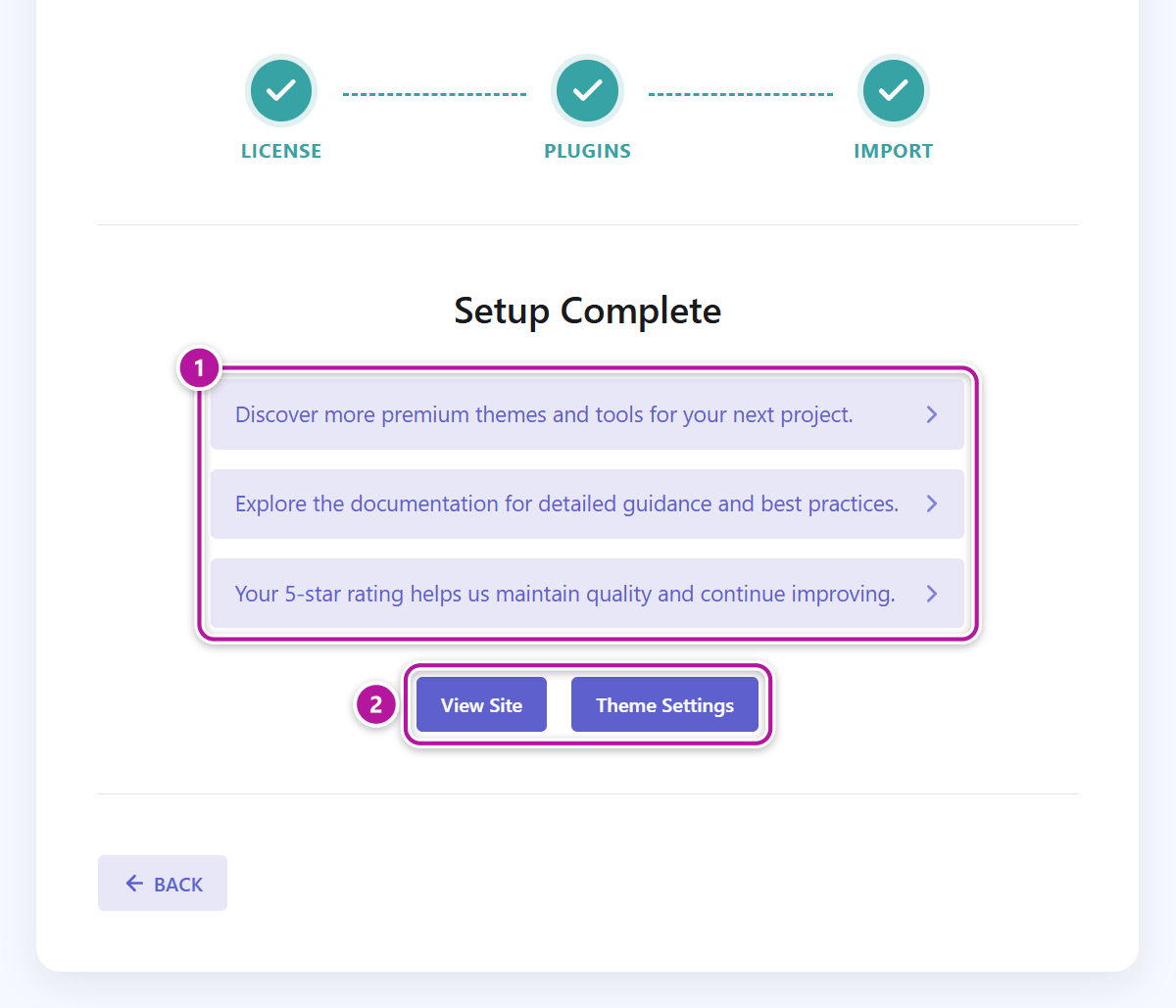
The Setup Complete screen rounds things off with a few helpful links (more Themeasy themes and tools, the documentation, and a place to leave a review) and two buttons:
- View Site — opens your live site in a new tab.
- Theme Settings — opens the Themeasy plugin dashboard, where you fine-tune your settings.
Moving between steps
Use Back and Next at the bottom of each panel, or click a step in the stepper at the top. Next stays disabled while the next step is still locked, and a finished step shows a check mark in place of its number.
When everything is done, Appearance → Theme Setup opens on the Setup Complete screen — use Back to reach the Import step (to re-import the demo) or the License step (to manage your license).
Where to go next
Was this article helpful?