Embed a template with a shortcode
Built a section you want to reuse? Themeasy lets you drop any saved Elementor template anywhere on your site with a simple shortcode — no need to rebuild it.
Availability
The shortcode comes with every version of the Themeasy plugin, including Themeasy Lite, on any theme. All it needs is Elementor.
Copy the shortcode
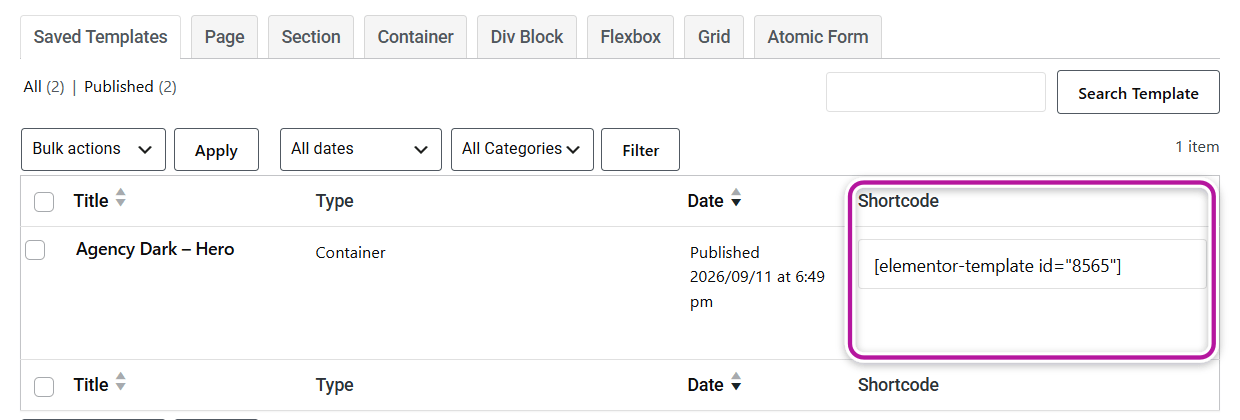
Themeasy adds a Shortcode column to Elementor's templates list, under Templates → Saved Templates. Each published template shows a ready-to-copy shortcode — click the field to select it:
[elementor-template id="123"]
The number is the template's ID, so every template has its own shortcode.
Use it
Paste the shortcode wherever WordPress runs shortcodes — a post or page, a Shortcode block, a text widget, or Elementor's own Shortcode widget. The template renders in place, with its styles included.
Edit the template once and every place that embeds it updates.
Good to know
- Only Elementor templates. The shortcode accepts templates saved in Elementor's library. A Global Section is placed through the Theme Builder instead.
- Drafts stay private. An unpublished template has no shortcode in the list, and visitors see nothing where one is embedded.
- A template can't embed itself. Used inside the same template, the shortcode prints "Template ID cannot be the same as the current page." instead of looping.
- Multilingual sites. With WPML, the shortcode shows the template's translation for the current language, or the original when there isn't one.
Where to go next
Was this article helpful?