The Themeasy settings panel
The Settings panel is where you configure how the Themeasy plugin and theme look and behave across your whole site. This page shows you how to open it and how to find your way around.
Open the Settings panel
You need to be a site administrator. Make sure the Themeasy plugin and a Themeasy theme are installed and active.
In the WordPress admin sidebar, click Themeasy (it sits just above Appearance), then choose Settings.
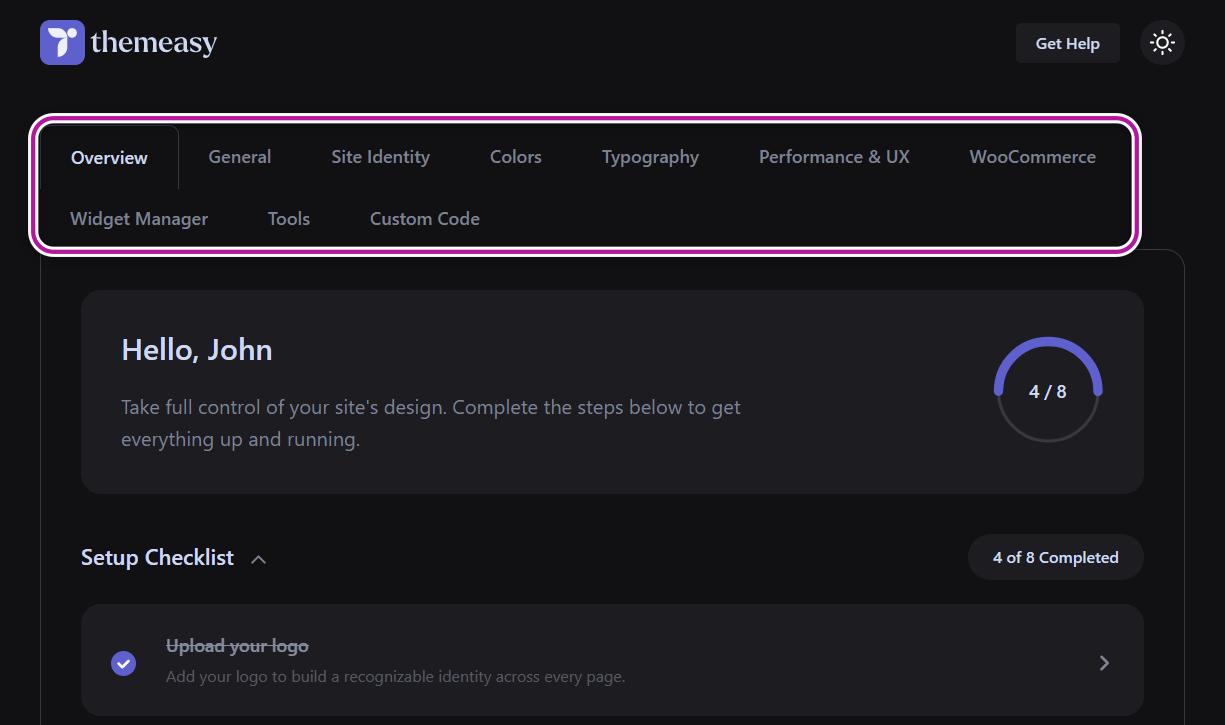
Don't see the Settings panel?
The full panel appears when a Themeasy theme is active and your site has an active theme license or a Pro or Agency plan. On any other setup, the Themeasy menu opens a single Getting Started or Upgrade page instead. See Installing the Themeasy plugin for how to unlock the panel, and Themeasy Widgets for what the plugin does on any theme.
The Themeasy menu
Clicking Themeasy in the admin sidebar opens a submenu. From top to bottom:
| Menu item | What it opens |
|---|---|
| Settings | The tabbed panel described on this page. |
| Site Identity, Colors, Typography | Shortcuts straight into those three tabs of the Settings panel. |
| Theme Builder | The visual dashboard for your headers, footers and other site parts. See The Theme Builder. |
| Sections | The full list of your Global Sections. See Global Sections. |
| Header, Footer | The same list, filtered to your header or footer sections. |
| Mega Menu | Your mega menu panels. See Mega Menu. |
| Templates | The Themeasy template catalog at library.themeasy.co. To insert templates while you edit a page, see The Themeasy Library. |
| White Label | Agency plan only. Rebrand the plugin for your clients. See White Label. |
Thin dividers split the menu into groups: the settings shortcuts first, then the site-building tools, then Templates.
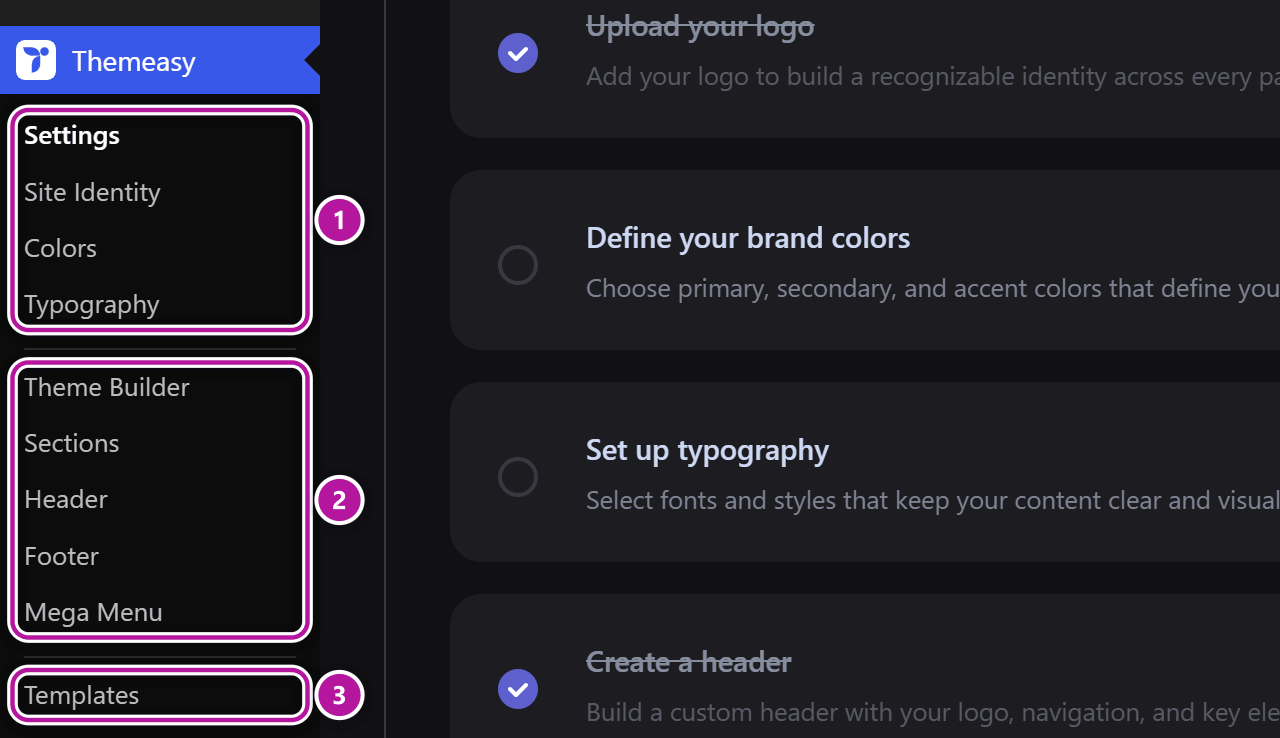
Find your way around
Navigation is by tabs across the top of the panel. Within each tab, settings are grouped into accordion sections — the first section is expanded by default, and you click a section header to expand or collapse it. One section, Text Presets in the Typography tab, also has a vertical list inside it: pick an item on the left to see its controls on the right.
Every screen of the panel shares a top bar with the Themeasy logo, a Get Help button (opens the Themeasy help center in a new browser tab) and a light/dark mode toggle. That toggle changes only the admin panel's appearance and is remembered in your browser — it does not change your website's dark mode.
Most tabs end with a Save Changes button and show a "Settings saved." notice after you save. Overview and Tools are action screens, so they have no Save button. The WooCommerce tab appears only when WooCommerce is active.
Save before you switch tabs
Save Changes saves the tab you are on. If you move to another tab without saving, the changes you made on the tab you left are lost.
The settings tabs
The tabs run in this order: Overview → General → Site Identity → Colors → Typography → Performance & UX → WooCommerce (if active) → Widget Manager → Tools → Custom Code. Pick a tab below to jump to its guide.
Three of these settings also reach Elementor: each time you save, your Colors, your Typography and the Content Width from the General tab are copied into Elementor's Site Settings — see Global colors & fonts sync.
Was this article helpful?