Updating the Themeasy theme
While your license is active, theme updates show up in WordPress like any other theme update — no extra tools needed. This page covers the one-click path, how long updates last, what to check when an update doesn't appear, the manual fallback, and what an update does (and doesn't) touch.
One-click updates (the normal path)
With your license active, a new release appears in Dashboard → Updates and on the theme's card under Appearance → Themes ("New version available"). Click Update now and WordPress swaps the theme in place.
Prefer hands-off updating? Click the theme under Appearance → Themes to open its details and use WordPress's standard Enable auto-updates link.
Tip
Back up your site (or take a snapshot on managed hosting) before updating — standard advice for any update.
How long updates last
A theme bought on its own — on themeasy.co or on ThemeForest — includes six months of updates and support from the purchase. On ThemeForest the period follows the item support you hold there: six months by default, longer if you extended it at purchase.
The license itself never expires. When the period ends, your theme, the Themeasy plugin and every feature keep working exactly as installed — what the period covers is new versions and support.
- See your date — in the Themeasy Hub, open My products and pick your theme. The line under its name reads "updates expire …" with the date. See your products.
- Extend it — open a ticket and our team will help you extend your updates and support. Open a ticket
A theme you use through the Themeasy Bundle shows "Included in …" there instead — it's covered by your subscription rather than by a six-month period.
Update not showing?
- Check your license first. Updates are only delivered while the license is active on this site. Open Appearance → Theme Setup and confirm step 1 shows License Status: Active. If you see the Activate Your License form instead — for example because the site was released in the Hub — activate it again in the theme setup wizard, then look again.
- Check your updates period. Once the six-month period described above has ended, new versions may stop showing up in WordPress. Look for the "updates expire …" date on your product page in the Hub, and open a ticket to extend it.
- Force a fresh check. WordPress caches update checks for several hours. Go to Dashboard → Updates and click Check again.
Manual update (fallback)
You can update by re-uploading the theme at any time — no need to wait for the update notice:
- Download the latest theme
.zip— from My downloads in your Themeasy Hub account or from your ThemeForest Downloads page (the same sources as when installing the theme). - Go to Appearance → Themes, click Add Theme, then Upload Theme. Choose the
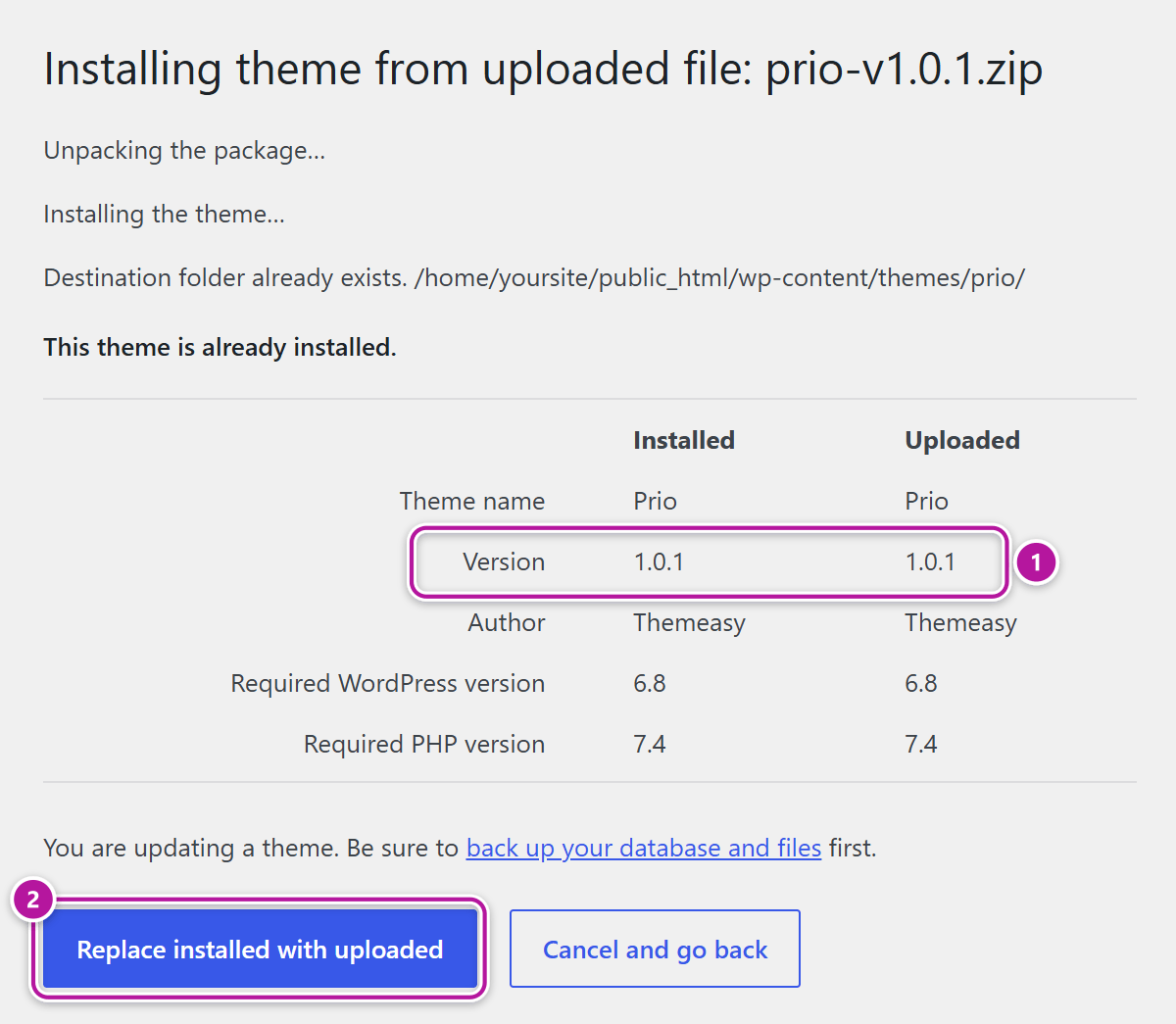
.zipand click Install Now. - WordPress tells you "This theme is already installed." and compares the installed and uploaded versions — click Replace installed with uploaded. Your license stays active; there's nothing to re-activate.
Prefer FTP? Overwrite the theme's folder in /wp-content/themes/ with the new version — see the
FTP steps in installing the Themeasy theme. For where each build
lives in the Hub, see downloading your products.
What an update changes (and what it never touches)
Updates replace theme files only. Your content, menus, Elementor templates and every setting in the Themeasy panel live in the database and survive untouched — there's no demo re-import or reconfiguration afterwards.
Warning
Anything you hand-edited inside the theme's files is lost on update. Don't edit theme files — put custom CSS and JS in the settings panel's Custom Code instead, where it survives every update.
Release notes
Every release's changelog is published on the Themeasy Hub: in your account, open My products, pick your theme and click View changelog. On the changelog page you can click Subscribe via email to get a message when a new version ships, or follow the RSS feed. See release notes & changelog for more.
Keep the plugin updated too
The Themeasy plugin updates the same way while your theme license is active, and the same six-month period covers it — see installing the Themeasy plugin.
Was this article helpful?