Overview & setup checklist
The Overview tab is the first screen you see when you open the Settings panel. It is a dashboard rather than a settings form, so it has no Save Changes button — it updates on its own as you complete each step elsewhere.
Welcome & progress
The Overview greets you by name ("Hello, Alex") and shows a circular progress ring — for example 4 / 8 — that counts how many checklist steps are done. The total is 8 when WooCommerce is active and 7 when it is not. Once every step is complete, the welcome text confirms your site is all set up.
License
If the plugin runs on its own plan license, a License card sits under the welcome. It names your plan and has a Manage License button, which opens your Themeasy Hub account in a new tab — that is where the license key and its sites are managed (see Licenses). On a Pro plan, the license owner also sees an Upgrade to Agency button; Agency adds White Label.
Sites unlocked by a theme license do not show this card.
Setup Checklist
The Setup Checklist lists the steps that get a new site ready, with a badge such as 4 of 8 Completed. Each row links to the right screen and ticks itself once that step is done. Work through them in any order:
| Checklist item | Where it takes you | Ticks when |
|---|---|---|
| Upload your logo | The Site Identity tab. | A Main Logo is set. |
| Define your brand colors | The Colors tab. | You change the Primary, Secondary or Accent color from its default. |
| Set up typography | The Typography & fonts tab. | You change the Primary (Body) font source or font family from its default. |
| Create a header | Themeasy → Header, the list of your header sections. See Global Sections. | A header section is published. |
| Create a footer | Themeasy → Footer, the list of your footer sections. See Global Sections. | A footer section is published. |
| Set up a navigation menu | WordPress Appearance → Menus. | A menu is assigned to the theme's primary menu location. |
| Set a homepage | WordPress Settings → Reading. | A static page is chosen as your homepage. |
| Configure your store | The WooCommerce settings tab. This row appears only when WooCommerce is active. | You change Products Per Row or Rows Per Page from its default. |
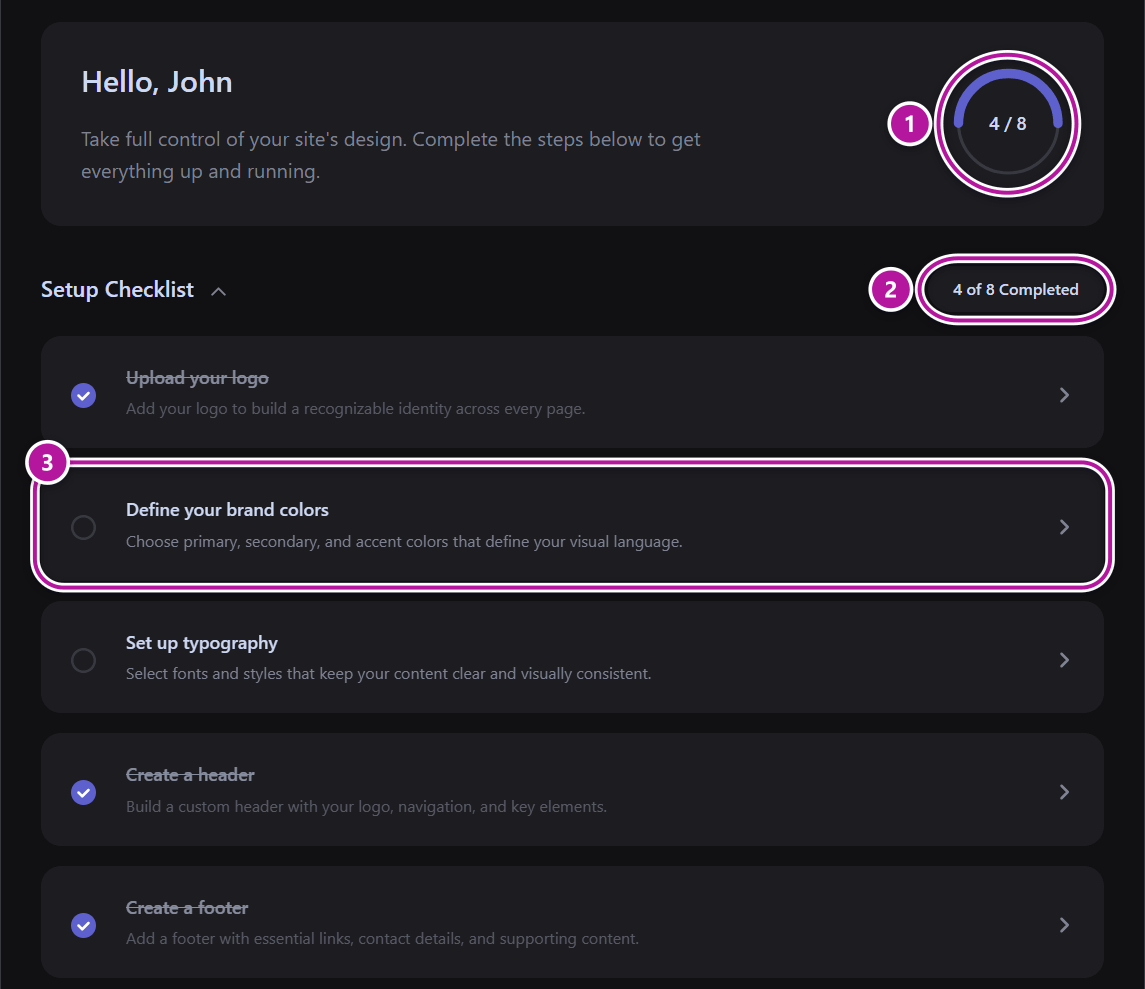
Click the Setup Checklist heading to collapse or expand the list. Once every step is complete, the list starts collapsed and the badge disappears.
Tip
A step only ticks when you change something. If you are happy with a default — the default brand colors, for example — that row stays unticked, and that is fine. The checklist is a guide, not a requirement.
Environment
The Overview ends with a read-only list of versions:
- Themeasy
- WordPress
- PHP
- Theme (name and version)
- Elementor (or "Not active")
- WooCommerce (or "Not active")
Tip
Have these handy when you contact support — they help us reproduce what you're seeing.
Back to the Settings panel overview.
Was this article helpful?