Themeasy widgets for Elementor
When the Themeasy plugin is active alongside Elementor, the editor gains a library of ready-made widgets, grouped into Themeasy-branded categories, and extra icon libraries in Elementor's icon picker. Pro and Agency also layer editor enhancements onto Elementor's own containers and page settings — the guides at the bottom of this page cover each one.
Before you start
You need Elementor (free) installed and active. Elementor Pro is not required. WooCommerce is needed only for the store widgets, and a few widgets rely on another plugin — each guide says which. If you haven't already, install the Themeasy plugin. How many widgets you see depends on your plan, as explained below.
Where the widgets live
In the Elementor editor, open the widget panel. The Themeasy categories sit at the top, right below Elementor's Favorites, and each one is named "Themeasy — …". Elementor's own widgets follow underneath and are always available. Find the widget you want — or type its name in the panel's search box — and drag it onto the canvas.
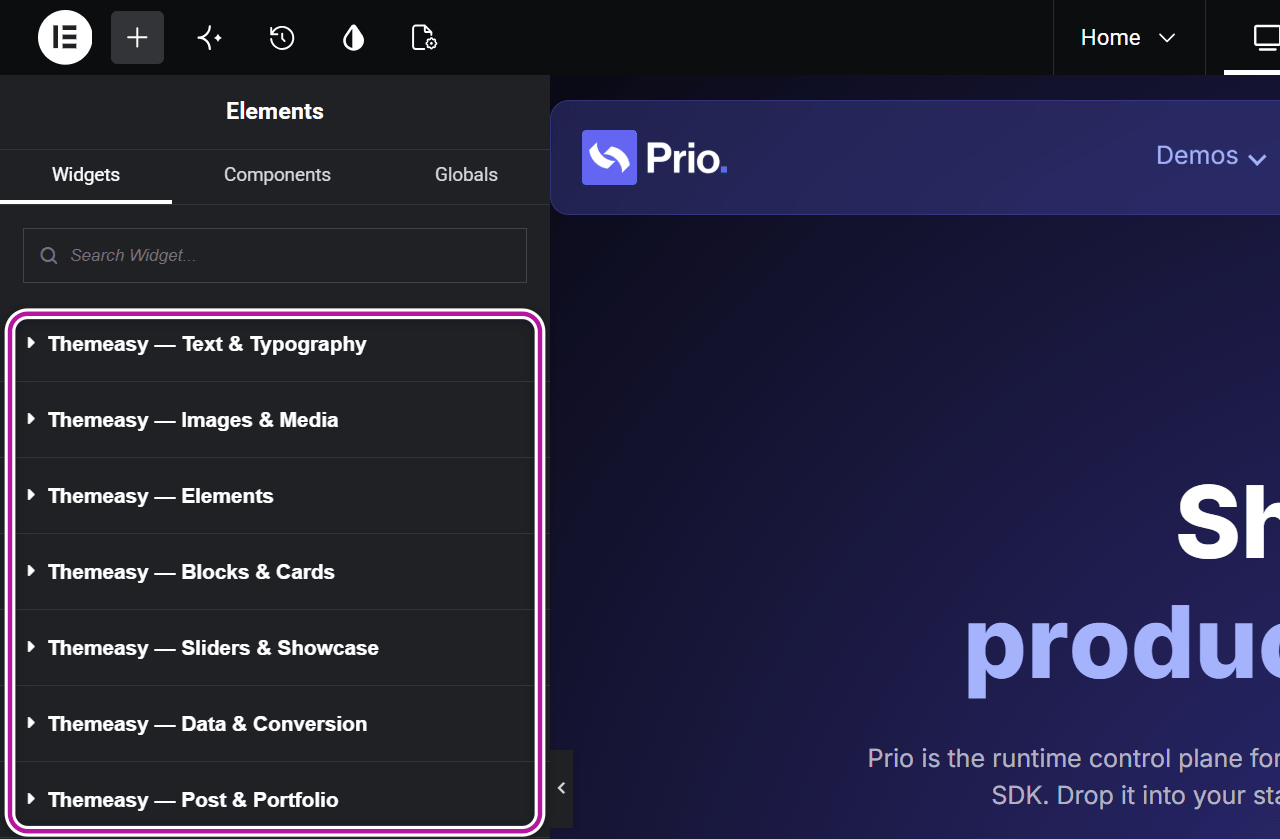
The widget categories
| Category | What's inside | Guide |
|---|---|---|
| Themeasy — Text & Typography | Headlines, section intros, rich text and animated type — typed, scrambled, marquee and scroll-reveal text. | Content & site widgets |
| Themeasy — Images & Media | Images, galleries, video, audio, image effects and Lottie animations. | Content & site widgets |
| Themeasy — Elements | The small pieces: buttons, icons, lists, badges, dividers, social links and a search field. | Content & site widgets |
| Themeasy — Blocks & Cards | Cards, calls to action, team and testimonial blocks, logos, accordions, tabs, steps and timelines. | Content & site widgets |
| Themeasy — Sliders & Showcase | Sliders, 3D carousels and scroll-driven hero and storytelling sections. | Content & site widgets |
| Themeasy — Data & Conversion | Counters, ratings, progress bars, charts, pricing, countdowns, business hours, forms, maps and popups. | Content & site widgets |
| Themeasy — Post & Portfolio | Dynamic widgets that pull live content: post title, meta, comments, grids, carousels and the archive loop. | Post & Portfolio widgets |
| Themeasy — WooCommerce | Store widgets: product grids, carousels, single product, attributes, reviews and a live filter. Appears only when WooCommerce is active. | WooCommerce widgets |
| Themeasy — Header | The pieces of a header: logo, menus, toggles, cart and switchers. | Header & footer widgets |
| Themeasy — Footer | The copyright bar, plus the logo and switchers, which are listed here too. | Header & footer widgets |
| Themeasy — Site Utilities | Site-wide helpers: breadcrumbs, notification bar, notice box, scroll-to-top, side elements and a custom cursor. | Content & site widgets |
| Themeasy — Megamenu | Widgets built for composing a mega menu panel. | Mega Menu widgets |
A few widgets are listed in two categories so they're at hand wherever you need them — Site Logo, for example, appears under both Header and Footer.
Note
On a site that uses the Agency White Label, the categories and icon tabs carry your agency's brand name instead of "Themeasy".
Which plan gets which widgets
| Plan | Widgets | In the editor |
|---|---|---|
| Themeasy Lite (free) | 18 essential widgets, without animations. | One category: Themeasy — Essentials. |
| Themeasy Widgets | 87 widgets — the six content categories, the 18 essentials included — plus Themeasy Motion. Works in any theme. | The six content categories. |
| Pro / Agency | Every widget: 128 on a Themeasy theme, 119 on any other theme. | All 12 categories. |
- The six content categories are Text & Typography, Images & Media, Elements, Blocks & Cards, Sliders & Showcase and Data & Conversion.
- Themeasy Widgets leaves out one content widget, Form, which comes with Pro and Agency — see Forms with Contact Form 7.
- The widgets that need a Themeasy theme are the WooCommerce category and the two cart widgets, Mini Cart and Mini Cart Toggle.
- A Themeasy theme with an active license unlocks the full library too — there's no separate plugin key to enter.
See Themeasy Widgets for what that plan covers, and Installing the Themeasy plugin for how to unlock yours.
The panel adapts to what you're editing
With Pro or Agency, the Themeasy categories you see — and their order — change with what you have open, so the panel leads with the widgets that fit the job.
| What you're editing | Themeasy categories shown, in order |
|---|---|
| A regular page, post or portfolio item | Text & Typography, Images & Media, Elements, Blocks & Cards, Sliders & Showcase, Data & Conversion, Post & Portfolio, WooCommerce |
| A header section (Header or Before Header) | Header, Elements, Text & Typography, Site Utilities |
| A footer section (Footer or Before Footer) | Footer, Text & Typography, Images & Media, Elements, Blocks & Cards, Data & Conversion, Post & Portfolio, WooCommerce, Site Utilities |
| A content section (Before Content, Page, Post, Archive or a sidebar) | The six content categories, Post & Portfolio, WooCommerce, Site Utilities |
| A mega menu panel | Megamenu, Elements, Text & Typography, Images & Media, Blocks & Cards, Post & Portfolio, WooCommerce |
A few things to know:
- WooCommerce is listed only while WooCommerce is active.
- A 404 Page section gets the same set as a regular page.
- A Global Section with no Section Type chosen yet shows every category — pick the type first and the panel tidies itself.
- Header, footer and content sections and mega menus belong to the Theme Builder, which runs on a Themeasy theme.
- On Themeasy Widgets you always see the six content categories; on Themeasy Lite, the single Essentials category.
See motion on the live page
Scroll-driven and cursor-driven widgets — pinned showcases, scroll sequences, cursor trails — show a static layout in the editor canvas so you can style them comfortably; their motion plays on the live page. Where an animation can't run in the canvas, the panel asks you to click Preview Changes (top right) to see it working.
Icon libraries
Themeasy also adds its own icon sets to Elementor's icon picker. Wherever a Themeasy widget lets you choose an icon, open the picker and you'll find these tabs next to Elementor's own:
| Tab | Style | Available on |
|---|---|---|
| Themeasy — Feather | Clean outline icons (about 290). The default icons in Themeasy widgets come from this set. | Every plan, Themeasy Lite included |
| Themeasy — Solar Line | Outline icons (more than 1,200). | Themeasy Widgets, Pro and Agency |
| Themeasy — Solar Solid | The same set with filled shapes. | Themeasy Widgets, Pro and Agency |
| Themeasy — Solar Duotone | Two-tone icons — a solid shape and a lighter one, both from the single color you pick. | Themeasy Widgets, Pro and Agency |
| Themeasy — Solar Broken | A line style with broken strokes. | Themeasy Widgets, Pro and Agency |
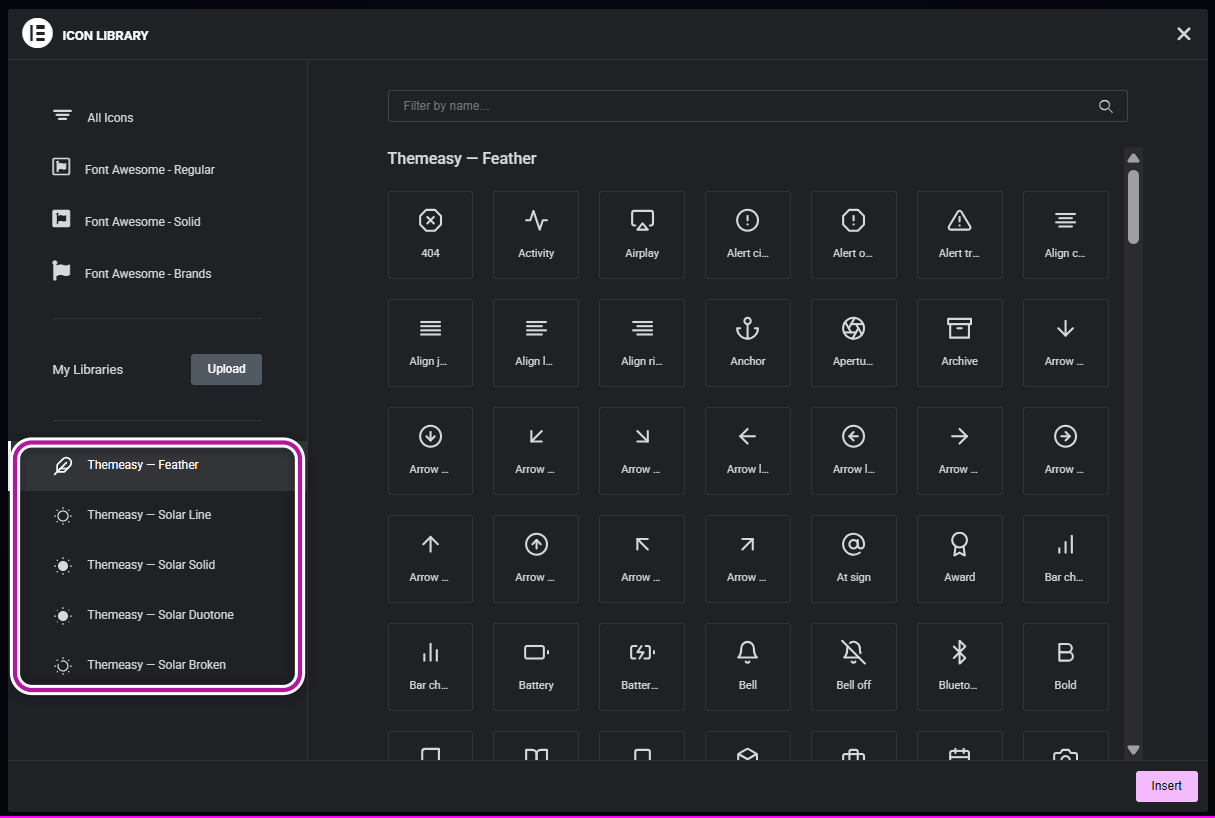
The icons are drawn as vectors, so they stay sharp at any size and take the color you set in the widget.
Turn individual widgets on or off
You don't have to keep every widget. On Pro and Agency, the Widget Manager tab in the Settings panel lets you switch any individual widget off, so the panel only shows what you use. See Widget Manager.
Explore the library
Was this article helpful?