Your dashboard
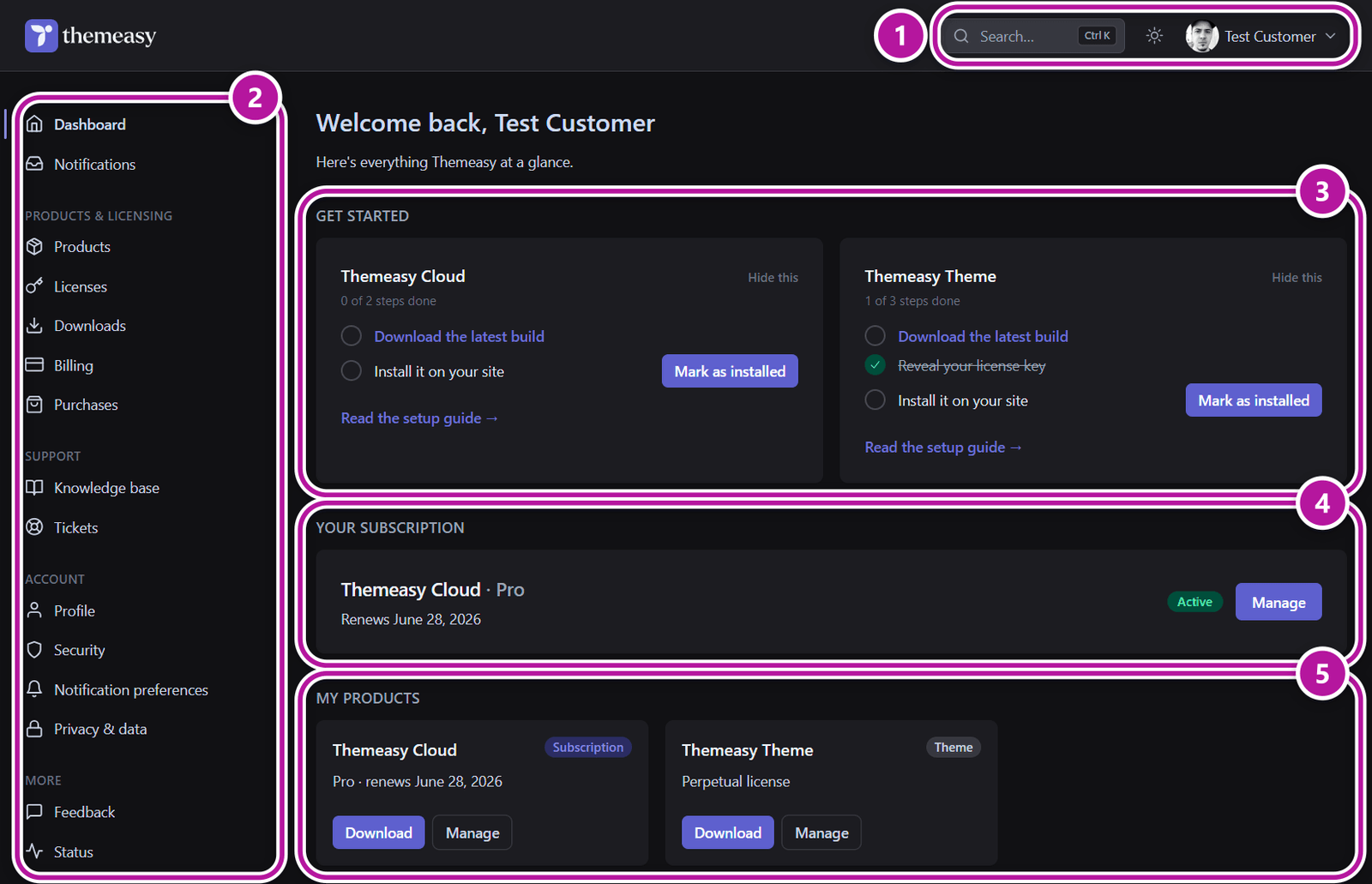
Your dashboard is your portal home. When you sign in, it greets you with "Welcome back, <name>" and the subtitle "Here's everything Themeasy at a glance." This page explains what each part means.
Alert banners
A few banners can appear at the top of the dashboard. Each one is conditional — you'll only see a banner when it applies to your account:
- Payment failed (red) — "Payment failed for <product>. Update your payment method to keep your subscription active." with an Update payment link to billing. Shows when a subscription payment is past due.
- Envato purchases linked (green) — confirms that purchases found on your Envato account were linked to your Hub account. Shows once, just after you sign in with Envato.
- Verify your email (amber) — "Please verify your email address to access all portal features." with a Resend verification email link.
- Expiry (amber, or red when already expired) — "<product> needs attention", followed by "Your access expires on <date>." or "Your access has expired." and a link to act on it: Renew on Freemius, Extend support (opens a ticket) or Manage subscription. It names your most urgent product and appears on every account page, not only the dashboard. You can dismiss it, but it returns if a new or worse expiry appears; the expiry badge on the product card stays either way.
Note
These banners only show when they're relevant. A quiet top of the dashboard means there's nothing that needs your attention right now.
Get started checklist
For any product you own but haven't set up yet, a Get started section lists one card per product (a bundle gets a single card for the whole membership). Each card shows the product name — click it to open the product — a progress line such as "1 of 3 steps done", and the steps:
- Download the latest build
- Reveal your license key
- Install it on your site, with a Mark as installed button
Read the setup guide opens the matching documentation, and Hide this removes the card. Once every step is done, the card drops off the dashboard. See your products for how each step gets ticked.
Your subscription
A card showing your active subscription: the product and plan, the renewal line ("Renews <date>" or "No upcoming renewal"), a status badge, and a Manage button that opens billing & invoices. If you don't have one, it reads "You don't have an active subscription."
My products
A grid of cards, one per product you own. Each card shows:
- the product name and a type badge — Theme, Plugin or Subscription;
- a line describing what you hold — for example "Pro · renews June 12, 2027" for a subscription, "Included in Themeasy Bundle" for a theme your bundle unlocks, "updates expire December 12, 2026" or "Perpetual license" for a theme bought on its own, or "expires <date>";
- an expiry badge when the product needs attention;
- Download and Manage buttons.
If you don't own anything yet, it reads "No products linked yet." with an Add a license link.
Download takes you to downloads; Manage opens that product's workspace — see your products for the full tour and licenses to manage keys.
Recent tickets
Your latest support tickets, each with a status badge, plus an Open a new ticket shortcut. If you haven't contacted us yet, it reads "You don't have any tickets yet." See support tickets for opening and following a conversation.
Recommended reading
A few suggested knowledge-base articles to help you get more from your products. Browse or search them all from the knowledge base.
The portal frame
The same frame surrounds every page, so once you know it you can navigate from anywhere.
Top bar
- The Themeasy Hub logo (takes you home).
- A Search… box — press Ctrl+K (or Cmd+K on a Mac) to jump to it from anywhere. See searching.
- A light/dark Toggle dark mode button.
- Your avatar and name. Click it to open the account menu: your name and email (opens your profile), Dashboard, Knowledge base, Downloads and Sign out.
Signed-out visitors see a Sign up button here instead.
Account sidebar
On account pages, a sidebar on the left groups everything:
- Dashboard and Notifications (your notification inbox) at the top.
- Products & licensing — Products, Licenses, Downloads, Billing, Purchases.
- Support — Knowledge base, Tickets.
- Account — Profile, Security, Notification preferences, Privacy & data.
- More — Feedback, Status.
Small counters can appear next to three items: unread notifications next to Notifications, expiring licenses next to Licenses, and open tickets next to Tickets. Sign out sits at the bottom of the sidebar. On a small screen the sidebar folds behind a Menu button.
Footer
The footer is the same on every page:
- Languages — a row of flags that switches the interface language. Six are available; see getting started.
- Your account — Dashboard, Licenses, Downloads, Billing & purchases, and Manage subscription (opens the Freemius customer portal).
- Help & resources — Documentation, Support, Feedback, Roadmap and System status.
- Products and Company — links to themeasy.co, the template library and ThemeForest.
- A bottom bar with a live status pill ("All systems operational", or the current problem) that opens the status page, the copyright line, and Privacy, Terms and Cookies.
On your first visit, a cookie notice appears with a Learn more link and Reject and Accept buttons. Essential cookies keep you signed in either way; traffic measurement only starts if you choose Accept. The choice is shared with themeasy.co and the template library, so you are asked once, and you can change it later from the Cookie Statement.
Need to get back in from a signed-out state? See signing in.
Was this article helpful?