Mega Menu widgets
The Themeasy — Megamenu widgets
When you edit a mega menu panel in Elementor, the widget panel is tailored to the job. Themeasy — Megamenu comes first, with three widgets built for panels. Below it you'll find the Elements, Text & Typography, Images & Media, Blocks & Cards and Post & Portfolio categories — and WooCommerce, when it's active — so you can drop buttons, headings, images, recent posts or products into a panel too. See Elementor widgets for what each category holds.
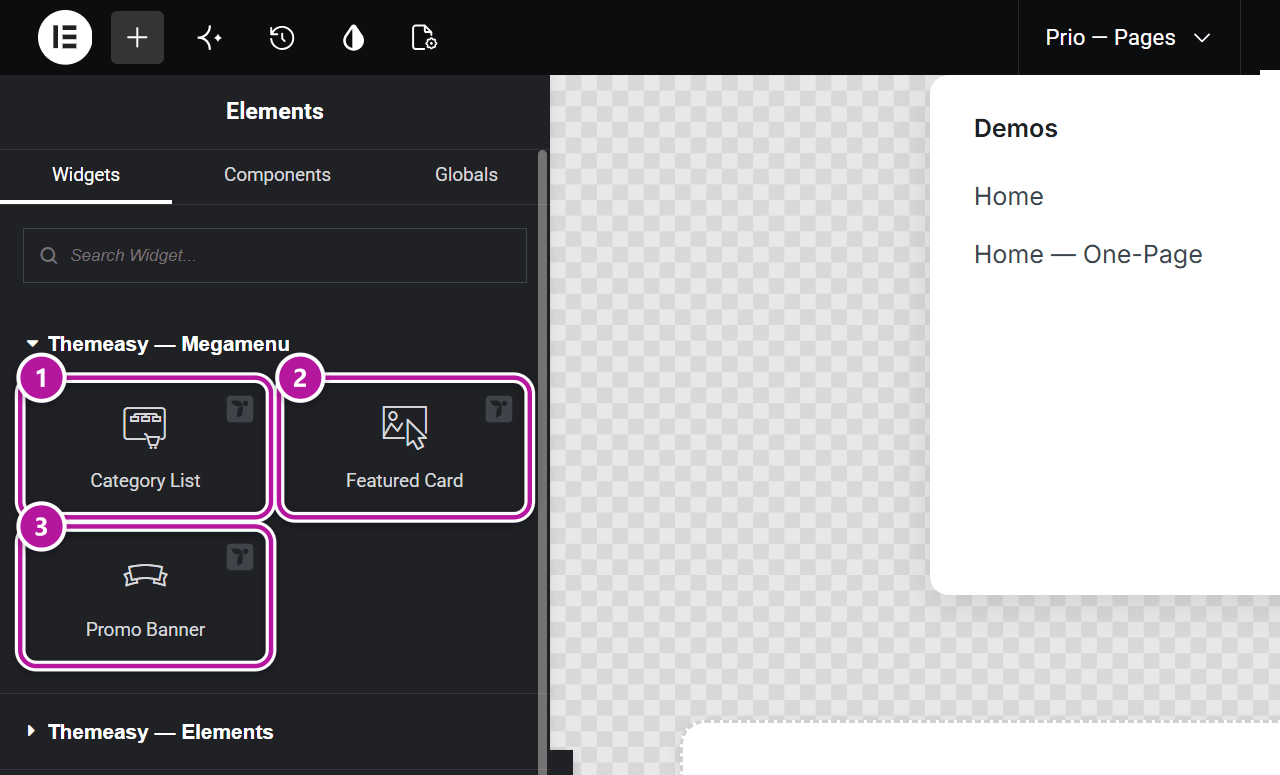
| Widget | What it's for | Notable options |
|---|---|---|
| Category List | A tidy list of categorized links, each with an optional thumbnail or icon, badge, description and count. Add items manually or pull them automatically from any taxonomy. | Source (Manual / From Taxonomy); an optional header (Show Header, Title, Description); an optional View All link; Item Layout (Inline / Stack); Columns (1 to 4); the count Style (Plain Text / Pill) |
| Featured Card | A compact image card — badge, eyebrow, title, description and call to action — sized for a narrow panel column. The whole card is clickable. | Image and Aspect Ratio; Badge and Badge Position (Top Left / Top Right); Eyebrow; Title; Description; CTA Text; Link; Hover Effect (None / Zoom Image / Lift Card / Overlay Fade) |
| Promo Banner | A banner with a full-bleed background image — eyebrow, title, subtitle and button — to close a column with a strong call to action. The whole banner is clickable. | Background Image; Eyebrow; Title; Subtitle; Button Text; Link; Horizontal Align and Vertical Align; Aspect Ratio; Min Height; Overlay Color; Hover Effect (None / Zoom Image / Darken Overlay) |
Category List in detail
The Source setting decides where the links come from.
| Source | You set |
|---|---|
| Manual | Each item yourself: Thumbnail, Icon, Text, Description, Badge, Count and URL. |
| From Taxonomy | The Taxonomy to read — product categories, post categories, tags and so on — plus Number of Items, Order By (Name / Count / Slug / Term Order), Order, Hide Empty, Show Item Count and Highlight Current Term. |
With From Taxonomy, the list stays up to date on its own as you add or rename terms. Highlight Current Term marks the term whose archive the visitor is currently viewing, and Fallback Icon is used for items that have neither a thumbnail nor an icon.
Tips for building a panel
- Lay the panel out as one container with a few columns: link lists in the first columns, a Featured Card or Promo Banner in the last.
- In the Featured Card and Promo Banner, leave a text field empty to hide that element — the badge, description, subtitle and button are all optional.
- The width you give the panel's main container matters on desktop. See Choose its width and position on desktop.
- Panels also render inside the mobile menu unless you hide them there, so check the result on a narrow screen.
Where to go next
Was this article helpful?