Display rules and exclusions
Display Rules and Exclude Rules
Every section has two rule lists in the Global Section Settings box.
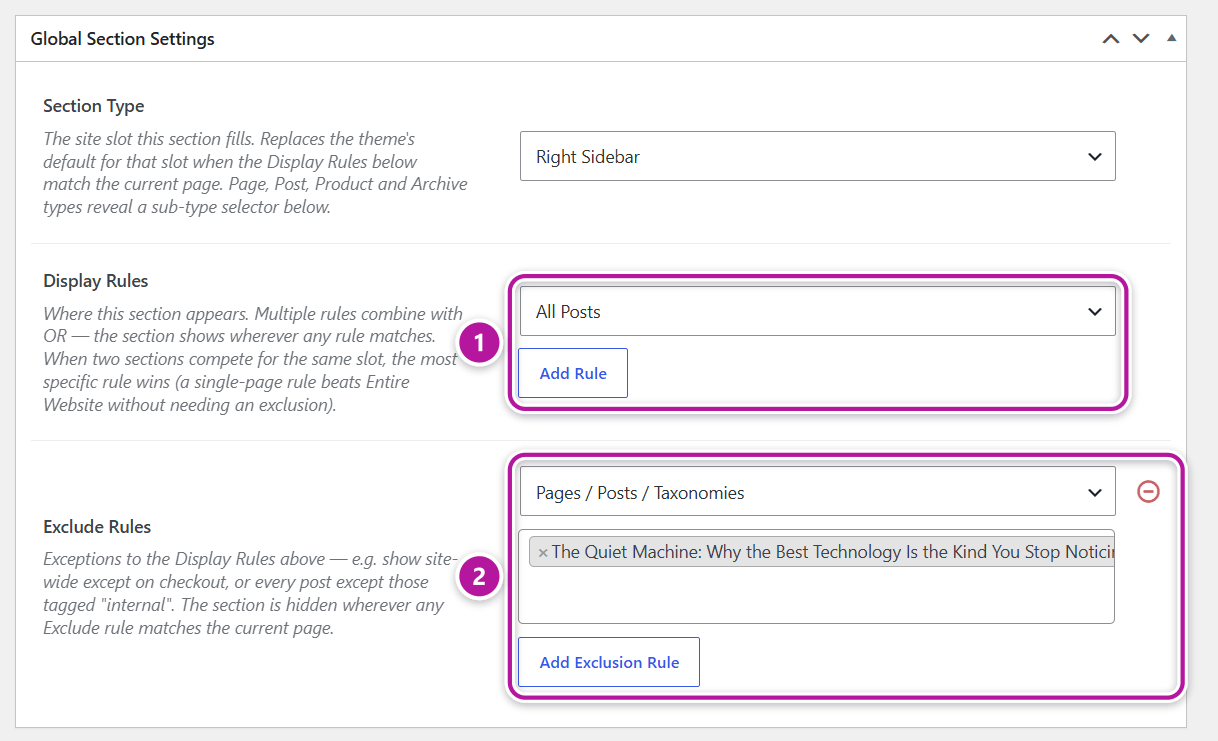
- Display Rules — where the section appears. Each rule is a dropdown of locations. A new section starts with Entire Website already selected in the first rule: keep it, change it, or click Add Rule to add another. Multiple rules combine with OR, so the section shows wherever any rule matches.
- Exclude Rules — exceptions that hide the section wherever any of them matches, overriding the Display Rules. Click Add Exclusion Rule below the Display Rules to reveal the list, and use the same button to add more. For example: show a section site-wide except on the checkout page, or on every post except the ones in one category.
A cleared rule shows nowhere
A rule left on Select an option counts as no rule, and a section with no Display Rules doesn't appear anywhere. A new section never starts that way — it only happens if you clear the rule yourself.
The rule groups
The rule dropdown groups its options. Display Rules and Exclude Rules draw from the same list.
| Group | Options |
|---|---|
| Basic | Entire Website · Archive Pages |
| Page Variants | Dark Mode Pages · One-Page Pages · Landing Page Pages |
| Special Pages | Front Page · Blog / Posts Page · Search Page · 404 Page · WooCommerce Shop Page (only when WooCommerce is active) |
| One group per content type — Posts, Pages, Products and so on | All Posts · All Posts Archive · All Categories Archive · All Tags Archive — and the same pattern for every other public content type and its taxonomies. Pages only offer All Pages. |
| Specific Target | Pages / Posts / Taxonomies — pick individual items by search |
The Page Variants options are explained on the Page Variants page.
What the common options match
| You want the section on | Use |
|---|---|
| Your homepage — a static page or your latest posts | Front Page |
| The separate page that lists your posts | Blog / Posts Page |
| Category, tag, author, date and other archive listings | Archive Pages, or a narrower All … Archive rule |
| Every single post, page or product | All Posts, All Pages or All Products |
| The WooCommerce shop page | WooCommerce Shop Page |
| Product category, tag and brand listings | All Products Archive |
Tip
If your homepage shows your latest posts, target it with Front Page — Blog / Posts Page is for a separate posts page. Likewise, Archive Pages doesn't include the blog page or the shop page; they have their own options under Special Pages.
Target specific items
Choose Pages / Posts / Taxonomies and a search field appears below the rule. Type at least two characters of a title or name, then pick from the results. You can add as many items as you like to one rule.
- Pages, posts, products and other content are grouped by type. Picking one targets that single item.
- Categories, tags and other terms come in two flavors. The entry ending in archive targets the term's listing page. The entry reading All singulars from … targets every post or product filed under that term — use it to give all products in one category their own section, for example.
Which section wins
Most slots show a single section per page. When two sections of the same type both match a page:
- A narrower rule beats Entire Website. A header set to a single page, a category or All Posts replaces a header set to Entire Website on those pages automatically — you don't need to add an exclusion to the site-wide one.
- Between two narrower rules, be explicit. If both sections use narrower rules that match the same page, the one published most recently is used. Add an Exclude Rule to the other section to make your intent clear.
- Page Variants have their own order. On a page that carries two variants, a section targeting One-Page Pages or Landing Page Pages wins over one targeting Dark Mode Pages.
Before Header and Before Footer stack
These two types are the exception: every matching section shows, one after another, newest first. A site-wide announcement bar and a second strip for your blog posts both appear on a post. To keep the site-wide one off certain pages, add an Exclude Rule to it.
Sections that target different areas never compete — a Post section for the Entry Header and another for Comments both show.
When the section type sets the rule
- A 404 Page section has its Display Rules fixed to 404 Page. The rule can't be changed and there are no exclusions to add.
- Page, Post, Product and Archive sections only act where their area exists, so Entire Website is a safe choice for them. See Section types.
Check your rules at a glance
Back in the Sections list, the Display Rules column summarizes each section with Show: and Hide: badges, so you can scan your whole setup without opening every section. See Global Sections for what the badges link to.
Where to go next
Was this article helpful?