White Label: rebrand Themeasy for your clients
If you build sites for clients, White Label puts your brand in place of Themeasy's: in the WordPress admin (the plugin's menu, its page headers and its row on the Plugins screen) and in the Elementor editor (the widget categories, the template library and the icon library tabs). What your client sees behind the scenes is your agency, not Themeasy.
Note
White Label is an Agency-plan feature. The screen appears only on sites where an Agency license is active, on any theme.
Open White Label
In the WordPress admin, go to Themeasy → White Label. You need to be an administrator.
The screen is always there to configure, but the rebrand only goes live once you turn on the master Hide Themeasy branding switch. When it's on, the change applies to every admin user on the site.
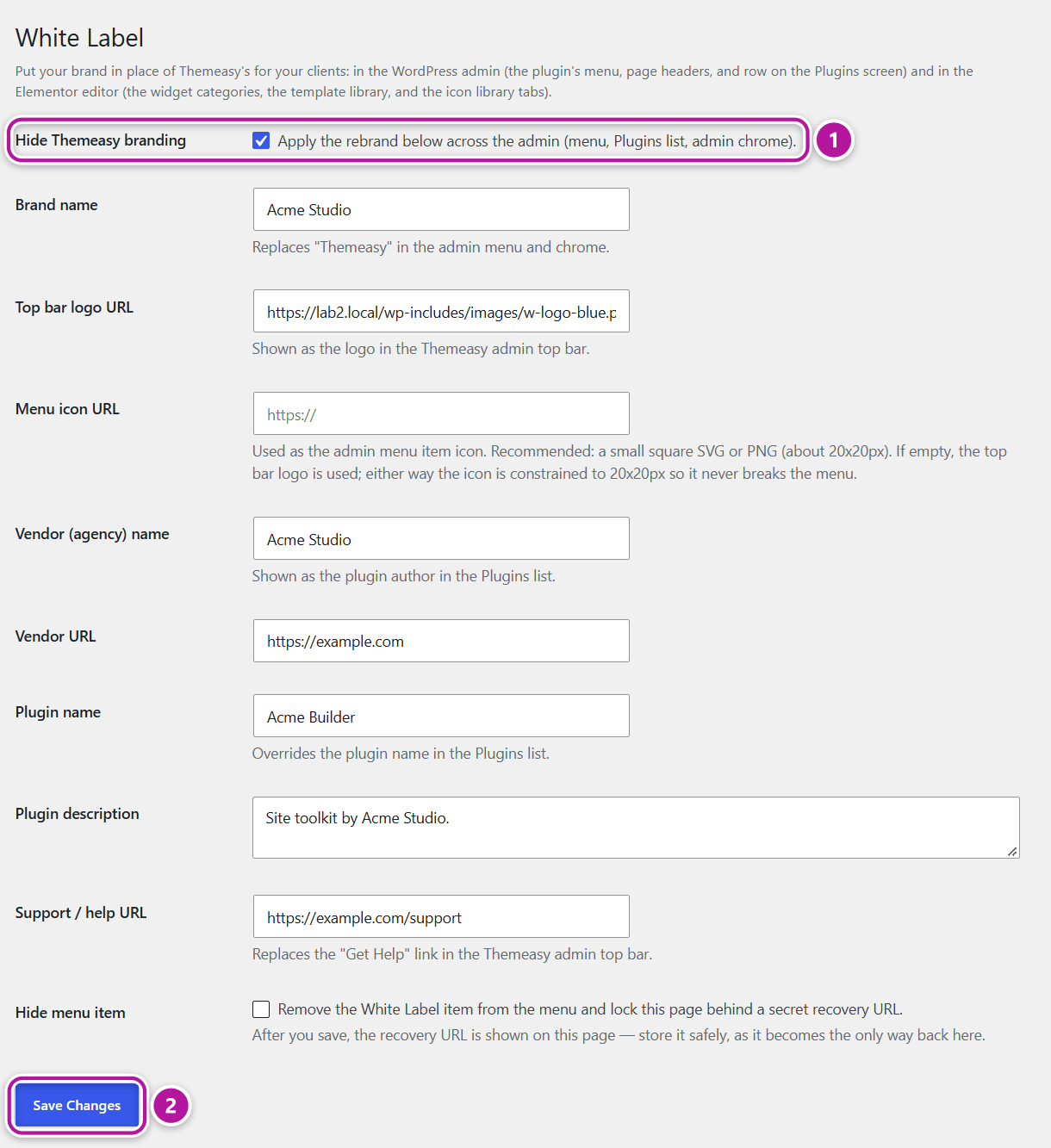
The settings
Fill in the fields you want to override and click Save Changes. Any field you leave empty keeps the Themeasy default.
| Field | What it changes | Default |
|---|---|---|
| Hide Themeasy branding | The master switch: applies the rebrand below across the admin and the editor. Off means nothing changes. | Off |
| Brand name | Replaces "Themeasy" in the admin menu, in the headers and browser-tab titles of the plugin's screens, and in the Elementor editor. | empty |
| Top bar logo URL | The logo in the top bar of the plugin's admin screens. Also used as the menu icon when Menu icon URL is empty. | empty |
| Menu icon URL | The icon of the admin menu item. A small square SVG or PNG, about 20×20 px, works best; a larger image is scaled down to fit. | empty |
| Vendor (agency) name | Shown as the plugin author in the Plugins list. | empty |
| Vendor URL | Sets the author link and the plugin link in the Plugins list. | empty |
| Plugin name | Overrides the plugin's name in the Plugins list. | empty |
| Plugin description | Overrides the plugin's description in the Plugins list. | empty |
| Support / help URL | Replaces the Get Help link in the top bar of the plugin's admin screens. | empty |
| Hide menu item | Removes the White Label item from the menu and locks this screen behind a secret recovery URL. See Hide the White Label screen. | Off |
The two image fields take the address of an image, for example a file in your Media Library.
What gets rebranded
Once Hide Themeasy branding is on and the relevant fields are filled, your brand replaces Themeasy's in the places below. The examples use "Acme Studio" as the Brand name.
In the WordPress admin
- The plugin's admin menu — its title, the first item under it and its icon. The title needs a Brand name; the icon needs a Menu icon URL or a Top bar logo URL.
- Browser-tab titles of the plugin's screens — "Acme Studio Settings" in place of "Themeasy Settings".
- The admin top bar on the plugin's screens — your logo and the Get Help link.
- The Themeasy page on a theme that isn't a Themeasy theme — its header shows your logo, and its title reads "Your Acme Studio license is active".
- The plugin's row on the Plugins screen — its name, description, author and author link, and the removal of the themeasy.co and "View details" links.
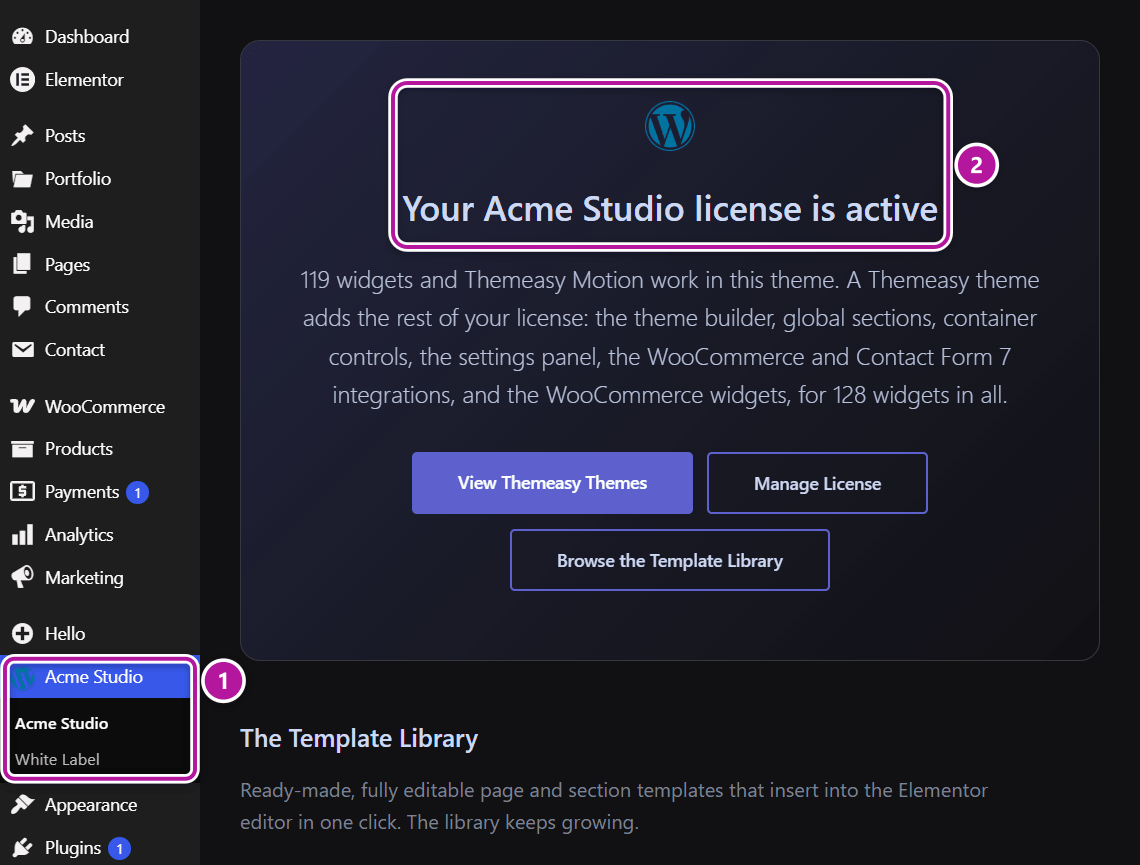
In the Elementor editor
The editor follows the Brand name field:
- The widget categories — "Acme Studio — Text & Typography", "Acme Studio — Images & Media", and so on.
- The template library — its panel is titled "Acme Studio Library", and so is the tooltip of its button in the editor.
- The icon library tabs — "Acme Studio — Feather", "Acme Studio — Solar Line", and so on.
The other sections the plugin adds to the editor, such as "Motion — Animation", "Dark Mode" and "Header Builder", carry no brand on any plan, so there is nothing to rebrand there.
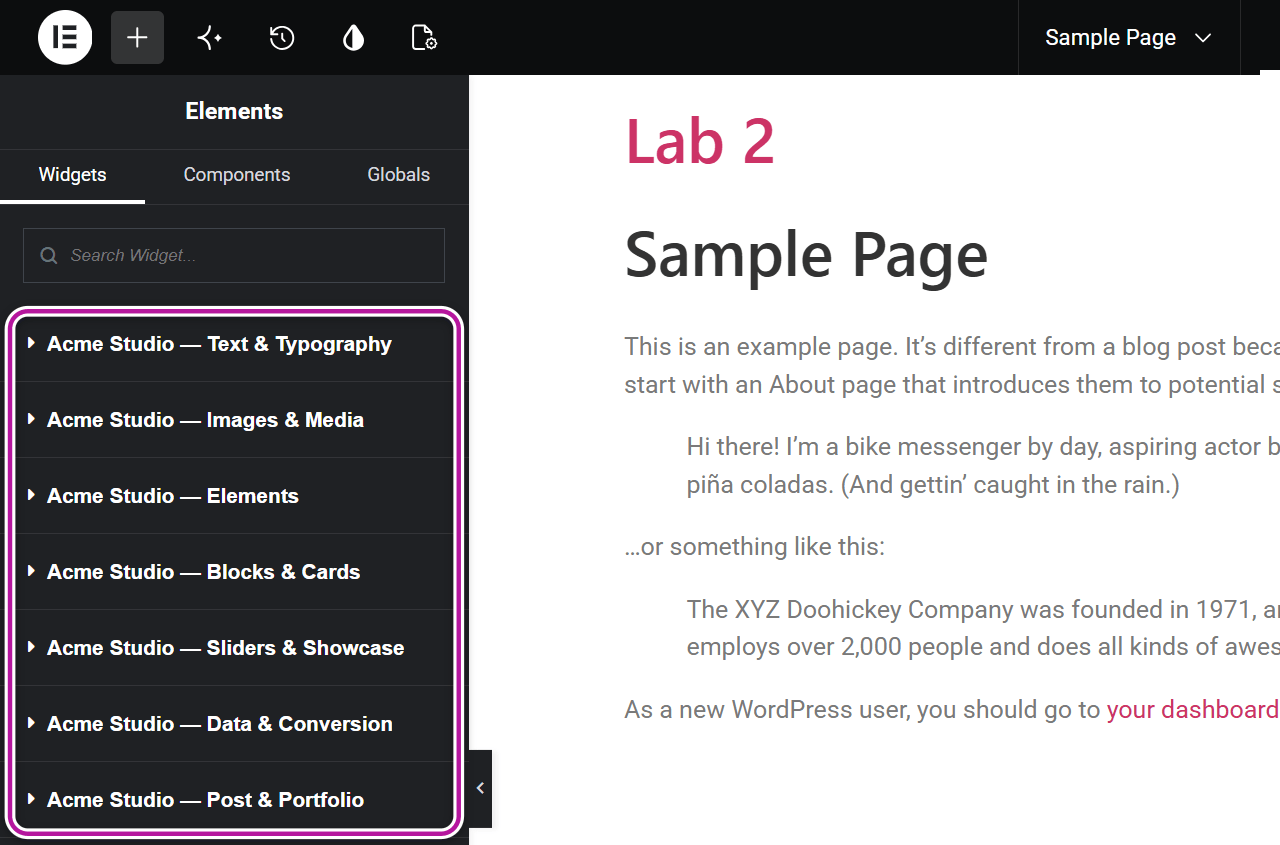
Empty fields and missing logos
Empty fields fall back to the Themeasy defaults, so you can rebrand as much or as little as you like. With a Brand name and no Top bar logo URL, the admin top bar and the header of the Themeasy page show your name as text in place of the Themeasy logo.
Hide the White Label screen
To keep clients away from the rebrand settings, hide the screen itself. This works on its own, whether or not Hide Themeasy branding is on.
- On the White Label screen, tick Hide menu item.
- Click Save Changes. The White Label item leaves the menu, and a Recovery URL card appears on the screen.
- Click Copy and store the URL somewhere safe, such as your password manager.
Save the recovery URL before you leave
Once the menu item is hidden, the recovery URL is the only way back to this screen. Anyone who opens the screen without it gets a standard "not allowed" message. Treat the URL like a password.
On the Recovery URL card you can also:
- Regenerate key — creates a new recovery URL and invalidates the old one immediately.
- Read Lost the recovery URL? — it explains how a developer with access to the site's files or command line can bring the menu item back. Keep a note of it with the URL.
To show the menu item again, open the recovery URL, untick Hide menu item and save. If you're locked out, open a ticket.
What White Label doesn't do
White Label covers the plugin's own admin and editor surfaces. It does not:
- brand the WordPress login screen;
- add a "powered by" footer;
- brand dashboard widgets, the front-end admin bar or emails;
- rename the theme: Appearance → Theme Setup and the theme's entry under Appearance → Themes keep the Themeasy name;
- rewrite the body of the Themeasy page on a theme that isn't a Themeasy theme: only its header changes, and its text still mentions Themeasy.
Note
White Label doesn't cover license management. Your license key, its sites and your billing stay in your Themeasy Hub account, under the Themeasy name, and the Manage License button in the WordPress admin still opens it.
Where to go next
Was this article helpful?