Page Variants (Dark Mode, One-Page, Landing)
What Page Variants are
Page Variants are per-page traits you attach to a page so that Global Sections — and the matching styling — can target groups of pages by characteristic, instead of you listing each page one by one. Tag a page with a trait once, and any rule built around that trait covers it automatically.
Three variants are built in:
| Variant | What it does |
|---|---|
| Dark Mode | Applies the dark palette to that page only. |
| One-Page | Marks the page as an anchor-scrolling layout — pair it with a compact header or an anchor menu. |
| Landing Page | Marks the page as a focused marketing or conversion page — pair it with a minimal header or footer. |
A page can carry more than one variant at the same time.
Set a variant on a page
There are two ways to turn a variant on or off.
In the Elementor editor
- Edit the page with Elementor and open its page settings.
- On the Settings tab, open the Page Variants section.
- Switch on Enable Dark Mode, Enable One-Page or Enable Landing Page.
- Save the page — the variant applies once the page is updated.
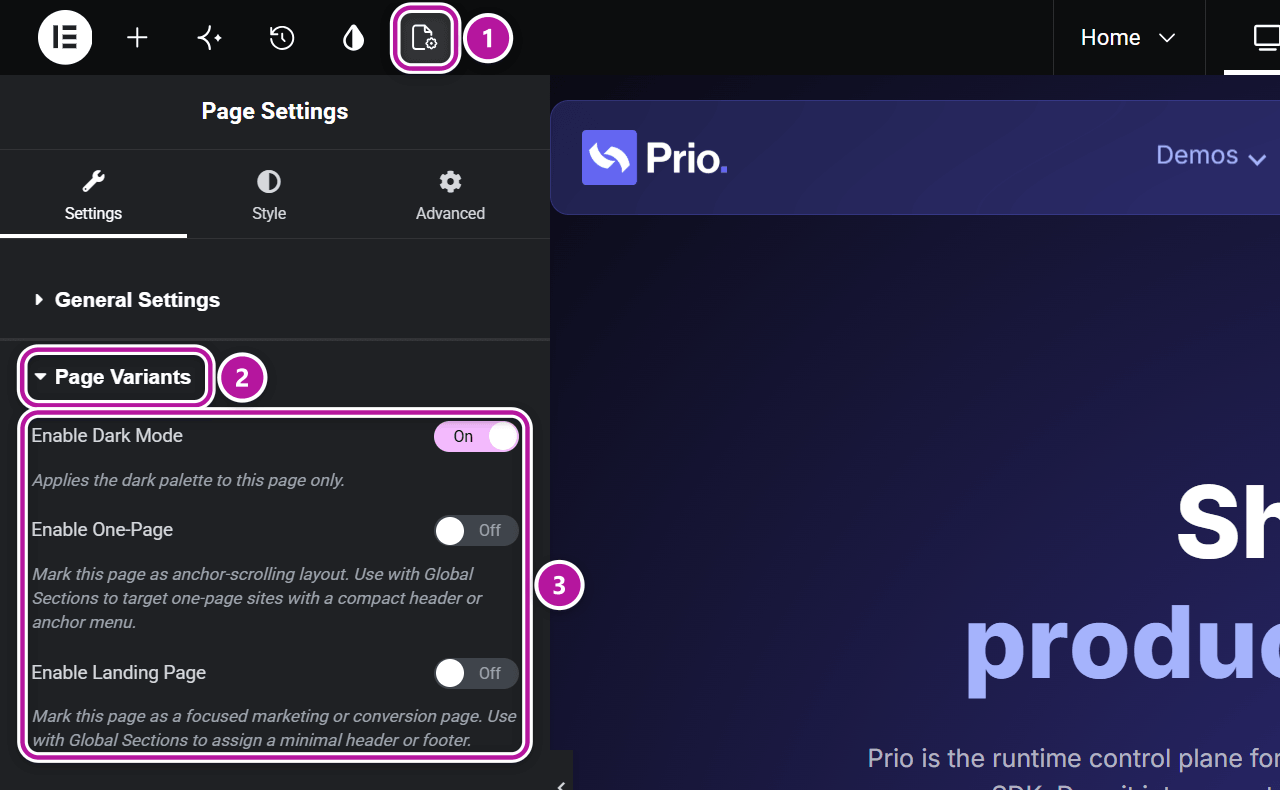
The other Themeasy options in that panel are covered in Page settings.
From the Pages list
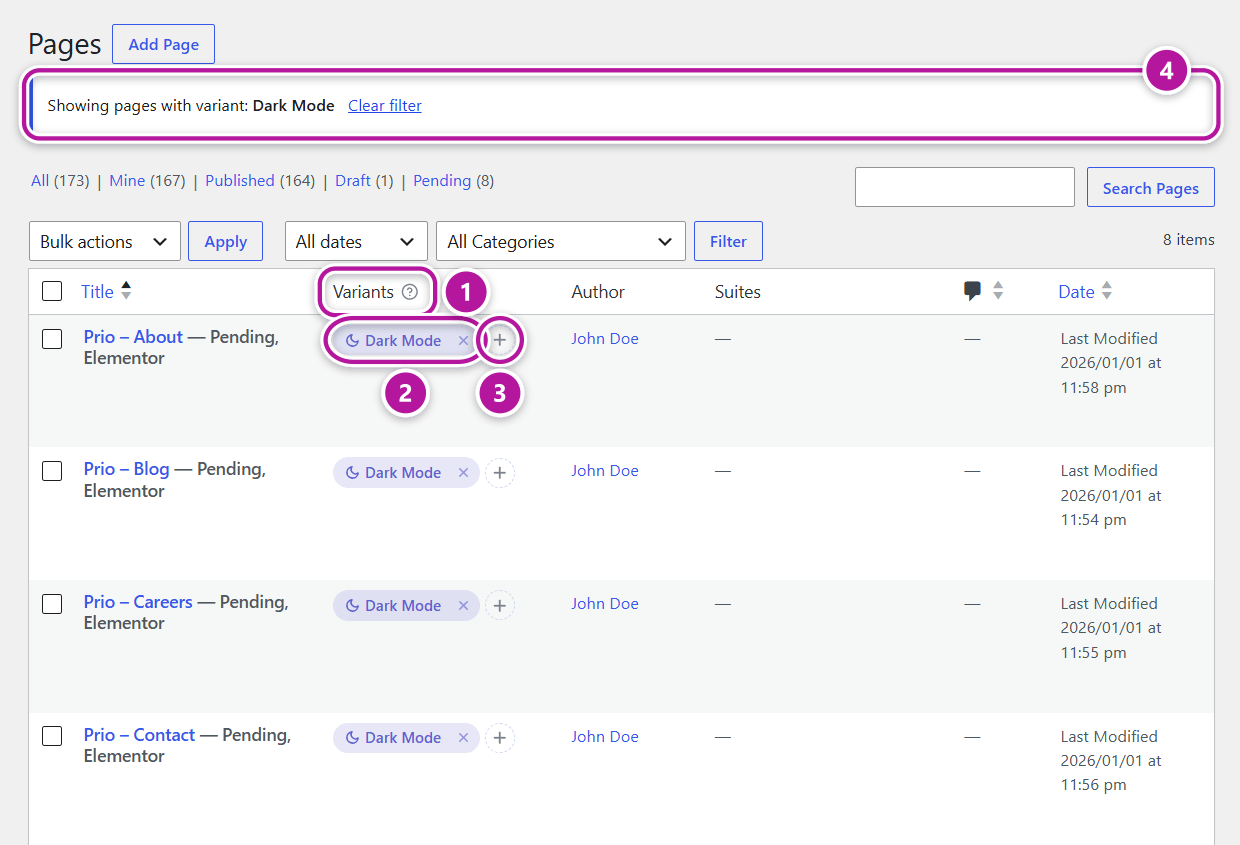
Open Pages in the WordPress admin. A Variants column, right after the title, shows each page's active variants as pills — no need to open Elementor.
| To | Do this |
|---|---|
| Add a variant | Click the + button in the page's row and choose a variant from the menu. |
| Remove a variant | Click the × on its pill. |
| See every page with a variant | Click the pill's label. The list filters to those pages and a notice at the top reads Showing pages with variant: … — click Clear filter to go back. |
Changes are saved instantly. Once a page carries all three variants, the + button disappears. The help icon in the Variants column header shows a reminder of these three actions.
Target sections by variant
This is where variants pay off. In a section's Display Rules, the Page Variants group offers one option per variant:
- Dark Mode Pages
- One-Page Pages
- Landing Page Pages
Pick one and that single section covers every page carrying the trait. One minimal header can serve all of your landing pages at once, rather than naming each page in the rule. See Display rules for the full set of conditions.
Tip
Variants beat listing pages one by one: tag a new page with the trait and your variant-targeted sections pick it up automatically.
A few details worth knowing:
- Two variants on one page. If a page is both Dark Mode and One-Page (or Landing Page) and you have a different header for each, the One-Page or Landing Page header is the one that shows.
- Your blog page. A variant set on the page you chose as your posts page also applies to the blog listing it displays.
- Jump from a section to its pages. In the Sections list, a variant badge in the Display Rules column opens the Pages list filtered to the pages carrying that variant.
Where to go next
Was this article helpful?