Colors
The Colors tab defines the colors used across your whole site. Open it from Themeasy → Colors, or from the Colors tab of the Settings panel. Its fields are grouped into accordion sections. After making changes, click Save Changes to apply them — a "Settings saved." notice confirms the save.
Every color field accepts a hex code (such as #3772ff, optionally with transparency), an rgb() / rgba() value, or an hsl() / hsla() value.
Single and dual fields
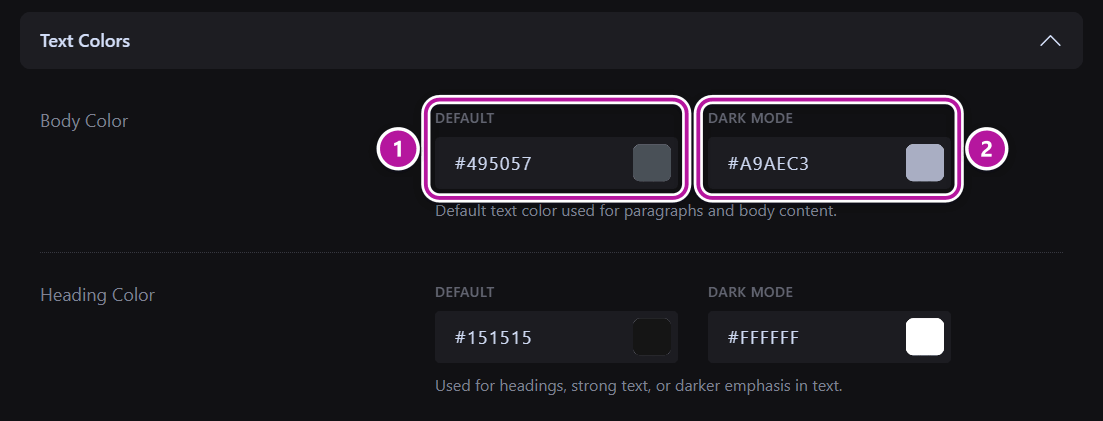
Some fields take a single value. Others are dual: they hold two values side by side, labelled Default and Dark Mode. The Default value is your light palette. The Dark Mode value is used wherever dark mode is on — across the whole site when Default Color Mode is set to Dark, or on the individual pages and containers you switch to dark mode.
Tip
Dual fields let you tune the light and dark appearance independently. Saved changes apply across your site immediately.
When you save, your colors are also published to Elementor as Global Colors, so you can pick them by name in any Elementor color control. See Global colors & fonts sync.
Color Mode
This section sets which palette your site uses by default.
| Field | What it does | Default |
|---|---|---|
| Default Color Mode | Which set of colors the whole site renders with by default — including search results, archives and the 404 page. Choose Light or Dark. | Light |
With Dark selected, every page uses the Dark Mode values from the dual fields below.
Brand Colors
These three fields each take a single value single. They set the colors most associated with your brand.
| Field | What it does | Default |
|---|---|---|
| Primary Color | Your main brand color, used across the site. | #3772ff |
| Secondary Color | Complements the primary; commonly used for highlights and hover states. | #ff006e |
| Accent Color | Decorative highlights and UI details. | #aaf683 |
Changing any of these three ticks Define your brand colors on the Overview checklist.
Text Colors
Each field here is dual Default + Dark Mode.
| Field | What it does | Default | Dark Mode |
|---|---|---|---|
| Body Color | Paragraphs and body content. | #495057 |
#a9aec3 |
| Heading Color | Headings, strong text and darker emphasis. | #151515 |
#ffffff |
| Muted Color | Less emphasized text, captions and secondary information. | #6c757d |
#6b7280 |
| Link Color | Hyperlinks and interactive text. | #3772ff |
#6b9bff |
Background Colors
Each field here is dual Default + Dark Mode.
| Field | What it does | Default | Dark Mode |
|---|---|---|---|
| Background Color | The main background of most page areas. | #ffffff |
#151515 |
| Surface Color | Sections, cards and subtle contrast areas. | #f8f9fa |
#2c2e33 |
Neutral Colors
These fields each take a single value single.
| Field | What it does | Default |
|---|---|---|
| Black | The darkest color, used in text, buttons and high-contrast elements. | #151515 |
| White | The lightest color, used for backgrounds, text contrast and UI elements. | #ffffff |
Border Colors
Each field here is dual Default + Dark Mode.
| Field | What it does | Default | Dark Mode |
|---|---|---|---|
| Border Color | Inputs, cards and layout dividers. | #e5e7eb |
#2c2e33 |
| Strong Border Color | Emphasis and darker separators. | #151515 |
#ffffff |
Button Colors
Each field here is dual Default + Dark Mode.
| Field | What it does | Default | Dark Mode |
|---|---|---|---|
| Button Background Color | The background of buttons. | #151515 |
#ffffff |
| Button Text Color | The text on buttons. | #ffffff |
#151515 |
Feedback & States
These fields each take a single value single. They color the notices and states your visitors see.
| Field | What it does | Default |
|---|---|---|
| Info Color | Informational messages, notices and neutral highlights. | #0077b6 |
| Success Color | Successful actions and positive states. | #38a3a5 |
| Warning Color | Warnings and actions that need attention. | #fca311 |
| Danger Color | Errors, destructive actions and critical alerts. | #e63946 |
Back to the Settings panel overview.
Was this article helpful?