Installing the Themeasy plugin
This guide installs the Themeasy plugin, unlocks what your plan includes and keeps the plugin updated. The steps depend on how you bought Themeasy, so start by finding your situation.
Find your situation
| You have | How the plugin gets installed | What unlocks it |
|---|---|---|
| A Themeasy theme, bought on ThemeForest or on themeasy.co | The theme's Setup Wizard installs it. | Your theme license. There is no plugin key to paste. |
| Pro or Agency, with a Themeasy theme | The theme's Setup Wizard installs it. | Your Pro or Agency key, pasted in the wizard's license step. |
| Themeasy Widgets, Pro or Agency, on another theme | You upload the plugin .zip. |
Your key, activated in the Plugin license section of the Themeasy page. |
| Themeasy Lite, the free plugin from WordPress.org | From Plugins → Add Plugin, like any free plugin. | Nothing: Lite has no license. |
Before you start
- An administrator account on the site.
- Hosting that meets the server requirements.
- Elementor: the Themeasy widgets build on it, and the free version is enough. The Setup Wizard installs it for you; if you're installing manually, add it first from Plugins → Add Plugin.
Easiest path — let the theme install it
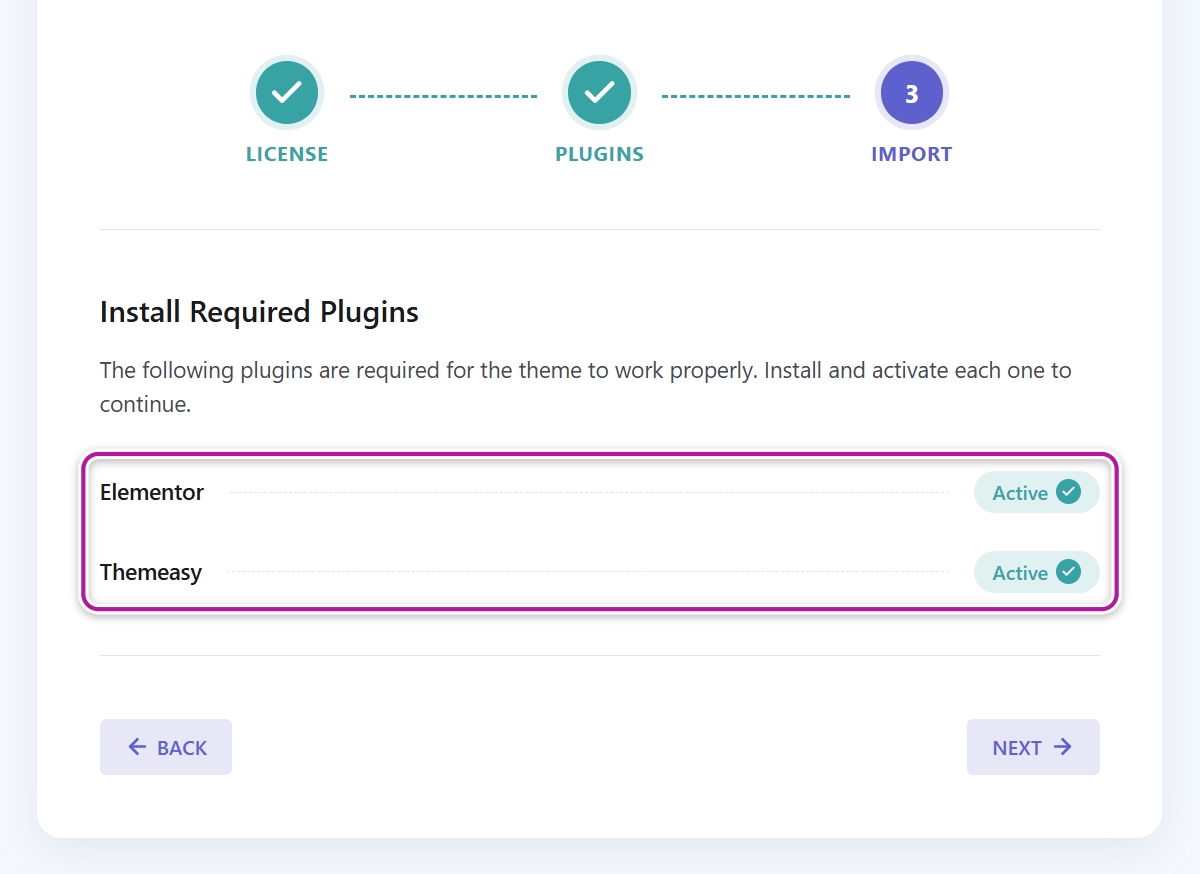
If you use a Themeasy theme, open Appearance → Theme Setup. Once your license is active in the first step, the Plugins step installs and activates Elementor and Themeasy with one click each: the button goes from Install & Activate to Activate to Active. You can then skip the manual steps below. See the theme setup wizard.
Manual install
Use this path when you bought a plugin plan (Themeasy Widgets, Pro or Agency) and your site runs another theme, or when you'd rather upload the plugin yourself.
- Download the Themeasy plugin
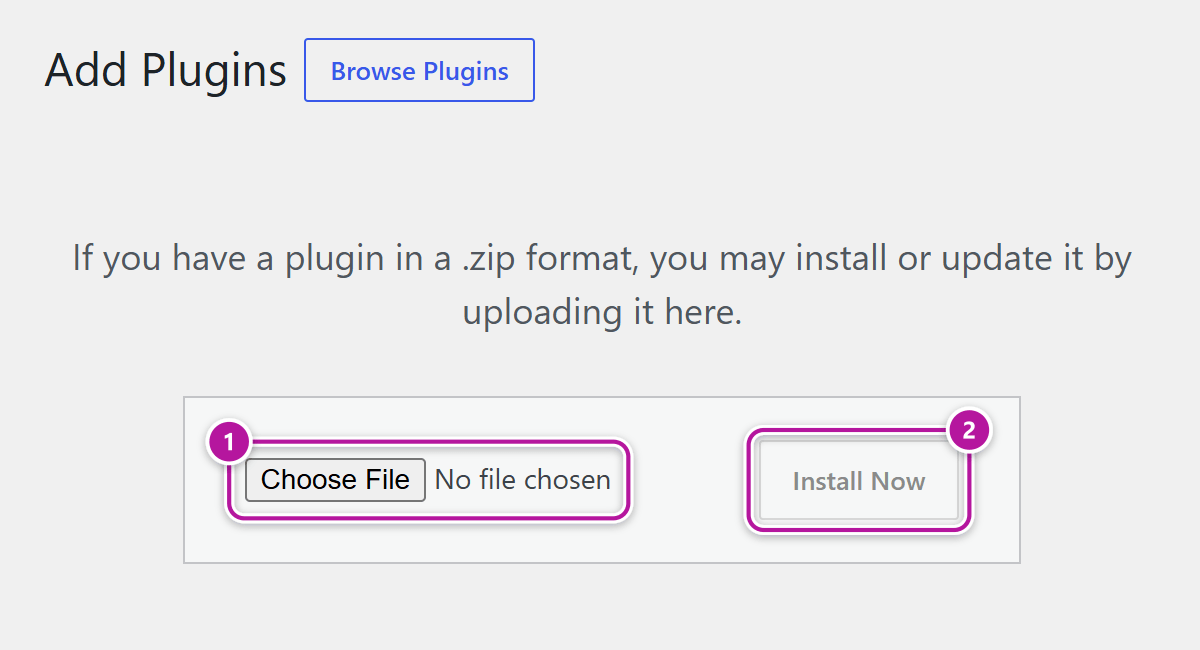
.zip. Use the link in your purchase email, or sign in to your Themeasy Hub account, open My products, select Themeasy and click Download on the Latest version card. - In WordPress, go to Plugins → Add Plugin → Upload Plugin, choose the
.zipand click Install Now. - Click Activate.
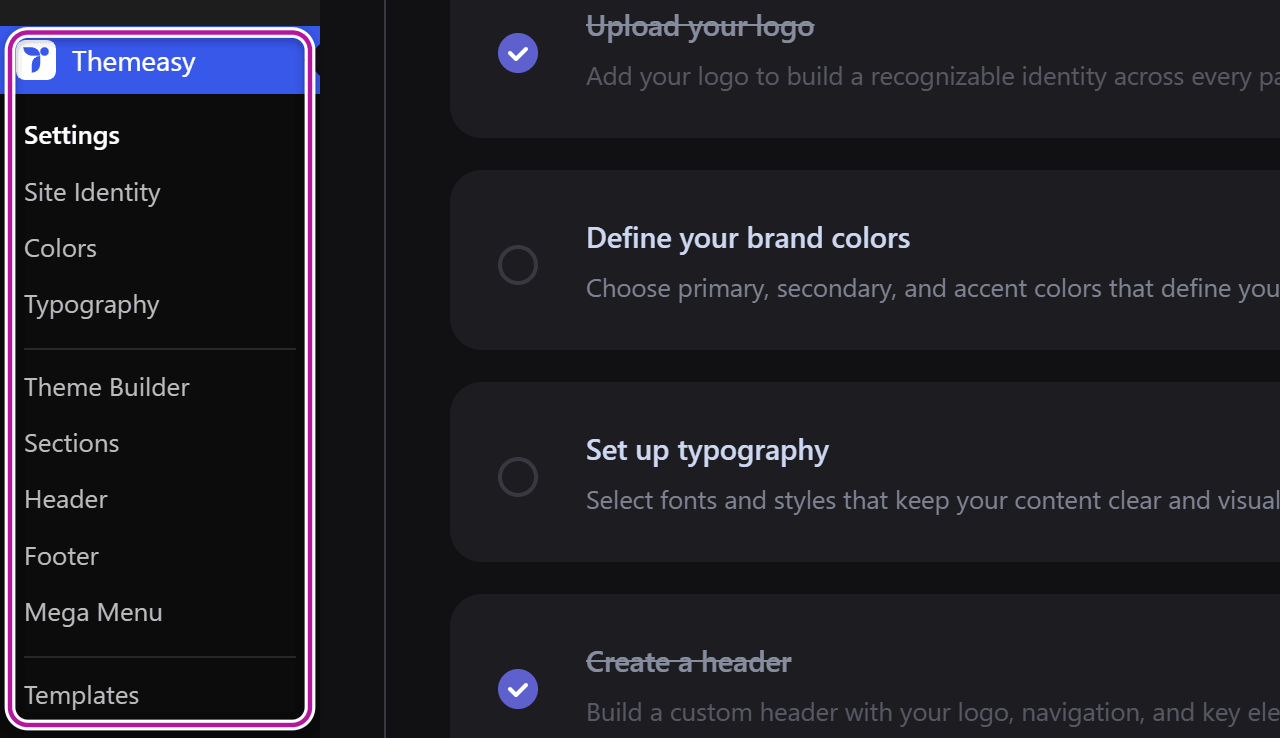
After activation, a Themeasy menu appears in the WordPress admin sidebar, just above Appearance.
New to the Hub?
Sign up with the email address you bought with, and your purchase is linked to your account. Every build you can download is also listed under My downloads. See your products and downloading your products.
If you bought a single theme, you don't need the .zip: the Setup Wizard downloads the plugin for
you with your theme license.
Unlock premium features
What unlocks the plugin depends on how you bought Themeasy.
You use a Themeasy theme
There's nothing to paste in the plugin: theme buyers don't have a separate plugin key. Premium features are on while your theme license is active, which you set up in the theme setup wizard. If premium features look locked, open Appearance → Theme Setup and confirm the first step shows License Status: Active.
Bought Pro or Agency and use a Themeasy theme? Paste that key in the same license step. The plugin picks it up by itself, even when it was already active.
You bought a plugin plan
This covers Themeasy Widgets, Pro and Agency on any theme.
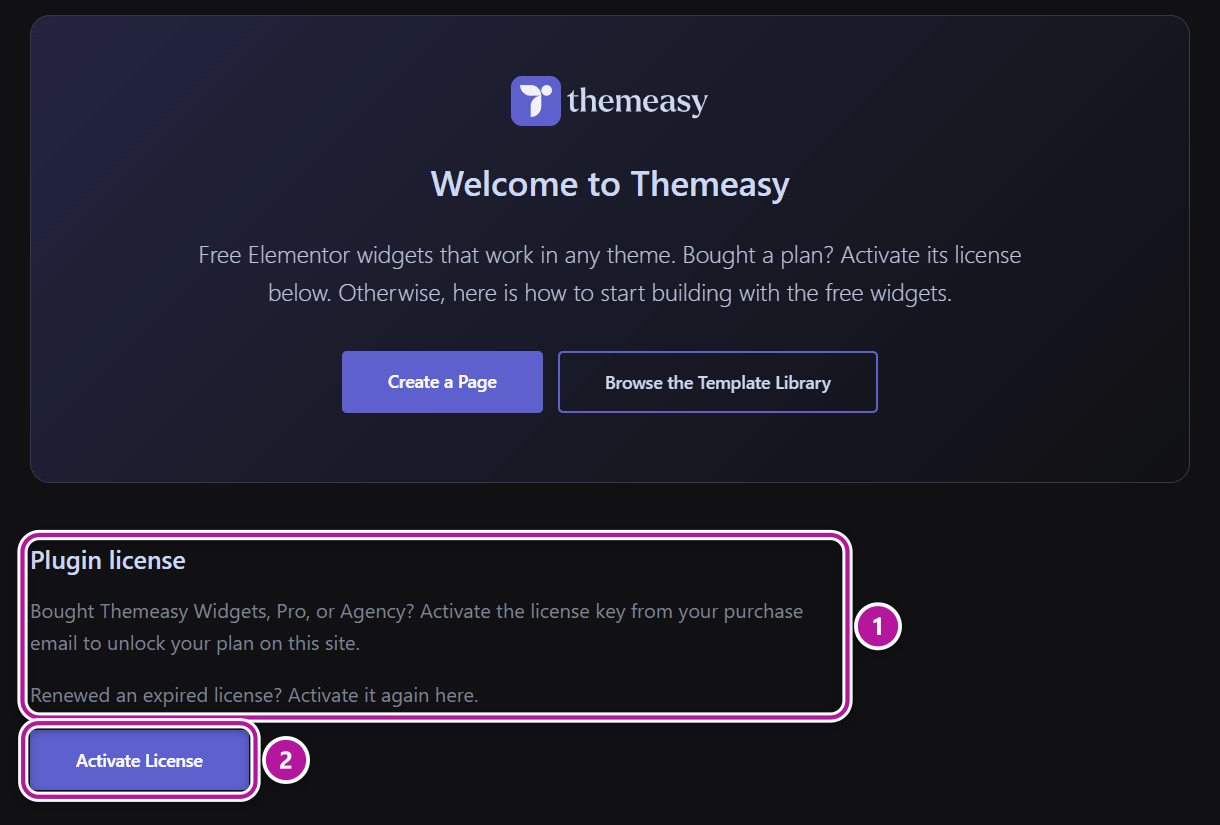
- In the WordPress admin, open Themeasy → Getting Started.
- In the Plugin license section, click Activate License.
- Paste the license key from your purchase email and confirm. The first time, the button reads Agree & Activate License.
The page then confirms your plan: Themeasy Widgets is active, or Your Themeasy license is active for Pro and Agency.
A few things that help:
- If the dialog lists licenses from your account and the new one isn't there, choose Other and paste the key.
- Can't find the key? In your Hub account, open My products, select Themeasy and click Reveal on the License key card. See managing your licenses.
- On a theme that isn't a Themeasy theme, the plugin's row on the Plugins screen also has an Activate License link until a license is active. It opens the same dialog.
- On Themeasy Widgets? Themeasy Widgets: Pro widgets in any theme covers what the plan includes.
You use Themeasy Lite
Lite takes no license key. To move to a paid plan, see Themeasy Lite vs the full plugin.
Your license lives in the Hub
Your license key and the sites it is active on are in your Themeasy Hub account. The Manage License button on the Themeasy page opens the product there, with its License key and Active sites cards. Every plugin plan covers unlimited sites, so you never have to free a seat before using the key on another site: use Deactivate next to a site only to take the license off it. A license for a single theme covers one production site (local and staging installs don't count); to move it, Release the old site first. See your products.
License expired?
The site goes back to the free widgets, and the Themeasy page reads Your license expired with a Renew License button that opens the Hub. After renewing, activate the key again in Plugin license: a renewed license does not come back to the site on its own.
Updates
While your license is active, in any of the situations above, new versions of the plugin appear in Dashboard → Updates and on the Plugins screen like any other plugin. Click Update now.
Themeasy Lite updates from WordPress.org, like any free plugin.
Updates with a theme license
A theme bought on its own, on themeasy.co or on ThemeForest, includes six months of plugin updates and support from the purchase (on ThemeForest, the support period you hold at Envato). The license itself never expires: when the period ends, the plugin keeps every feature it has, and only new versions stop. Your product page in the Hub shows the date ("updates expire …"). To extend it, open a ticket.
If you bought a plugin plan, you can also update by hand: download the newest .zip from your Hub
account and upload it via Plugins → Add Plugin → Upload Plugin. WordPress detects the
existing install and offers Replace current with uploaded.
Your settings and content live in the database and survive every update.
Updating the theme works the same way — see updating the Themeasy theme.
Themeasy Lite vs the full plugin
Themeasy Lite is the free plugin on WordPress.org: 18 essential content widgets, without animations, in any theme. In the Elementor panel they sit in a single Themeasy — Essentials category.
Every paid plan (Themeasy Widgets, Pro and Agency) and every Themeasy theme uses the full Themeasy plugin, which is a separate download. Until you activate a license, the full plugin runs the same 18 free widgets as Lite.
To move from Lite to a paid plan:
- Install the full Themeasy plugin as described in Manual install.
- Activate it. Activating Themeasy deactivates Themeasy Lite for you, and your pages keep their widgets.
- Activate your license key under You bought a plugin plan, then delete Themeasy Lite on the Plugins screen.
Tip
Lite lists the same steps on its own Themeasy → Getting Started page, under Already purchased?.
Verify it worked
The Themeasy menu appears in the admin sidebar. What it opens tells you which plan the site is on:
| Your site | What you see under Themeasy |
|---|---|
| No license yet, or Themeasy Lite | Getting Started, headed "Welcome to Themeasy", with the free widgets listed. |
| Themeasy Widgets | The page reads Themeasy Widgets is active, and its menu item is now called Upgrade. |
| Pro or Agency, on another theme | The page reads Your Themeasy license is active: 119 widgets and Themeasy Motion work in your theme. A Themeasy theme adds the rest, for 128 widgets in all. |
| A Themeasy theme with a theme license, Pro or Agency | The settings panel opens, with the premium modules such as the Theme Builder and the WooCommerce options. |
In every paid situation, the widgets of your plan are in the Elementor editor. See Themeasy widgets for Elementor.
Where to go next
Was this article helpful?