Shop & catalog
On the shop and product category pages, Themeasy adds a toolbar above the product grid and pagination below it, with an optional filter sidebar beside it. Sorting, paging and filtering update the grid in place, without a full page reload.
Each piece is turned on and tuned in Themeasy → Settings → WooCommerce, under Catalog & Shop — this page describes the result and names the setting that controls it. See the WooCommerce settings for the options themselves.
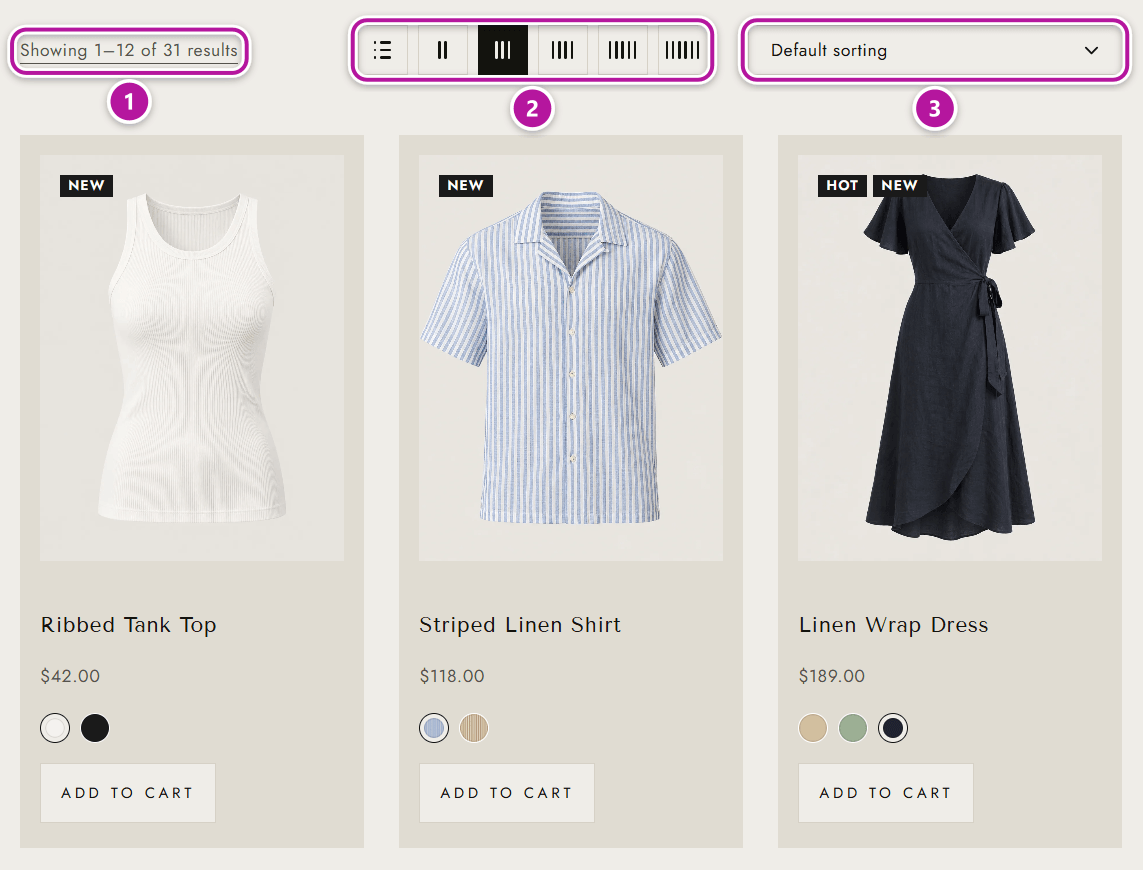
The catalog toolbar
The toolbar shows whichever of its three controls are switched on. Turn all three off and the toolbar disappears.
| Feature | What shoppers see | Setting |
|---|---|---|
| Results count | A live line such as "Showing 1–12 of 36 results". It adapts to "Showing all 8 results", "Showing the single result" or "No products were found matching your selection.", and updates as shoppers page and filter. | Result Count |
| Layout switcher | A row of icons — a list view, then 2 to 6 columns — that re-flows the grid instantly. List view stacks the products in a single column and adds each product's short description. | Layout Switcher |
| Sort selector | A dropdown to reorder the products: Default sorting, Sort by Latest, Sort by Price: Low to High, Sort by Price: High to Low, Sort by Sales, Sort by Average Rating, Sort by Availability. | Sort Selector |
Grid size and default order
| Feature | What shoppers see | Setting |
|---|---|---|
| Columns | How many products sit side by side when the page opens. Shoppers can change it with the layout switcher. | Products Per Row |
| Columns on phones | The number of columns on small phone screens, set separately so cards stay readable. | Products Per Row (Phones) |
| Page size | How many products fill a page — columns × rows. With the defaults (4 × 3), that's 12 products. | Rows Per Page |
| Default order | The order products appear in before a shopper picks a sort. Choosing Default sorting in the sort selector returns to it. | Order By, Order Direction |
Pagination
How more products load is set by Pagination Type. Whichever mode you pick, the control only appears when there is more than one page of products.
| Mode | What shoppers see |
|---|---|
| Ajax Pagination | Numbered pages with previous and next arrows. Clicking a page swaps the products in place, without reloading. |
| Load More Button | A Load More button below the grid. It appends the next products and reads All items loaded once there are no more. |
| Infinite Scrolling | The next products load automatically as the shopper scrolls toward the end of the grid. |
Category display
On product category pages, Category Display decides what appears:
| Option | What shoppers see |
|---|---|
| Show Products | The product grid. |
| Show Subcategories | A grid of subcategory tiles — image, name, item count and description — instead of the products. A category with no subcategories shows its products as usual. |
| Show Both | The subcategory tiles first, then the product grid. |
Tip
Looking for category tabs above a grid — an All tab plus one tab per category? Those belong to the Product Grid widget, which you can place on any page. See the WooCommerce widgets.
AJAX product filter
With Enable AJAX Product Filter on, a filter sidebar sits beside the grid and narrows the products without a reload. On smaller screens it collapses into a Product Filters button that slides the filters in from the side.
| Filter | What shoppers see |
|---|---|
| Selected Filters | A running summary of what's applied, with a count. Each filter can be removed on its own. |
| Attributes | One block per product attribute, shown the way the attribute is set up: color or image chips (the name appears on hover), a dropdown reading "Select an option", or text chips. |
| Price | A Min and a Max field for a price range. |
| Categories | On the shop page, a checklist to combine categories. On a category page, links to jump to another category. |
Only attribute values and categories that actually contain products are listed. The filtered view is kept in the page address, so shoppers can bookmark or share it.
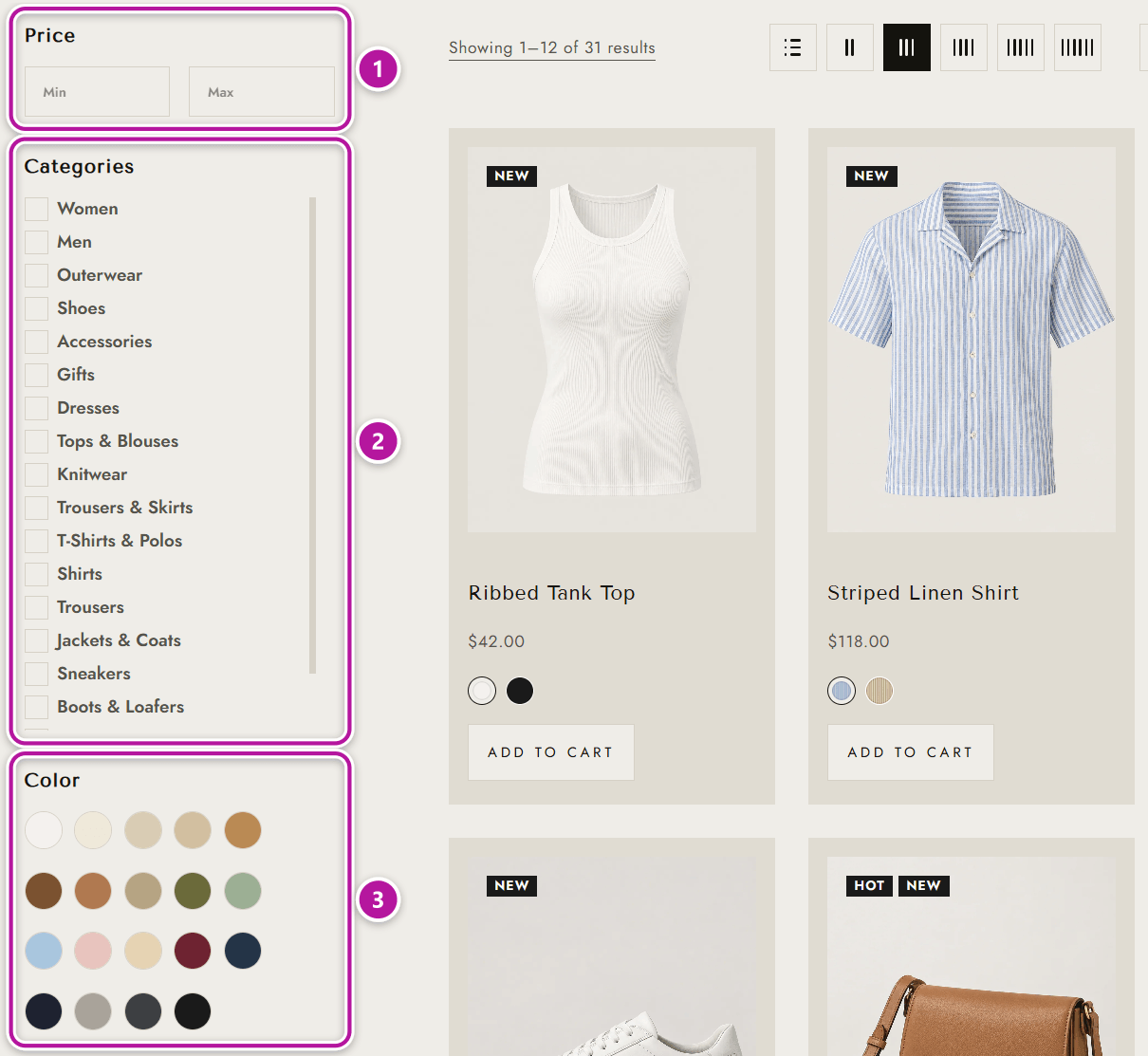
The color and image chips come from your attribute setup — see Variation swatches. To place a filter inside an Elementor layout instead, use the Ajax Product Filter widget from the WooCommerce widgets.
Designing the shop in Elementor
Prefer your own layout for the shop and archive pages? Create a Global Section of type Archive → Product Archive. Where that section is displayed, its own widgets replace the toolbar, filter and grid described here — and the Catalog & Shop and Product Card settings no longer apply to those pages. See Section types and the areas they replace.
Where to go next
Head back to Themeasy for WooCommerce, or see how each product looks in the grid on Product cards. To change any of the options above, open the WooCommerce settings.
Was this article helpful?