Section types and the areas they replace
The Section Type
The Section Type is the slot a section fills. The section replaces the theme's default for that slot when its Display Rules match the current page. You choose the type in the Global Section Settings box of a section — see Global Sections.
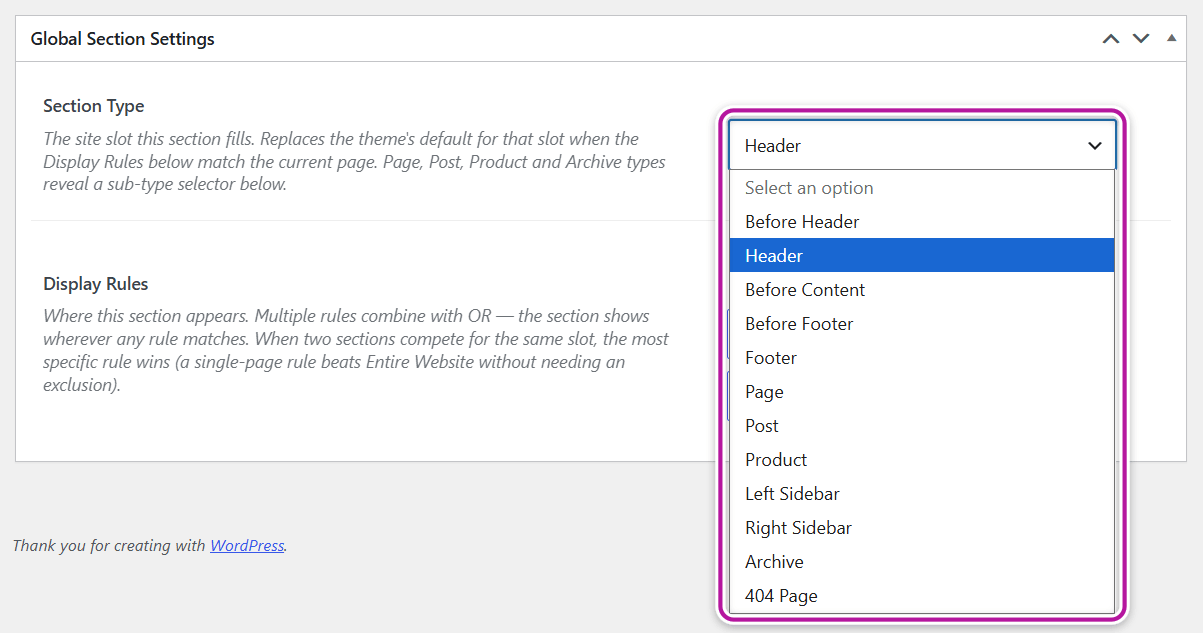
| Type | Fills / replaces |
|---|---|
| Before Header | A strip above the header, such as an announcement bar. Every matching section shows, so you can stack more than one. |
| Header | The site header. |
| Before Content | The area between the header and the content. It takes the place of the theme's breadcrumbs. |
| Before Footer | A strip above the footer, such as a call to action. Every matching section shows, so you can stack more than one. |
| Footer | The site footer. |
| Page | One area inside single pages (pick the area below). |
| Post | One area inside single posts (pick the area below). |
| Product | One part of the WooCommerce product page or cart (pick the part below). Available only when WooCommerce is active. |
| Left Sidebar | A sidebar column on the left of the content. The theme has no left sidebar of its own, so this adds one. |
| Right Sidebar | The right sidebar column. It replaces the widgets you set in Appearance → Widgets for that page. |
| Archive | A listing — posts, search results or products (pick the type below). |
| 404 Page | The body of the "not found" page, edge to edge. |
Note
The Page, Post, Product and Archive types reveal a second selector right below Section Type. A section of one of these types only works once you've picked an option there too.
Sub-areas for Page, Post, Product and Archive
Page — "Replace which area?"
A Page section only ever acts on single pages, whatever its Display Rules say.
| Option | Replaces |
|---|---|
| Entry Header (title) | The page title area. |
| Featured Image | The featured image. |
| Entry Footer | The area at the end of the page content. |
| Comments | The comments area. |
Post — "Replace which area?"
A Post section only ever acts on single posts.
| Option | Replaces |
|---|---|
| Entry Header (title, categories, meta) | The post title, categories and meta line. |
| Featured Image | The featured image. |
| Entry Footer (tags, post navigation, author) | The tags, post navigation and author area below the content. |
| Comments | The comments area. |
Product — "Replace which part?"
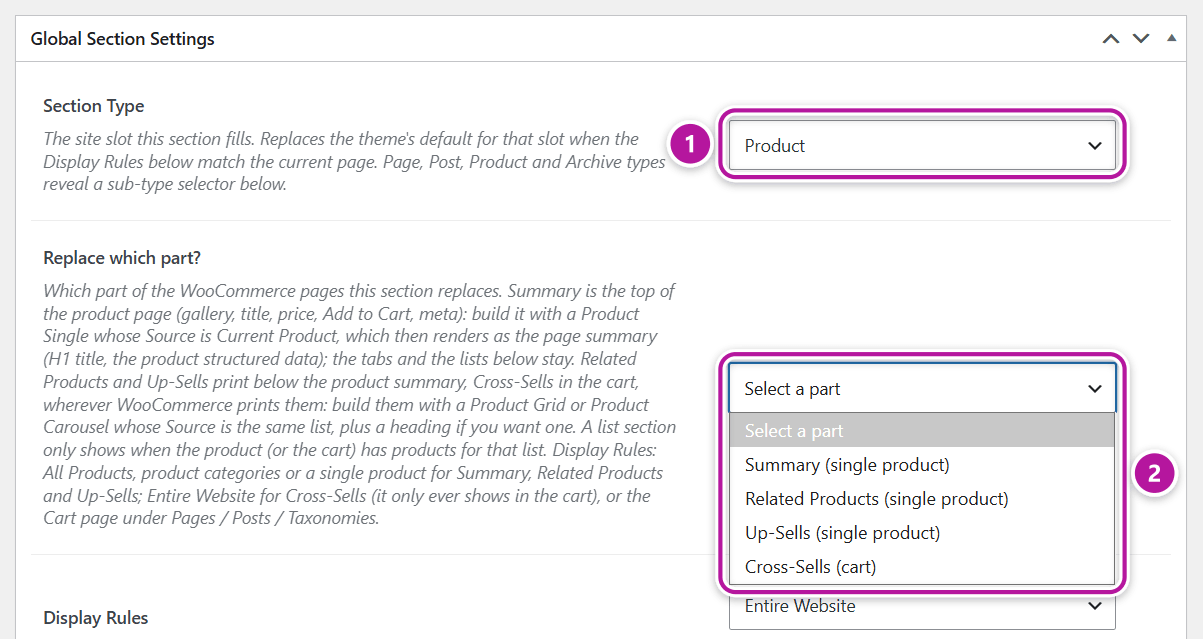
Product sections let you design parts of your store in Elementor. Each part shows only on its own page — the product page or the cart.
| Option | Where it shows | Build it with |
|---|---|---|
| Summary (single product) | The top of the product page — gallery, title, price, Add to Cart and meta. The tabs and the product lists below it stay in place. | A Product Single widget whose Source is Current Product. |
| Related Products (single product) | Below the product summary, wherever WooCommerce prints related products. | A Product Grid or Product Carousel whose Source is Related Products. |
| Up-Sells (single product) | Below the product summary, wherever WooCommerce prints up-sells. | A Product Grid or Product Carousel whose Source is Up-Sells. |
| Cross-Sells (cart) | In the cart. | A Product Grid or Product Carousel whose Source is Cross-Sells. |
A few things to know:
- Source is in the Query & Filtering section of the Product Grid and Product Carousel, and in the Product section of the Product Single. In the editor, a sample product stands in so you can see the result.
- Add a heading above the grid or carousel if you want one — it's a separate widget.
- A list section only shows when the product (or the cart) actually has products for that list. A product with no up-sells shows no up-sells section, heading included.
- For Summary, use a single Product Single widget set to Current Product. It becomes the page's summary, with the main product title and the product data search engines read.
Display Rules for Product sections:
| Part | Rules to use |
|---|---|
| Summary, Related Products, Up-Sells | All Products, a product category, or a single product. |
| Cross-Sells | Entire Website — the section only ever shows in the cart — or the Cart page itself under Pages / Posts / Taxonomies. |
See Display rules for how to target a product category or a single product.
Match your shop cards exactly
Copy the Product Grid from your shop design into the Product section and switch its Source to the list you're replacing. The cards in your related products, up-sells and cross-sells then look exactly like the ones in your shop — nothing to restyle.
The widgets themselves are covered in WooCommerce widgets.
Archive — "Archive type"
| Option | Covers |
|---|---|
| Archive Loop (categories, tags, blog index) | The blog index and every post-list archive — category, tag, author, date and custom taxonomy. |
| Search Results | The search page only. |
| Product Archive (shop, product categories, tags) | The whole content area of the shop and its product archives, edge to edge. Available only when WooCommerce is active. |
For Archive Loop and Search Results, the Archive Results widget prints the listing — see Post & portfolio widgets.
Product Archive takes over the entire content area, so the Before Content and Sidebar sections step aside on those pages — put your breadcrumbs or filters inside the section itself. For its Display Rules, combine WooCommerce Shop Page and All Products Archive: together they cover the shop, product categories, tags and brands. Add Search Page if the section should also design the product search.
Note
One section targets one area. To override more than one — say a custom Entry Header and custom Comments — create a separate section for each. Sections for different areas never compete with each other.
Types with built-in limits
Some types narrow where a section can appear, on top of its Display Rules:
- 404 Page — the Display Rules are fixed to 404 Page; there is nothing else to choose.
- Page and Post — act only on single pages or single posts.
- Product — acts only on the product page (Summary, Related Products, Up-Sells) or the cart (Cross-Sells).
- Archive — each archive type acts only on its own listings.
- Left Sidebar and Right Sidebar — show on layouts that have a sidebar area: single posts and pages, archives, the blog and search results.
That makes Entire Website a safe rule for these types: the section still shows only where its slot exists.
Where to go next
Was this article helpful?