Tools: export, import & reset
The Tools tab has three action cards: export, import and reset. It's an action screen rather than a form, so there's no Save Changes button — each card acts as soon as you use it.
You'll find the tab in the Settings panel, under Themeasy → Settings.
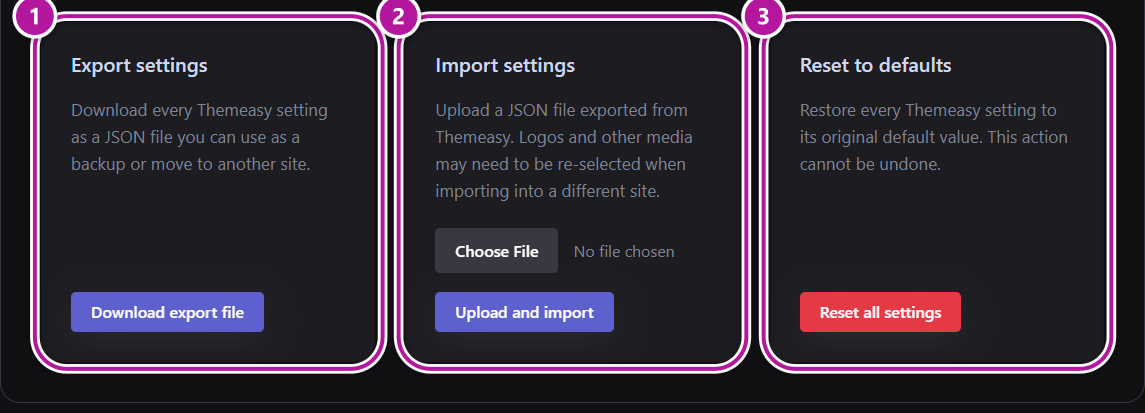
Export settings
Downloads every Themeasy setting as a JSON file that you can keep as a backup or move to another site. Click Download export file to save it. The file is named after your site's address and the date and time of the export.
What the export contains
The file holds everything you set in the Settings panel, including your custom code and font provider keys — store it as carefully as any other backup. White Label settings are saved separately and are not part of the export.
Import settings
Uploads a JSON file you exported from Themeasy and applies it. This overwrites your current settings, so it asks you to confirm first. Choose your file and click Upload and import. A "Settings imported successfully." notice confirms it.
Two things to know:
- On a different site, logos and other media may need to be re-selected after the import.
- The file must be a
.jsonexport from Themeasy, no larger than 2 MB.
If Elementor is active, importing also refreshes the colors and fonts that Themeasy publishes to Elementor — see Global colors & fonts sync.
▸ The import was rejected?
The panel tells you why at the top of the Tools tab:
| Message | What to do |
|---|---|
| "No file was selected for import." | Choose a file before clicking Upload and import. |
| "Invalid file type. Please upload a .json export file." | Upload the .json file exactly as it was downloaded. |
| "The selected file is too large to import." | The file is over 2 MB. Export again from the source site. |
| "The file could not be read as valid JSON." | The file was edited or damaged. Export again from the source site. |
| "This file is not a Themeasy settings export." | The file comes from another tool. Use a file created with Download export file. |
| "The export file does not contain any settings." | The file is empty. Export again from the source site. |
| "The file could not be uploaded. Please try again." | Try again; if it keeps failing, check your server's upload limits. |
If the import succeeds but some values were not valid for this site, additional warnings list what was adjusted.
Reset to defaults
Restores every Themeasy setting to its original default value. This cannot be undone, so it asks you to confirm before it runs. Click Reset all settings to start. An "All settings were restored to their default values." notice confirms it.
Warning
Reset to defaults can't be undone. Export your settings first if there's any chance you'll want them back.
Move settings to another site
To copy your configuration from one site to another, export it on the original site and import the file on the new one.
- On the original site, open Themeasy → Settings → Tools and click Download export file.
- On the new site, open the same Tools tab and, under Import settings, choose the file and click Upload and import.
- Confirm the prompt, then wait for the "Settings imported successfully." notice.
- Re-select any logos or media that didn't carry over — the logo in Site Identity, for example — and save that tab.
Back to the Settings panel overview.
Was this article helpful?