Forms with Contact Form 7
Themeasy's forms run on Contact Form 7, the free WordPress form plugin. You build the form there, and Themeasy makes it look like the rest of your site: ready-made form layouts to start from, and a Form widget that styles the fields, adds the button and handles validation.
Availability
The Form widget and the Contact Form 7 styling are part of the full Themeasy toolkit: you need a Themeasy theme and a Pro or Agency plan (a Themeasy theme bought on its own unlocks them too). They aren't part of Themeasy Lite or the Themeasy Widgets plan.
What you need
- The free Contact Form 7 plugin, installed and active. Install it from Plugins → Add Plugin.
- Elementor, to place the form with the Form widget.
Contact Form 7 stays in charge of the form itself: its fields, the email it sends and its messages are all set up on the Contact Form 7 screens.
Start from a form template
Themeasy adds a Form Templates button to the Contact Form 7 form editor, with four pre-built layouts.
- In the WordPress admin, open Contact and add a new form, or edit an existing one.
- Above the form editor, click Form Templates.
- In the Insert Form Template window, click a layout to preview its code.
- Click Insert template. If the form already has content, confirm that it will be replaced.
- Adjust the field tags, labels and messages to suit you, then save the form.
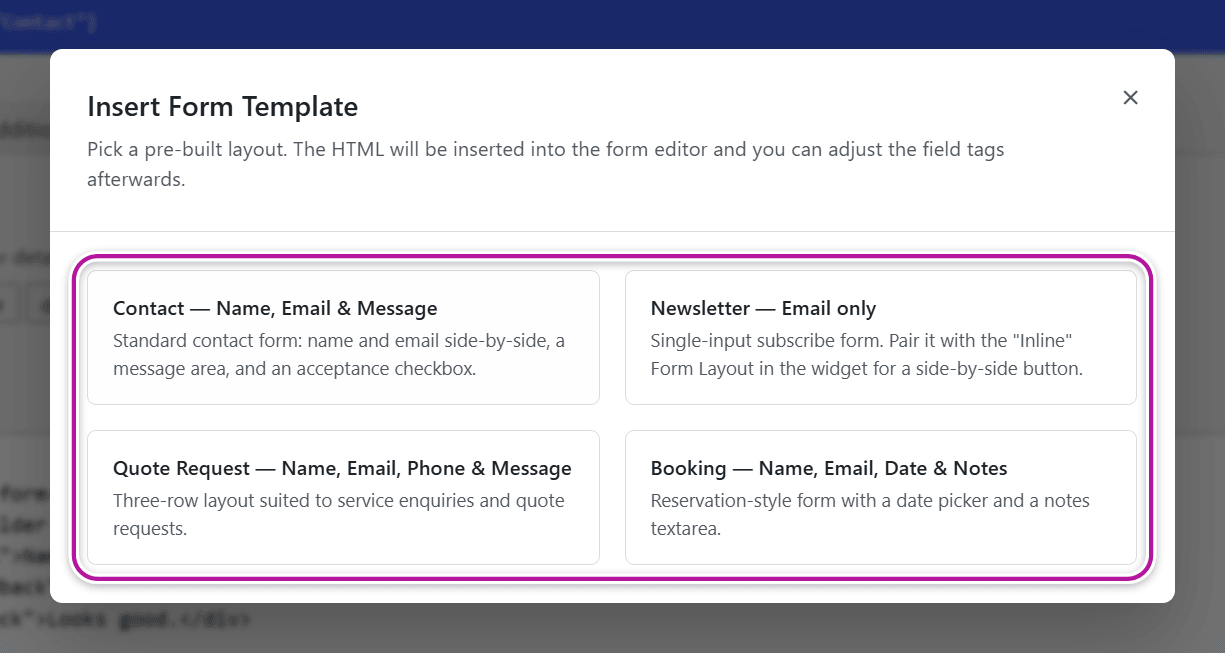
| Template | What it contains |
|---|---|
| Contact — Name, Email & Message | Name and email side by side, a message area and an acceptance checkbox. |
| Newsletter — Email only | A single email field for a subscribe form. |
| Quote Request — Name, Email, Phone & Message | Three rows — name and email, phone and a service select, then a message — for service enquiries and quote requests. |
| Booking — Name, Email, Date & Notes | A reservation-style form with a date picker, a guest count and a notes area. |
Warning
Inserting a template replaces everything in the form editor. Start from a template first, then customize.
The templates contain fields only — no submit button. The Form widget adds the button for you.
Place the form with the Form widget
- Edit a page with Elementor and search the widget panel for Form.
- Drag the widget onto the page.
- On the Content tab, choose your form in Contact Form.
- Set the Button Label and, if you like, a Button Icon.
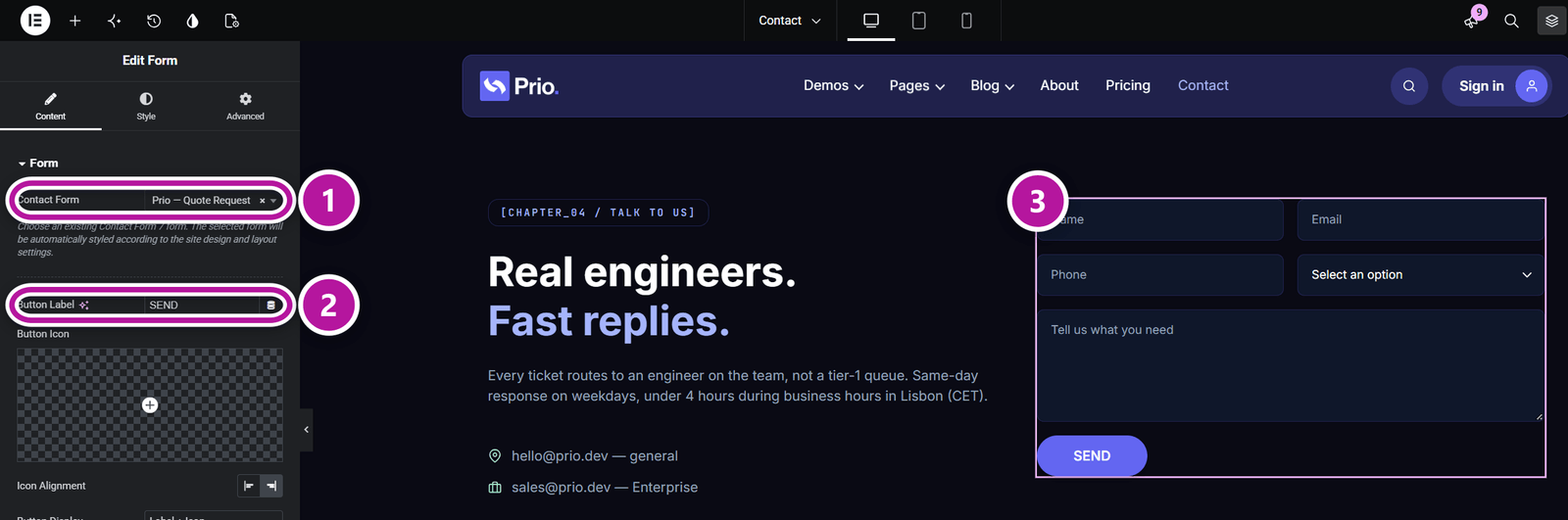
Content tab
| Control | What it does |
|---|---|
| Contact Form | The Contact Form 7 form to show. |
| Button Label | The text on the submit button — Send by default. |
| Button Icon | An optional icon on the button. |
| Icon Alignment | Puts the icon on the Left or the Right of the label. |
| Button Display | Label + Icon, Label Only or Icon Only. With Icon Only, the label is still read out by screen readers. |
Tip
The widget adds its own submit button. If your form still has Contact Form 7's own submit tag, remove it from the form so visitors don't see two buttons.
Style tab
The Form Fields section starts with Form Design:
| Form Design | Result |
|---|---|
| Basic | Each label sits above its field. |
| Compact | Labels are hidden; the placeholders carry the hints. |
| Floating Label | The label sits inside the field and floats up as the visitor types. |
Below it you can adjust:
- Spacing — Rows Gap and Columns Gap. Below 768px, fields that share a row stack.
- Label — Text Color, Typography and Spacing.
- Placeholder — Placeholder Color and Typography.
- Field — Text Color, Background Color and Border Color for the Normal, Hover and Focus states, plus Typography, Padding, Border Radius, Textarea Border Radius, a border and a Box Shadow.
The Button section styles the submit button: its colors for the Normal and Hover states, Typography, Icon Size, Width, Height, Padding, Spacing, Border Radius and Box Shadow.
Some controls depend on the design — Compact has no label options, for instance, and Floating Label has no placeholder options.
Tip
Pair the Newsletter template with the Compact or Floating Label design: the button then sits inside the email field, for a one-line subscribe form.
What Themeasy changes in your forms
With Contact Form 7 active, Themeasy adapts the forms it outputs:
- Fields match your site. Text fields, selects, text areas, date and file fields, checkboxes, radio buttons and acceptance boxes pick up Themeasy's form styling, so a form placed with the widget follows your site's design.
- Layout follows your markup. Contact Form 7's automatic paragraph and line-break tags are switched off, so rows and columns stay exactly as the form defines them. This applies to every Contact Form 7 form on the site.
- Required fields are checked before sending. In the Form widget, an incomplete form isn't submitted: the fields are marked and the hints from your form appear, such as "Please enter a valid email address."
- Visitors see that it's sending. A loading indicator shows and the button is disabled until Contact Form 7 answers.
- The response reads as a notice. The confirmation appears in your success color, and errors in your danger color.
If the form doesn't show
Editors see the reason in place of the form; visitors see "This form is currently unavailable."
| Message | What to do |
|---|---|
| Please select a Contact Form 7 form. | Choose a form in Contact Form. |
| Contact Form 7 is not active. | Activate the Contact Form 7 plugin. |
| The selected Contact Form 7 form was not found. | The form was deleted — choose another one. |
Where to go next
Was this article helpful?