Getting support with tickets
When you need a hand from a human, open a ticket. A ticket is a private conversation between you and the Themeasy support team where you can describe the problem, attach files, and reply back and forth until it's solved.
Search first
Many questions are already answered in writing. Before you open a ticket, take a moment to search the knowledge base — you may find the fix in seconds.
The Support page
The Support page ("How can we help?") is the public starting point, linked as Support in the footer of every page. It lays out three ways to get help:
- Open a support ticket — "The fastest way to reach our team." The Open a ticket button takes you to the new-ticket form (after signing in).
- Search the documentation — Browse the docs opens the knowledge base.
- Status & roadmap — links to the system status page and the roadmap.
It also tells you what to expect:
- What support covers — installation, setup and updates; licensing, activation and renewals; downloads and product access; bug reports and troubleshooting. Custom development, design changes beyond the built-in settings and third-party plugin conflicts fall outside support, though we'll gladly point you in the right direction.
- Hours & response times — the help desk is staffed Monday to Friday. We answer most tickets within one business day; more complex issues can take a little longer. Tickets are answered in the order they arrive.
Your tickets
Go to My tickets — Tickets in the account sidebar — to see every ticket you've opened. Each row is one conversation, with these columns:
| Column | What it shows |
|---|---|
| # | The ticket number — use it when you refer to a ticket. |
| Subject | The title you gave the ticket. Click it to open the conversation. |
| Status | Where the ticket stands right now (see Ticket statuses). |
| Last reply | When the most recent message was posted. |
If you haven't contacted us yet, the page reads "You don't have any tickets yet." and invites you to Open your first ticket. To start a new one at any time, click Open new ticket in the top right.
Opening a ticket
Verify your email first
The ticket area requires a verified email address. If you haven't confirmed yours yet, you're sent to the Verify your email screen instead. See Signing in for how verification works, or resend the link from your profile.
From My tickets, click Open new ticket to reach the Open a new ticket form, then:
- Enter a Subject — a short summary of what's going on.
- Fill in the Description with as much detail as you can — your site URL, the product and version, and what you already tried. The more you tell us, the faster we can help.
- Complete any extra fields shown on the form. These vary depending on what we currently ask for.
- Optionally add Attachments — up to 5 files, 10 MB each. Screenshots and logs are especially helpful.
- Click Open ticket to send it to our team.
You'll land straight on the new ticket's conversation page, and we'll notify you when an agent replies.
Accepted attachments
Images (JPG, PNG, GIF, WebP), PDF, TXT, CSV and ZIP files are accepted. Put anything else — a theme
export, a set of log files — in a .zip first.
The conversation
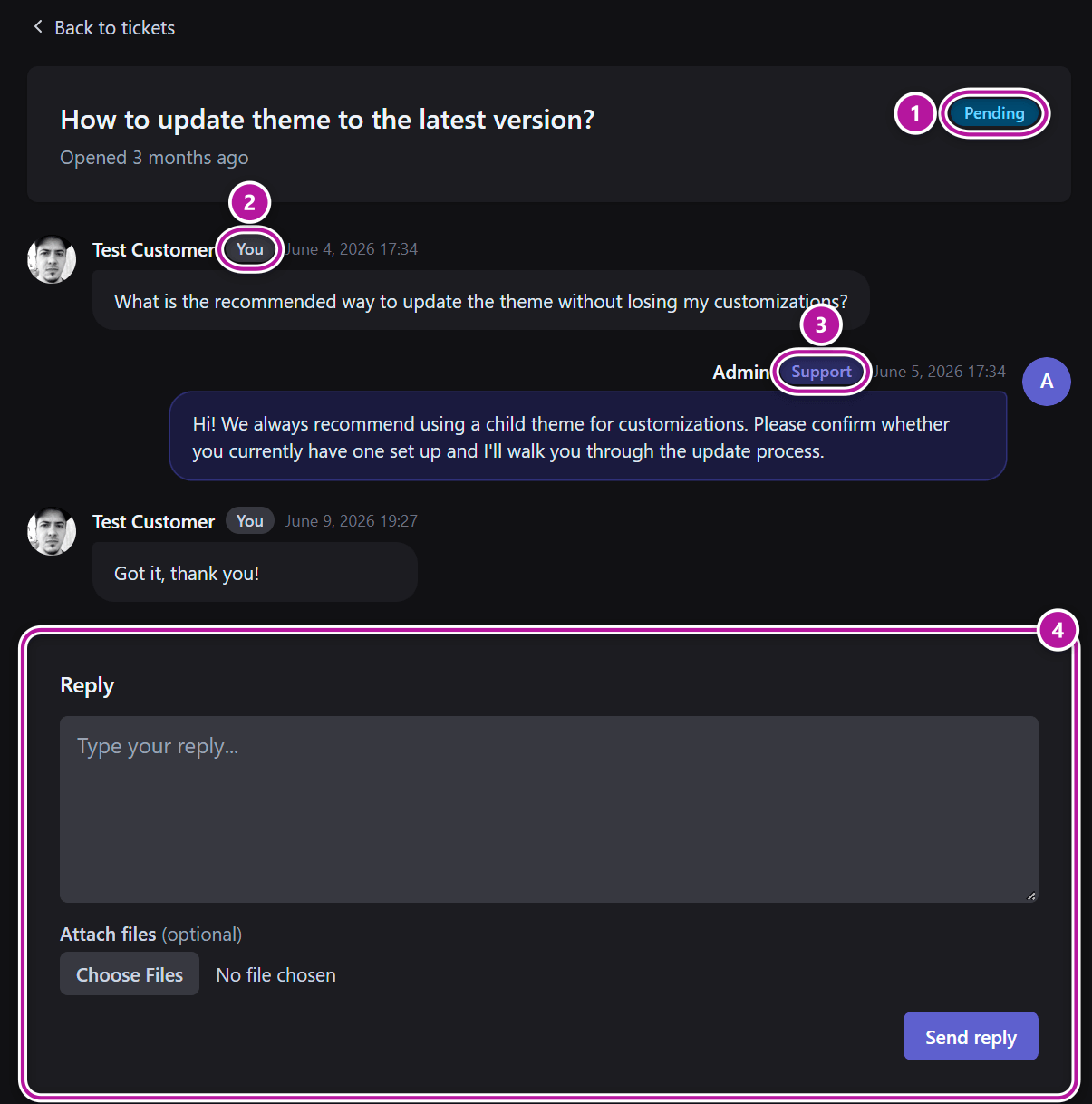
Open any ticket from the list to read the full thread. The page header shows the subject, when the ticket was Opened, and a status badge for its current state. A Back to tickets link returns you to the list.
Below the header, every message appears in order, each with the author's name, a You or Support label and the date and time it was posted. Any files attached to a message are listed underneath it; click an attachment name to download it. If a file couldn't be kept (for example, it was flagged blocked by virus scan or was too large to store), the message says so instead of linking it.
Replying in the Hub
While a ticket is Open or Pending, a Reply box sits at the bottom of the conversation. Type your message, optionally use Attach files to add more screenshots or documents, then click Send reply. Your reply is added to the thread and the team is notified.
Once a ticket is Resolved or Closed, the reply box is replaced with a note such as "This ticket is Resolved. Open a new ticket if you need more help." You can still read the whole history at any time.
Replying by email
You don't have to come back to the Hub to keep a conversation going. When our team replies, you get an email with the reply and a View ticket button. Answer that email and your message is added to the same ticket, attachments included.
A reply sent by email to a ticket that is already Resolved or Closed reopens it, so it's the quickest way to say "this isn't fixed yet".
Emailing us directly
A new message sent to the Themeasy support address also opens a ticket. You get a "We received your request" email back with the ticket number and a View your ticket button, and you can reply to it to add more details.
If that email address has no Hub account yet, one is created for it. To follow the ticket in the Hub, choose a password with Forgot your password? on the sign-in screen, then verify the address.
Notifications about your tickets
You're told about two things: a reply from our team, and a status change. Each reaches you by email and in your notification inbox. Choose the channels you want under Ticket replies and Ticket status changes in notification preferences.
Ticket statuses
The status badge tells you who the ticket is waiting on and whether it's still active:
| Status | What it means |
|---|---|
| Open | The ticket is active and with our team — we're working on a reply. |
| Pending | The ticket is active and waiting on you, usually for more information or a confirmation. |
| Resolved | We believe the issue is solved. The conversation is read-only in the Hub. |
| Closed | The ticket is finished and read-only in the Hub. |
You can reply in the Hub while a ticket is Open or Pending. For a Resolved or Closed ticket, reply to its last email to reopen it, or open a new ticket.
▸ A ticket closed but I still have the problem
That's no trouble. Reply to the last email you received about it, or open a new ticket from My tickets and mention the previous ticket number in your description so we have the context. Searching the knowledge base first may also turn up a quicker answer.
Rate our support
About a day after a ticket is marked Resolved, we email you a short survey with the subject "How did we do?". Click Rate your support to open it — no sign-in needed:
- Under Your rating, pick one to five stars.
- Optionally write a few words under Anything to add?.
- Click Submit feedback.
You'll see "Thank you for your feedback!" along with the rating you gave. Each ticket can be rated once, and the link in the email stays valid for 14 days.
Prefer not to get the survey? Untick Email next to Satisfaction surveys in your notification preferences.
Related
Was this article helpful?