Single product page
Themeasy lays the single product page out in two columns — the gallery on one side and the product summary (title, price, options, add-to-cart, actions and meta) on the other — with the product details and related products below.
Each piece is controlled in Themeasy → Settings → WooCommerce, mostly under Product Summary — this page describes what shoppers see. See the WooCommerce settings for the options themselves.
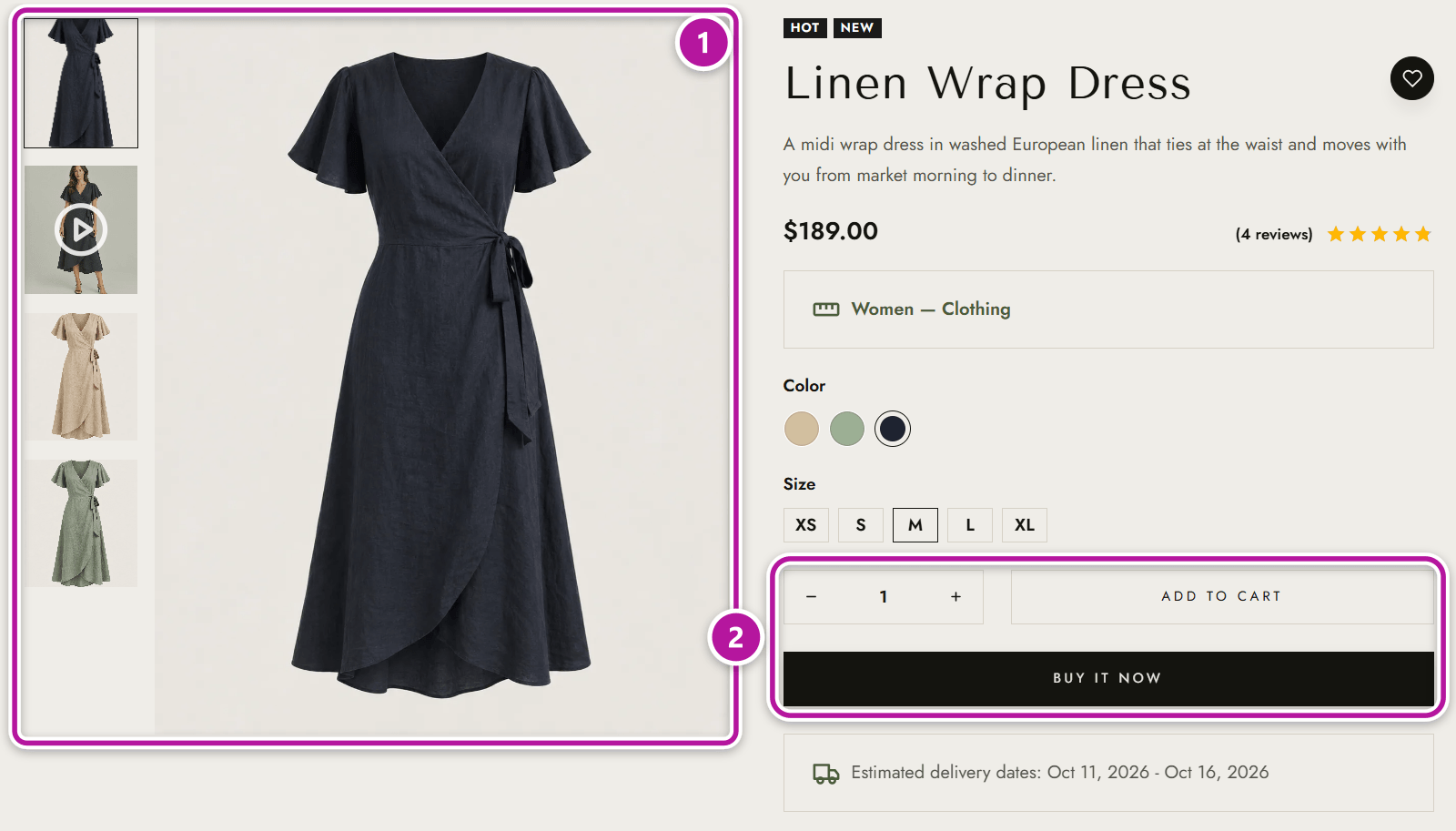
Gallery and lightbox
A product with gallery images shows a main slider with previous and next arrows, plus a thumbnail strip that runs vertically or horizontally — set by Thumbnail Direction. Clicking an image opens it in a lightbox. A product with a single image shows that one image, with a hover zoom and the same lightbox.
Gallery images that have a video attached show a play icon and open the video instead of the image. To attach one, open the image in the Media Library and paste a YouTube or Vimeo link into its Video URL field.
Note
Changing an image-size option in the WooCommerce settings — the image widths, thumbnail cropping or gallery thumbnail size — schedules a thumbnail regeneration that runs in the background. On large catalogs it can take a while for every image to update.
Summary badges and actions
| Feature | What shoppers see | Setting |
|---|---|---|
| Sale badge | A "Sale" badge above the product title on discounted products. | Sale Badge |
| Wishlist | A heart icon beside the product title, to save the product for later. | Wishlist Button — requires WPC Smart Wishlist |
| Rating | The average star rating with a "(3 reviews)" link, next to the price. It appears once the product has reviews. | Rating |
| Buy Now | A second button that adds the product to the cart and goes straight to checkout. Hidden when the product is out of stock or external. | Buy Now, Buy Now Label (default "Buy Now") |
| Share | A share toggle that reveals links for Facebook, X (Twitter) and WhatsApp. | Share Buttons, Share Label (default "Share") |
| Compare | Adds the product to a side-by-side comparison. | Compare, Compare Label (default "Compare") — requires WPC Smart Compare |
| View Details | A link that scrolls down to the product details section. Inside a Quick View, it opens the full product page instead. | View Details, View Details Label (default "View Details") |
Note
The Wishlist and Compare buttons depend on free third-party plugins — WPC Smart Wishlist and WPC Smart Compare. Without the matching plugin installed and active, the button doesn't appear even when its toggle is on.
Add-to-cart layout
Add to Cart Layout chooses how the buy area looks:
- Theme Custom Layout — the default. Themeasy's styled quantity selector and add-to-cart button, which adds the product without reloading the page, with the optional Buy Now button below.
- WooCommerce Default — the native WooCommerce form, for the best compatibility with other plugins. The Buy Now button isn't part of this layout.
Variable products show their color, image and label options as variation swatches in both layouts. An out-of-stock product shows its availability message in place of the buttons, and grouped products always use the native WooCommerce form.
Product meta
When Product Meta is on, the summary lists the product's details. Each line has its own toggle and appears only when the product has that information:
| Line | Toggle |
|---|---|
| SKU: | Show SKU |
| Categories: | Show Categories |
| Tags: | Show Tags |
| Brands: — only when your store uses product brands | Show Brands |
Categories, tags and brands link to their archive pages.
Product tabs
The details section below the summary works in one of two ways, set by Enable Product Custom Tabs:
- On (the default) — the section shows the product's own content as a single block. Whatever you build in the product's content area, including your own tabs made in Elementor, appears here. Reviews and the attribute table aren't added automatically in this mode; place them with the Product Reviews and Product Attributes widgets from the WooCommerce widgets.
- Off — the native WooCommerce tabs: Description, Additional information and Reviews, plus any tabs added by other plugins.
Related products, up-sells and cross-sells
Below the details, the page shows Related products and — when the product has them — its up-sells, each as a carousel of the same product cards used in your shop. The cart page shows cross-sells the same way.
To design these lists yourself, create a Global Section of type Product and pick the part to replace — Related Products, Up-Sells or Cross-Sells. The same section type can also replace the Summary at the top of the product page. See Section types and the areas they replace.
Where to go next
Head back to Themeasy for WooCommerce. For variable products, see Variation swatches; to let shoppers personalize a product, see Product custom fields. To change any option above, open the WooCommerce settings.
Was this article helpful?