Typography & fonts
The Typography tab controls the fonts and type sizes your site uses. Open it from Themeasy → Typography, or from the Typography tab of the Settings panel. Its fields are grouped into accordion sections. After making changes, click Save Changes to apply them — a "Settings saved." notice confirms the save.
The tab runs from fonts, to sizes, to components: three font roles first, then Body Sizes, Heading Sizes and Font Weights, then Text Presets and Button, and finally Font Providers.
When you save, your font roles, Text Presets and button typography are also published to Elementor as Global Fonts. See Global colors & fonts sync.
Font roles
Each role chains Font Source → Font Family → styling, where styling covers weight, line height and letter spacing.
Primary (Body)
The primary role applies to body text and most elements across your site.
| Field | What it does | Default |
|---|---|---|
| Font Source | Where the font comes from. | Google Fonts |
| Font Family | The typeface used for body text. | Roboto |
| Font Weight | The weight of body text. | Regular (400) |
| Line Height | The spacing between lines, from 0.5 to 5. | 1.5 |
| Letter Spacing | The spacing between characters, in px, from -10 to 50. | 0 |
Changing the Font Source or Font Family here ticks Set up typography on the Overview checklist.
Note
There is no font size field in this section. Body text sizes live in Body Sizes (below).
Secondary (Headings)
The secondary role applies to headings, titles and highlighted text.
| Field | What it does | Default |
|---|---|---|
| Font Source | Where the font comes from. | Google Fonts |
| Font Family | The typeface used for headings. | Poppins |
| Font Weight | The weight of headings. | Semi Bold (600) |
| Line Height | The spacing between lines, from 0.5 to 5. | 1.3 |
| Letter Spacing | The spacing between characters, in px, from -10 to 50. | 0 |
Heading sizes live in Heading Sizes (below).
Accent
The accent role is an optional third font for callouts, badges and special emphasis. It uses the same fields as headings:
| Field | What it does | Default |
|---|---|---|
| Font Source | Where the font comes from. | Google Fonts |
| Font Family | The typeface used for accent text. | Roboto |
| Font Weight | The weight of accent text. | Semi Bold (600) |
| Line Height | The spacing between lines, from 0.5 to 5. | 1.3 |
| Letter Spacing | The spacing between characters, in px, from -10 to 50. | 0 |
Font Source
Each role's Font Source is one of:
- Google Fonts
- Adobe Fonts (Typekit)
- Custom Fonts (Upload)
When you change the source, the Font Family picker swaps to match it. The picker is searchable — start typing a font name to filter the list.
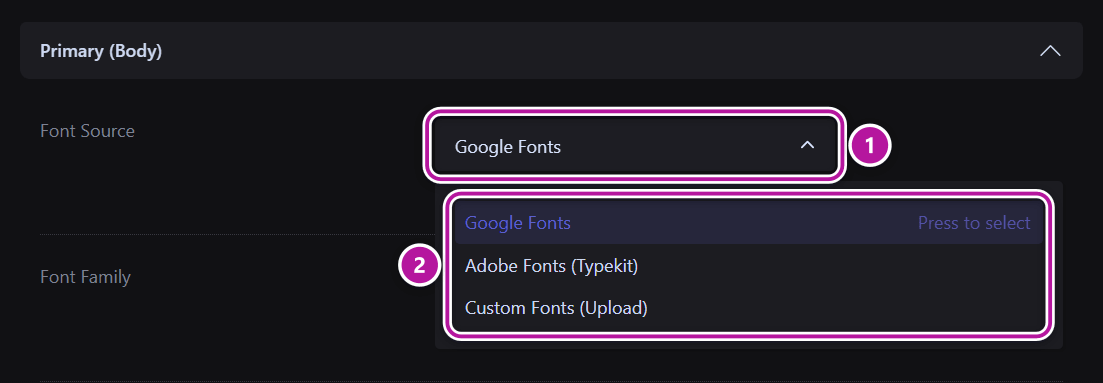
Every Font Weight field offers the standard range from Thin (100) to Black (900) — for example Regular (400), Medium (500), Semi Bold (600) and Bold (700).
Body Sizes
Five reusable text sizes, used throughout the theme and the widgets. Each one is responsive: it has separate Mobile, Tablet and Desktop sliders, in rem, from 0.5 to 5.
| Field | Used for | Mobile | Tablet | Desktop |
|---|---|---|---|---|
| Extra Small | Micro-labels: eyebrows, badges, captions and meta. | 0.75 | 0.75 | 0.875 |
| Small | UI text (buttons, navigation, inputs) and supporting copy. | 0.875 | 0.875 | 1 |
| Medium | Default body text and widget descriptions. | 1 | 1 | 1.125 |
| Large | Emphasized copy: leads and quotes. | 1.125 | 1.125 | 1.25 |
| Extra Large | Large copy: pull-quotes and highlighted names. | 1.25 | 1.25 | 1.375 |
Heading Sizes
Each heading level has its own responsive size, with Mobile, Tablet and Desktop sliders, in rem, from 0.5 to 10.
| Field | Applies to | Mobile | Tablet | Desktop |
|---|---|---|---|---|
| H1 Font Size | Level 1 headings | 2 | 2.5 | 3 |
| H2 Font Size | Level 2 headings | 1.75 | 2 | 2.5 |
| H3 Font Size | Level 3 headings | 1.5 | 1.75 | 2 |
| H4 Font Size | Level 4 headings | 1.25 | 1.5 | 1.75 |
| H5 Font Size | Level 5 headings | 1.125 | 1.25 | 1.5 |
| H6 Font Size | Level 6 headings | 1 | 1.125 | 1.25 |
Font Weights
Two emphasis weights used across the whole system, so you can tune how bold "bold" is in one place.
| Field | Used for | Default |
|---|---|---|
| Semi Bold | Card titles, prices, labels and UI accents. | Semi Bold (600) |
| Bold | Totals, counters and highlighted numbers. | Bold (700) |
Text Presets
Eight ready-made display styles, from Display 1 (the largest) to Display 8 (the smallest). They are published to Elementor as Global Fonts, so Display 1 to Display 8 appear in the Global picker of every Typography control, next to your Global Colors.
The section shows a vertical list on the left. Each item shows that style's current desktop size, updated live as you drag the size slider. Select an item to edit that style on the right.
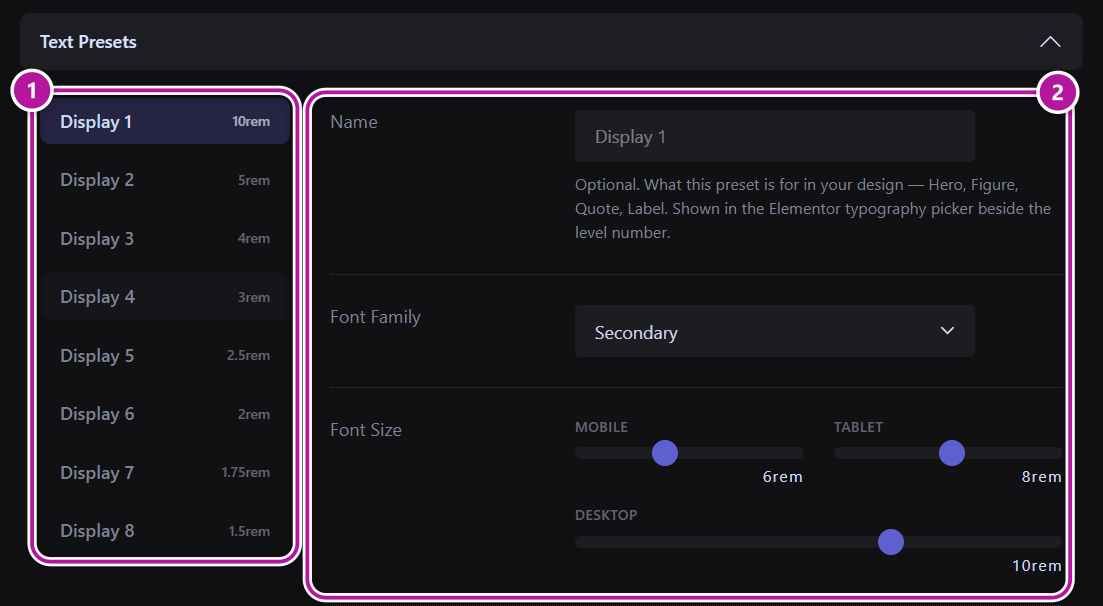
Each preset has the same controls, in the same order as Elementor's typography popover:
| Field | What it does | Default |
|---|---|---|
| Name | Optional, up to 40 characters. What the preset is for in your design — Hero, Figure, Quote, Label. A named preset shows its name in the list and in Elementor's picker, after the preset number (for example "Display 3 — Figure"). | Empty |
| Font Family | Which of your three font roles the preset uses: Primary, Secondary or Accent. | Secondary |
| Font Size | The size on Mobile, Tablet and Desktop, in rem, from 0.5 to 15. |
See the table below |
| Style | Three selects: Weight, Transform (None, Uppercase, Lowercase or Capitalize) and Style (Normal, Italic or Oblique). | Weight per preset, None, Normal |
| Metrics | Line Height, Letter Spacing (in px, with separate Mobile, Tablet and Desktop values) and Word Spacing (in px). | 1.2, 0 and 0 |
The default sizes and weights are:
| Preset | Mobile | Tablet | Desktop | Weight |
|---|---|---|---|---|
| Display 1 | 6 | 8 | 10 | Black (900) |
| Display 2 | 3 | 4 | 5 | Extra Bold (800) |
| Display 3 | 2.5 | 3.25 | 4 | Extra Bold (800) |
| Display 4 | 2 | 2.5 | 3 | Bold (700) |
| Display 5 | 1.75 | 2.125 | 2.5 | Bold (700) |
| Display 6 | 1.5 | 1.75 | 2 | Bold (700) |
| Display 7 | 1.25 | 1.5 | 1.75 | Semi Bold (600) |
| Display 8 | 1 | 1.25 | 1.5 | Semi Bold (600) |
Tip
You can edit several presets before saving. Switching between items in the list never loses your changes, and one Save Changes saves them all.
Note
The presets reach Elementor when you save. On a brand-new site, click Save Changes on this tab once and Display 1 to Display 8 appear in Elementor's Global picker.
Button
Typography for every button surface: the Button widget, calls to action, pricing tables, forms and WooCommerce buttons. The controls follow the same order as a Text Preset.
| Field | What it does | Default |
|---|---|---|
| Button Font Family | Which font role buttons use: Primary, Secondary or Accent. | Primary |
| Button Font Size | The size on Mobile, Tablet and Desktop, in rem, from 0.5 to 5. |
1, 1 and 1.125 |
| Button Style | Three selects: Weight, Transform and Style. | Semi Bold (600), None, Normal |
| Button Metrics | Line Height, Letter Spacing (in px) and Word Spacing (in px). | 1.2, 0 and 0 |
Font Providers
Some font sources need credentials before they can load fonts:
| Field | What it does |
|---|---|
| Google Fonts API Key | Without a key, the Google Fonts picker shows a curated shortlist. Add a key to unlock the full Google Fonts catalog. You can get a key from the Google Cloud Console. |
| Adobe Typekit ID | Required to load fonts from your Adobe Fonts kit. You find the Kit ID on the Adobe Fonts website. |
Enter the key or ID, click Save Changes, and the Font Family pickers then list the fonts from that provider.
Custom fonts
Note
The Custom Fonts (Upload) source lists the font families you have added to the WordPress Font Library (Appearance → Fonts) and the ones uploaded with the free Custom Fonts plugin by Brainstorm Force. If neither has any fonts yet, the option still appears but its Font Family picker is disabled.
Back to the Settings panel overview.
Was this article helpful?