The Themeasy Library
Open the Library
The Themeasy Library lives inside the Elementor editor. When you edit a page or post with Elementor, a button with the Themeasy mark appears in each "add new section" area (the one that reads "Drag widget here"), next to Elementor's own add and template buttons. Its tooltip reads Themeasy Library. Click it to open the Library.

If the page offers no add-section area, a floating Themeasy Library button appears in the editor instead.
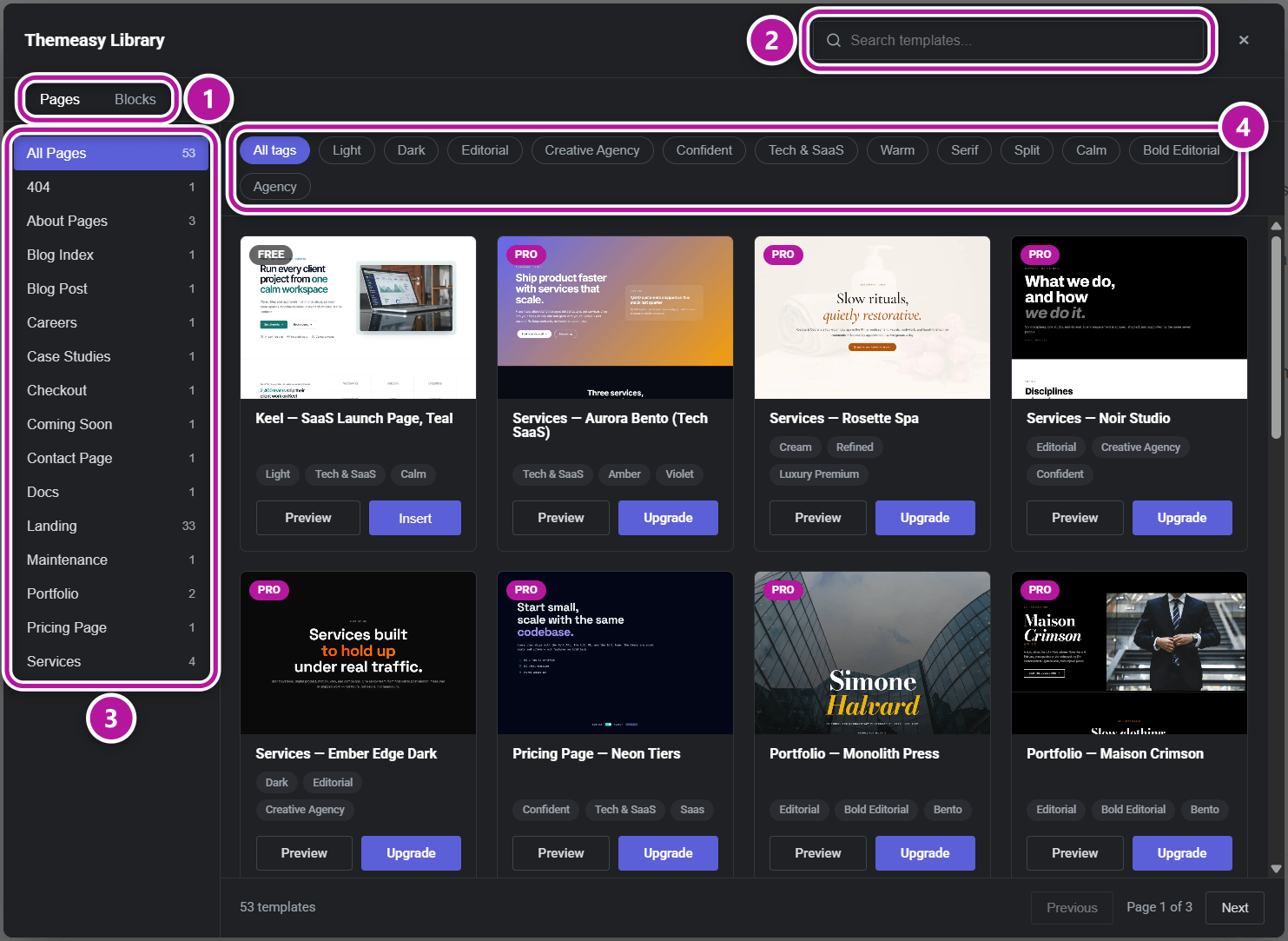
The Library opens in a window titled Themeasy Library.
Before you can use it, make sure the Themeasy plugin and Elementor are both active, and that you're editing a page or post in Elementor. The Library is part of the broader Elementor editor enhancements.
The Library is available on every plan, Themeasy Lite included, for browsing, previewing and inserting Free templates.
Browse & filter
The Library gives you several ways to narrow the grid down to the template you want:
- Tabs — when the catalog is split into groups, tabs across the top (such as Pages and Blocks) switch between them. The Library opens on Pages when that tab exists.
- Search — type in the Search templates... box.
- Categories — pick a category in the sidebar; each one shows how many templates it holds. The first entry shows everything in the current tab (All Pages, for example), or reads All categories when there are no tabs.
- Tags — click a chip in the tag row to filter by that tag. Click it again, or All tags, to clear it.
Combine any of these to zero in on a design. The result count reads "N templates", and you move through the results with the Previous and Next buttons — the footer shows Page X of Y.
Each card shows a cover image, a badge (Free, Pro or Theme), the template title, up to three tags, and its actions: Preview and Insert.
You'll also see these states as you browse:
- Loading templates... while the grid loads.
- No templates match your filters. when nothing matches your current search, category and tag.
- An error message with a Retry button if the catalog can't be reached — click Retry to try again.
Close the Library at any time with the × button, by clicking outside it, or by pressing Esc.
Preview a template
Click Preview on a card to open that template's page on the Themeasy template library site, in a new browser tab. It's a good way to see the whole design before you commit.
Tip
Preview is available for every Free and Pro template, on any plan. Try a Pro template before you decide to upgrade.
Insert a template
When you've found the template you want, add it to your page:
- In the grid, find the template and click Insert. The button shows Inserting... while it works.
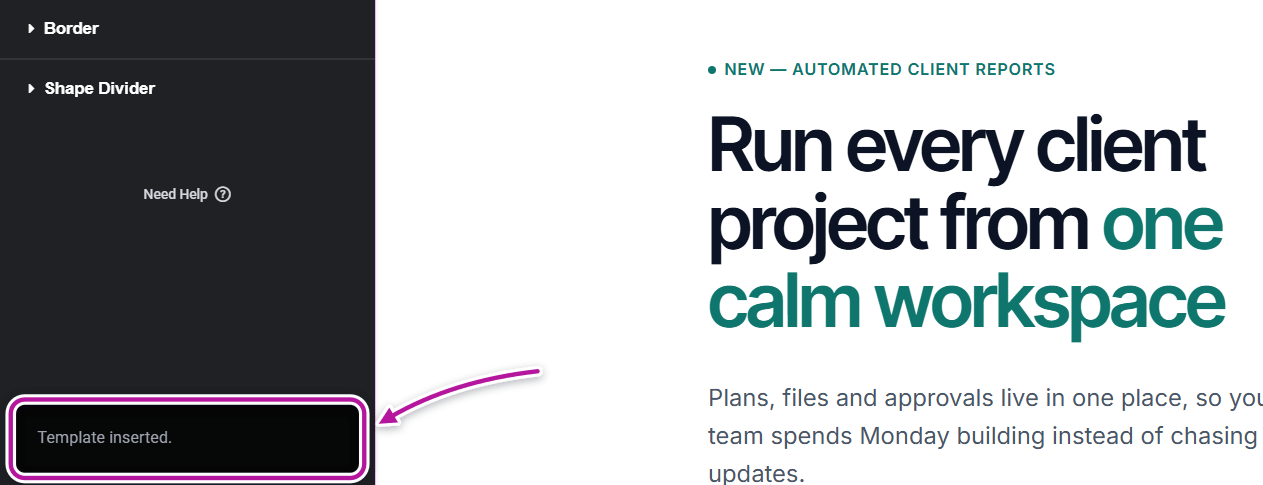
- The Library closes and a Template inserted. message confirms it.
- The template's sections are now at the bottom of the page you're editing — keep editing as usual.
Note
Inserting adds the template's sections to the bottom of the current page. It never replaces your page or its page settings, so everything you already built stays in place — and you can insert more than once.
When part of a template is left out
A template can use a widget that your site doesn't have. The Library then inserts everything else and tells you how many elements it skipped: "Template inserted, but 1 element was left out." The sentence that follows says why:
| Your site | The message adds | What to do |
|---|---|---|
| Themeasy Lite, or the plugin without a license | "Left-out widgets need a paid plan." | The template uses widgets that the free plugin doesn't have. Themeasy Widgets is the first plan that adds widgets. |
| Themeasy Widgets | "Left-out widgets need the Pro plan." | The template uses a widget outside your plan, often a site logo or another header widget. Upgrade to Pro to get it. |
| Pro, Agency or a theme license | "Left-out widgets need a plugin or theme this site does not have." | The widget needs WooCommerce, Contact Form 7 or a Themeasy theme. Activate what is missing, then insert the template again. |
Full-page templates on other themes
On a theme that isn't a Themeasy theme, a full-page template can land in a narrow column, because some themes (block themes such as Twenty Twenty-Five) box the page content. When that happens the message adds: "For full width, set Page Layout → Elementor Full Width." Open the page settings in Elementor and set Page Layout to Elementor Full Width. The Library never changes your page settings for you.
Free, Pro and Theme templates
Every card carries a badge that tells you who can insert it.
| Badge | Preview | Insert |
|---|---|---|
| Free | Any plan | Any plan, including Themeasy Lite and Themeasy Widgets |
| Pro | Any plan | Pro or Agency |
| Theme | Not available | Always — these templates ship with your Themeasy theme |
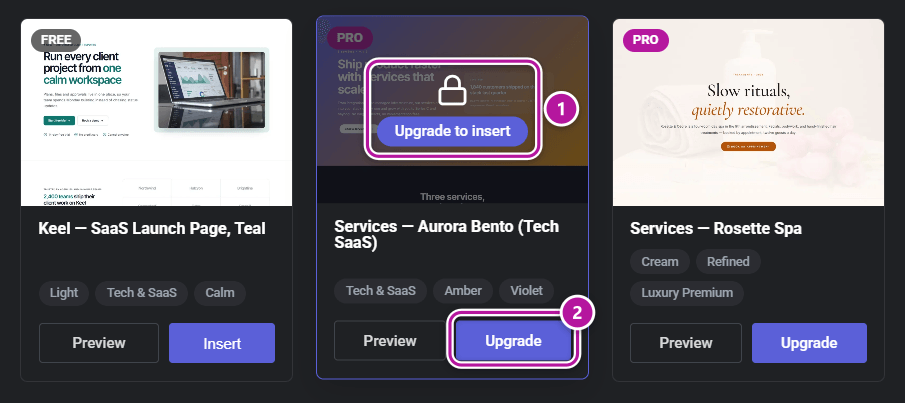
On a site without Pro or Agency, a Pro card is locked. Hover it to see the lock and Upgrade to insert; on the card, Upgrade takes the place of the Insert button. Both open the upgrade in a new browser tab: the Pro checkout, or the pricing page.
A few cases worth knowing:
- Themeasy Widgets — your plan inserts the Free templates. For the Pro ones, upgrade the license you already have: see Upgrade to Pro or Agency.
- A single theme — the license of a theme bought on its own doesn't include the Pro templates. If your theme ships its own templates, they appear with the Theme badge and insert without any plan.
Tip
Not sure a Pro template is worth it? Use Preview first — it's free on every plan — then upgrade only if it's the right fit.
Was this article helpful?