Global Sections: build headers, footers and more
What a Global Section is
A Global Section is a reusable block built in Elementor and placed by rules. Each section has a Section Type — the slot of your site it fills — and Display Rules that say where it appears. When its rules match the page a visitor is on, the section replaces the theme's default for that slot. Where no section matches, the theme's own header, footer or layout shows as usual.
A section is not a public page on its own: a visitor who opens its direct URL is sent to the home page. It only ever appears where its rules place it.
Create a section
- Open Themeasy → Theme Builder and click Add New on a slot card — or go to Themeasy → Sections and click Add New Section.
- Give the section a title.
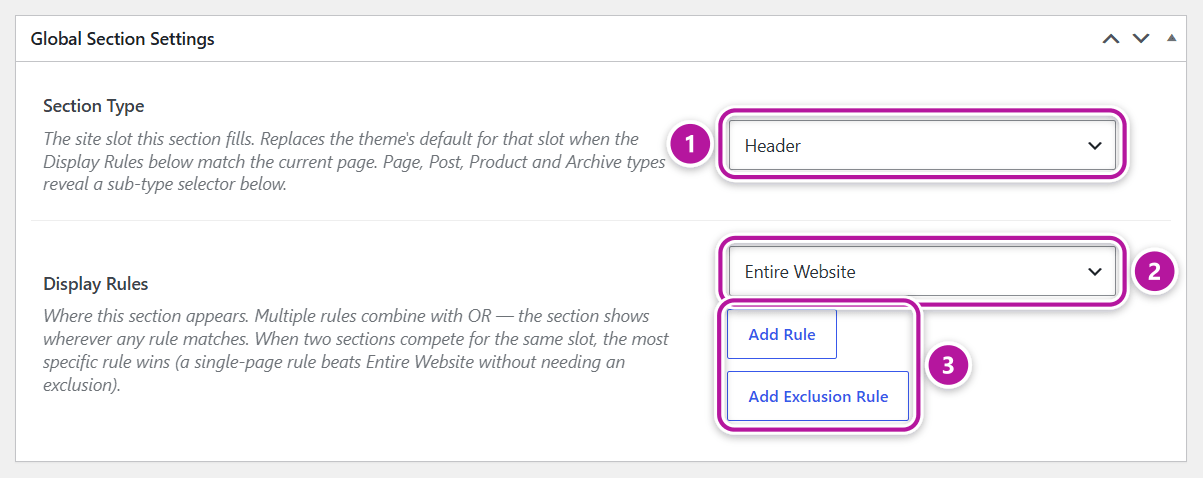
- In the Global Section Settings box, choose the Section Type — the slot the section fills. For the Page, Post, Product and Archive types, a second selector appears below it (Replace which area?, Replace which part? or Archive type). See Section types.
- Under Display Rules, pick where the section appears. The first rule already comes set to Entire Website — keep it for a site-wide section, or change it. Click Add Rule for more locations, or Add Exclusion Rule to carve out exceptions. See Display rules.
- Click Edit with Elementor, design the block, then click Publish.
When the settings are saved
On a section that isn't published yet — brand new or a draft — clicking Edit with Elementor stores the Section Type, its sub-area and the Display and Exclude Rules before the editor opens. On a published section, changes in Global Section Settings apply only once you click Update.
Starting from a Theme Builder card doesn't pre-select the type: Add New always opens a blank section, so choose the Section Type yourself.
The editor adapts to the section type
Once the type is saved, the Elementor widget panel is tailored to it: a header section leads with the Themeasy — Header widgets, a footer section with Themeasy — Footer, and the categories that don't belong in that slot are hidden. A section with no type yet shows every category. See Elementor widgets for the full list of categories.
The Sections list
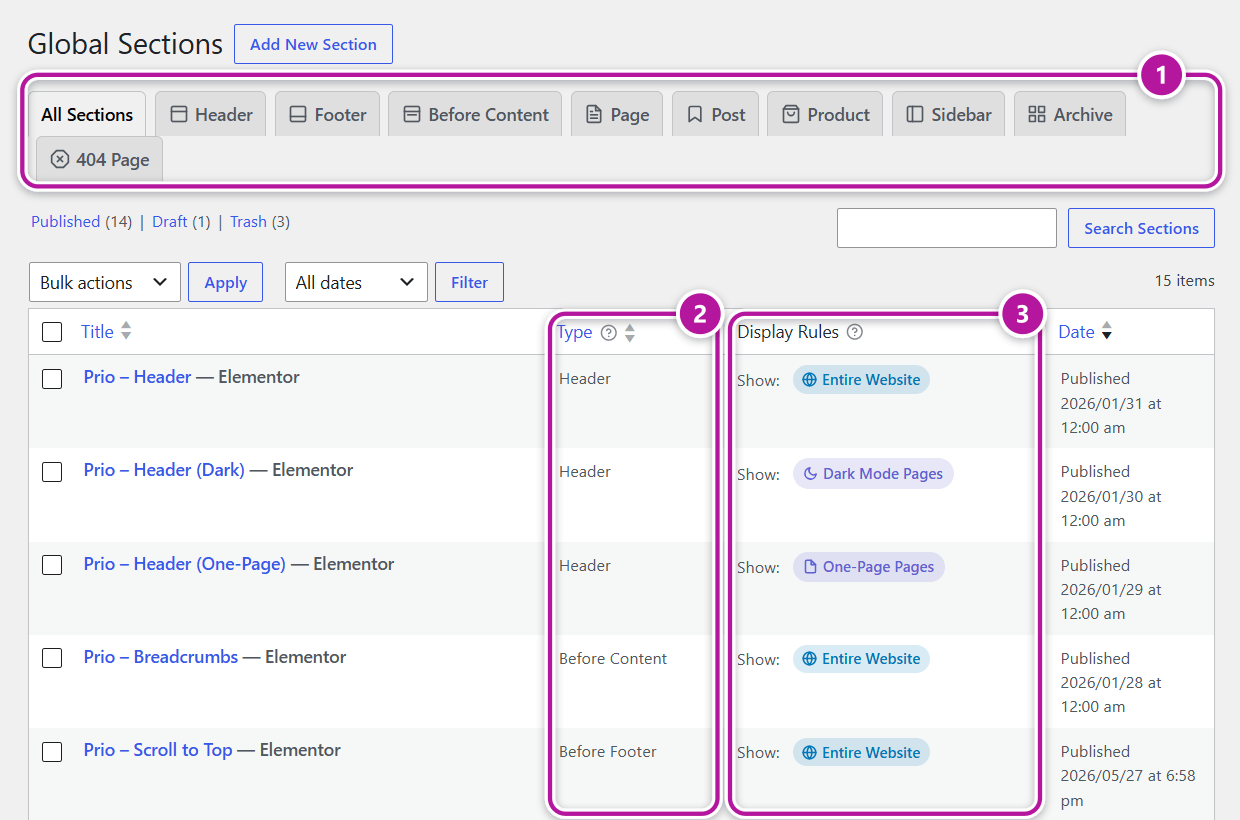
Open the list from Themeasy → Sections. The Header and Footer items in the Themeasy menu are shortcuts straight into those two tabs.
Tabs
Tabs across the top filter the list by slot.
| Tab | Lists sections of type |
|---|---|
| All Sections | Every section. |
| Header | Header and Before Header. |
| Footer | Footer and Before Footer. |
| Before Content | Before Content. |
| Page | Page. |
| Post | Post. |
| Product | Product. The tab appears only when WooCommerce is active. |
| Sidebar | Left Sidebar and Right Sidebar. |
| Archive | Archive. |
| 404 Page | 404 Page. |
| Unassigned | Published sections with no type set. The tab appears only when you have at least one. |
Note
An Unassigned section never shows on your site. Open it, choose a Section Type and click Update.
Columns
| Column | What it shows |
|---|---|
| Title | The section's name. |
| Type | The slot it fills, plus the sub-area for Page, Post, Product and Archive sections — for example Post: Entry Header or Product: Related Products. A section with no type reads Unassigned. |
| Display Rules | Show: and Hide: badges summarizing where the section appears and where it's excluded. |
| Date | The section's publish status and date. |
On the All Sections tab the list follows the natural top-to-bottom order of a page — Before Header, Header, Before Content, Before Footer, Footer, then the page, post and product parts, the sidebars, archives and the 404 page. Click the Type column header to reverse it, or sort by Title or Date instead. Inside any other tab, the newest section comes first.
Reading the Display Rules badges
The Show: row lists the section's Display Rules and the Hide: row lists its Exclude Rules. Many badges are also shortcuts:
| Badge | Clicking it opens |
|---|---|
| A Page Variant, such as Dark Mode Pages | The Pages list, filtered to the pages carrying that variant. |
| A post-type rule, such as All Posts | That post type's list. |
| A specific page, post or product | Its edit screen. |
| A specific category, tag or other term | That term's edit screen. |
When a section targets more than three specific items, they collapse into a single badge such as 5 specific pages — hover it to see the names.
Help tooltips
The Type and Display Rules column headers each carry a help icon. Hover it (or focus it with the keyboard) for a short reminder: About section types explains what a type does, and How Display Rules work summarizes Show, Hide and which section wins when two compete.
Where to go next
Was this article helpful?