Signing in to Themeasy Hub
You sign in to Themeasy Hub with the email you purchased with. You can use a password, or one of the social providers — Google, Envato or GitHub.
Sign in
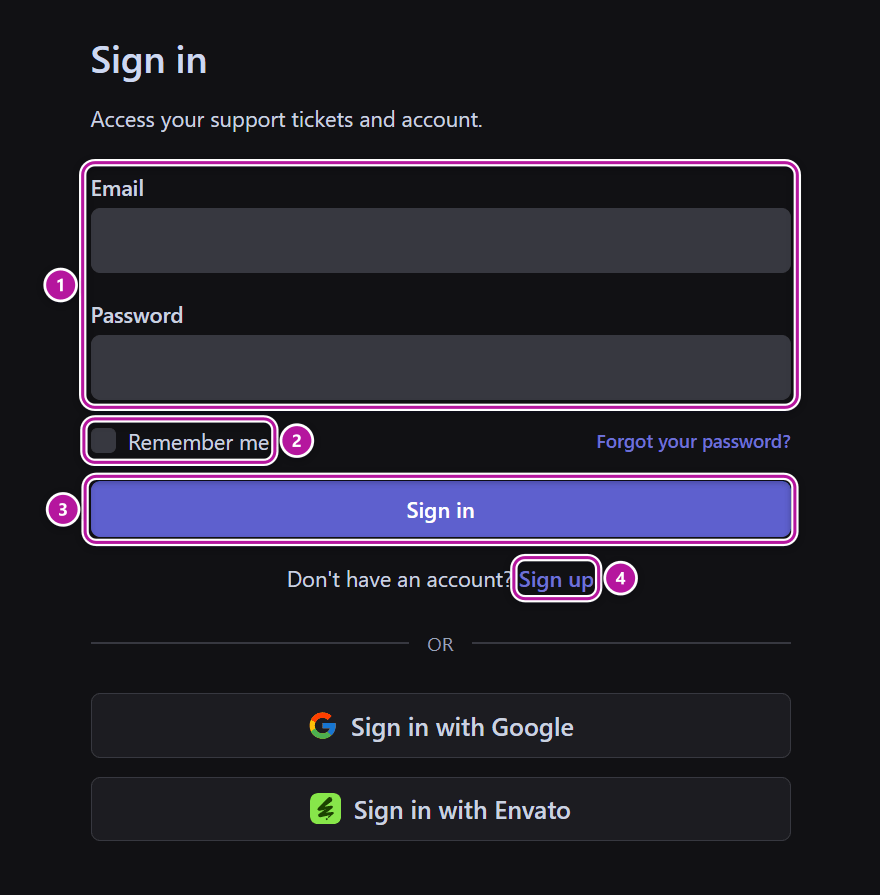
On the Sign in screen ("Access your support tickets and account."):
- Enter your Email and Password.
- Optionally tick Remember me to stay signed in on this device.
- Click Sign in.
Don't have an account yet? Use the Sign up link below the form, or the Sign up button in the top bar.
Reset a forgotten password
- On the sign-in screen, click Forgot your password?.
- On the Reset password screen, enter your account email and click Email password reset link.
- Open the email and follow the link to the Choose a new password screen.
- Enter your New password and Confirm new password, then click Reset password.
The reset screen explains: "Enter your account email and we'll send you a link to choose a new password." If the email doesn't arrive within a few minutes, check your spam folder before requesting another link.
Create an account
On the Create account screen ("Sign up to open support tickets and manage your account."):
- Fill in Name, Email, Password and Confirm password.
- Click Create account.
Already have an account? Use the "Already have an account? Sign in" link instead.
Use the email you bought with
Purchases made with the same email address are linked to your account automatically once that email is verified. Bought with a different address? Paste your key on the licenses page.
Social login
Below the form, under the or divider, you can sign in (or sign up) with a social account:
- Sign in with Google — use your Google account.
- Sign in with Envato — use your Envato account; this matches your ThemeForest purchases to your Hub account automatically.
- Sign in with GitHub — use your GitHub account.
On the Create account screen the same buttons read Sign up with Google, Sign up with Envato and Sign up with GitHub.
How it works:
- First time with a provider and no Hub account yet — the Hub creates your account from the name and email the provider shares. When the provider confirms that email, you skip the email verification step.
- You already have a Hub account with that email — you're signed in to it, and the provider is linked to the account from then on.
- Envato — after signing in, the Hub looks for Themeasy purchases on your Envato account and links them. When it finds some, your dashboard confirms it with a green banner.
Tip
Bought a Themeasy theme or plugin on ThemeForest? Sign in with Envato so your purchases link to your Hub account automatically.
You can review which providers are linked under Connected accounts on your profile. A provider is linked the first time you sign in with it.
Two-factor authentication
If you've turned on two-factor authentication, you'll see the Two-factor authentication screen right after you sign in ("Enter the 6-digit code from your authenticator app, or one of your recovery codes."). Enter the Authentication code and click Verify.
The code is asked however you signed in: with your password, or with Google, Envato or GitHub.
You set two-factor up on the Security page, where you'll also find your recovery codes for the times you don't have your phone.
Verify your email
An account created with an email and password must confirm that email. Until you do, Products, Licenses, Downloads, Billing, Purchases and Tickets send you to the Verify your email screen; your dashboard, profile, security, notification and privacy pages stay available.
The screen offers Resend verification email and a Back to home link. Your dashboard and your profile show the same reminder with a resend link, and you can change the address from your profile if you mistyped it.
One account for the template library
Your Hub account is also your identity on the Themeasy template library at library.themeasy.co (linked as Template library in the footer). There's no separate library account: sign in to the Hub, and the library recognises you and your plan in the same browser.
What the library unlocks follows your active subscription: downloading Pro templates on the web is part of the Pro and Agency plans. A theme license on its own, or the Widgets plan, browses the library on the free tier. Inside WordPress, the plugin's own template library follows the license activated on that site instead.
Was this article helpful?