Header & footer widgets
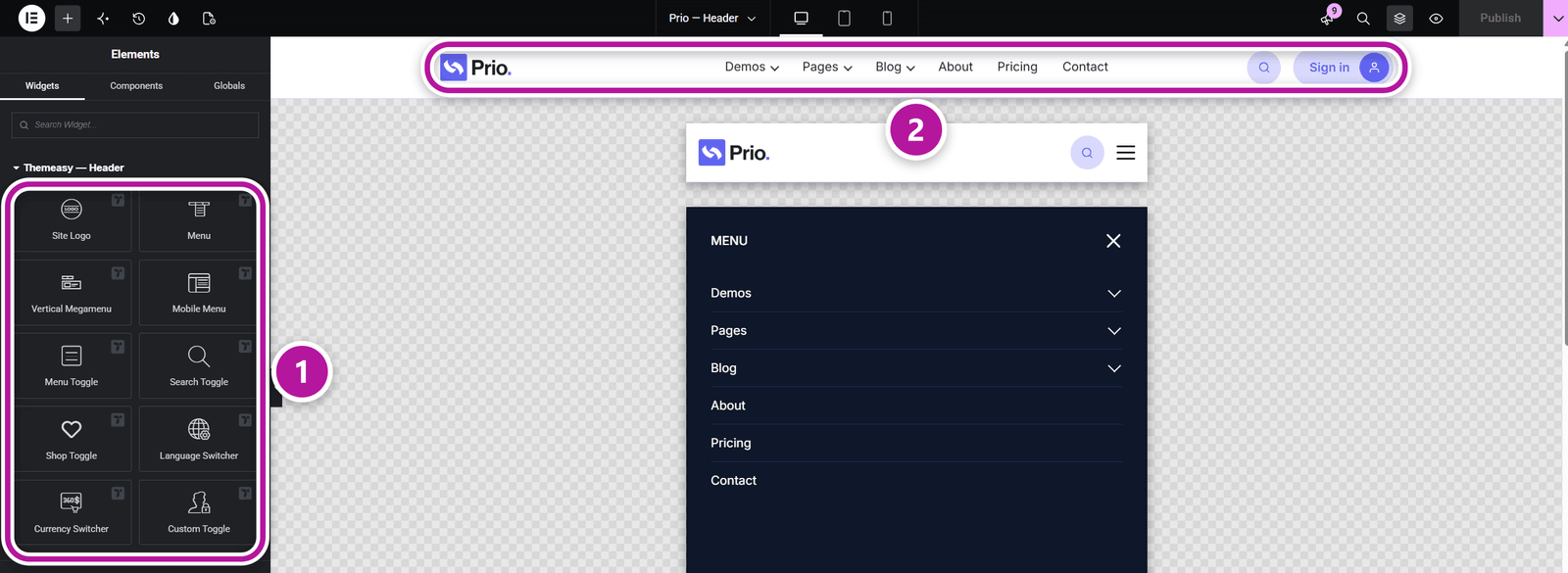
These widgets are the pieces of a site header and footer. You drop them into a header or footer Global Section so they appear across your whole site. To turn plain containers into a working navbar — sticky behavior, offcanvas panels, search and cart panels — pair these widgets with the Header Builder controls.
Before you start
Both categories are included with Pro and Agency. The panel shows Themeasy — Header while you edit a Header or Before Header section, and Themeasy — Footer while you edit a Footer or Before Footer section. Headers and footers are Global Sections, part of the Theme Builder, which runs on a Themeasy theme.
Themeasy — Header
| Widget | What it's for |
|---|---|
| Site Logo | Your site logo, with an optional variant for the sticky state, an optional site title and a custom link. |
| Menu | The desktop navigation. It shows a WordPress menu with its dropdowns and any mega menus assigned to its items — or custom items you add in the widget. |
| Vertical Megamenu | A "Shop by Categories" style button that drops a vertical list; any item can open a mega menu in a flyout beside the list. |
| Mobile Menu | A vertical, accordion-style menu made for offcanvas panels. |
| Menu Toggle | A hamburger button — three lines, two lines or your own icon — that opens an offcanvas panel. |
| Search Toggle | A button that opens the site search panel. |
| Mini Cart | The cart contents, for a cart panel. Requires WooCommerce and a Themeasy theme. |
| Mini Cart Toggle | A cart button with a live item counter that opens the mini-cart panel. Requires WooCommerce and a Themeasy theme. |
| Shop Toggle | A link to the Wishlist, Compare or My Account page, with a live item counter. Wishlist needs WPC Smart Wishlist, Compare needs WPC Smart Compare and My Account needs WooCommerce; on the live site the button stays hidden while the plugin it needs is inactive. |
| Language Switcher | A language selector with flags, names or codes, as a row, a column or a dropdown. Requires the Polylang plugin. |
| Currency Switcher | A currency selector with symbols, codes or names, as a row, a column or a dropdown. Requires WooCommerce and the CURCY multi-currency plugin. |
| Custom Toggle | A button with your own icon and label that opens any offcanvas panel you name — a login panel, for example. |
Vertical Megamenu is also listed at the end of Themeasy — Blocks & Cards, so you can place it in a hero next to a banner, where it can start expanded.
Themeasy — Footer
| Widget | What it's for |
|---|---|
| Copyright Bar | A copyright line laid out in one, two or three areas, with an optional list of legal links and a separator. The placeholders {year}, {site_name}, {site_tagline} and {site_url} fill in automatically. |
Site Logo, Language Switcher and Currency Switcher are listed in this category too, so they're at hand when you edit a footer.
Other widgets you'll use here
A header or footer rarely stops at these two categories. While you edit one, the panel also shows the categories that fit — these widgets come up most:
| Widget | Category | Typical use |
|---|---|---|
| Site Search | Elements | The search form you place inside the search panel. |
| Social Profiles | Elements | Social links in a top bar or a footer. |
| Button, Icon and Icon List | Elements | A call-to-action button, contact details and footer link lists. |
| Notification Bar | Site Utilities | An announcement strip in a Before Header section. |
| Scroll to Top | Site Utilities | A floating back-to-top button, added once in the footer. |
| Category List | Post & Portfolio | Footer link columns, entered by hand or pulled from a taxonomy. |
They're described in Content & site widgets and Mega Menu widgets.
Connecting a toggle to its panel
The toggles open panels you create with the Header Builder. Menu Toggle and Custom Toggle have a Target Panel Name field: type the same name you gave the container in Offcanvas Panel Name. Search Toggle and Mini Cart Toggle need no name — they open the containers you marked Use as Site Search Panel and Use as Mini Cart Panel. See Build a header with containers.
Where to go next
Was this article helpful?