Mega Menu
What a mega menu is
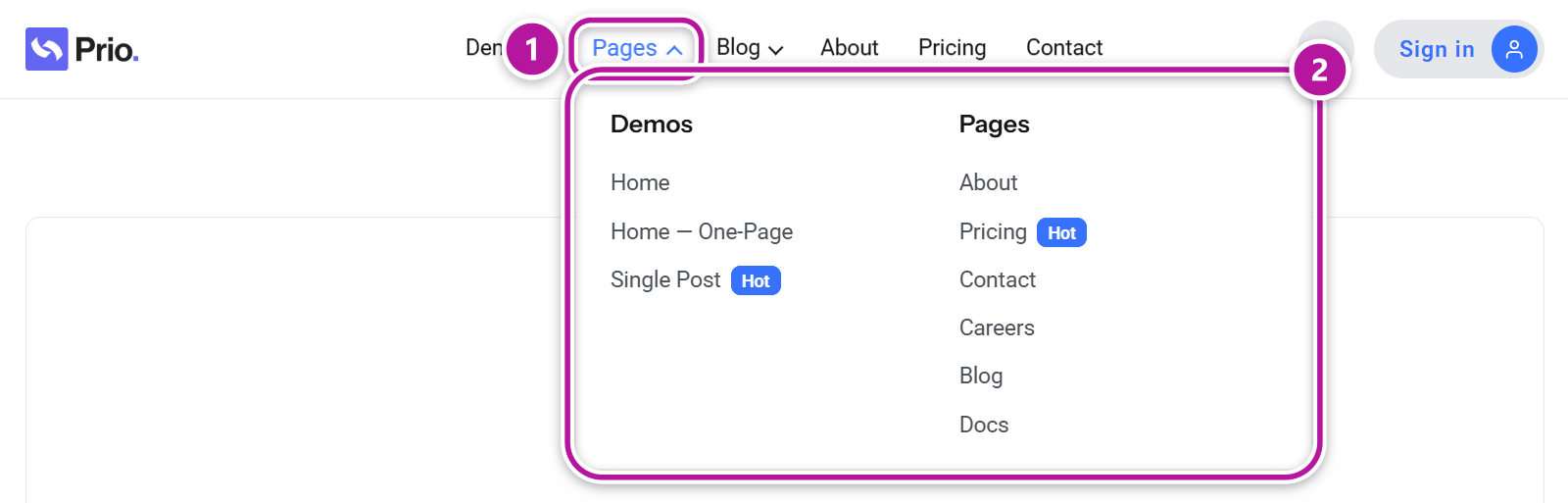
A mega menu turns a plain dropdown into a full, Elementor-designed panel — multi-column link lists, image cards, promo banners — attached to a top-level menu item. You design each panel once in Elementor, then attach it to a menu item. A panel has no public URL of its own: it only appears where you attach it.
Two spellings, one feature
The interface uses two spellings. Mega Menu (two words) names the Themeasy → Mega Menu menu item and the Mega Menu card in Theme Builder. Megamenu (one word) is used by the panels themselves (Add New Megamenu), by the Megamenu, Megamenu on Desktop and Megamenu on Mobile fields on Appearance → Menus, and by the Megamenu Items setting of the Mobile Menu widget.
Before you start
You need:
- Elementor active — panels are designed in Elementor.
- A WordPress menu to attach panels to (Appearance → Menus).
- A header built with the Themeasy Menu widget, with its Menu Source set to Registered Menu — that widget is what opens the panel on your site. See Header & footer widgets.
Mega Menu sits alongside the Theme Builder and Global Sections, which is where you build the header itself.
Where it lives
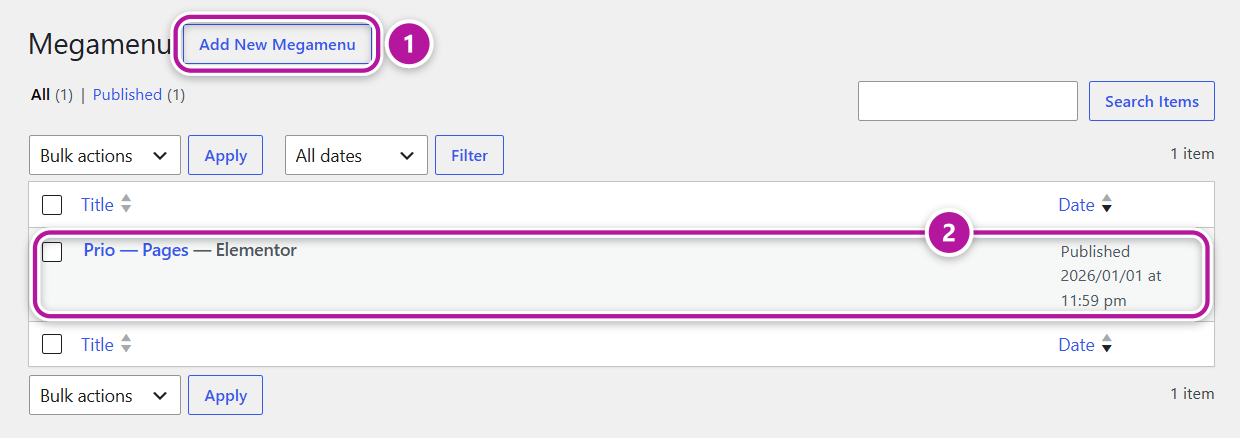
Open it at Themeasy → Mega Menu, or from the Mega Menu card on Themeasy → Theme Builder. The card shows how many panels you've published, plus Manage and Add New buttons.
Create a panel
- Go to Themeasy → Mega Menu and click Add New Megamenu — or click Add New on the Mega Menu card in Theme Builder.
- Give the panel a title, then click Edit with Elementor. It opens on a blank Elementor Canvas.
- Build the panel with the Themeasy — Megamenu widgets, plus any other widgets you like.
- Click Publish.
While you edit a panel, the Elementor widget panel puts Themeasy — Megamenu first, followed by the Elements, Text & Typography, Images & Media, Blocks & Cards and Post & Portfolio categories — and WooCommerce, when it's active. The three panel-building widgets are covered in Mega Menu widgets, and every category in Elementor widgets.
Note
Only published panels can be attached. If you later unpublish or delete a panel, the menu item quietly falls back to its regular sub-items.
Assign it to a menu item
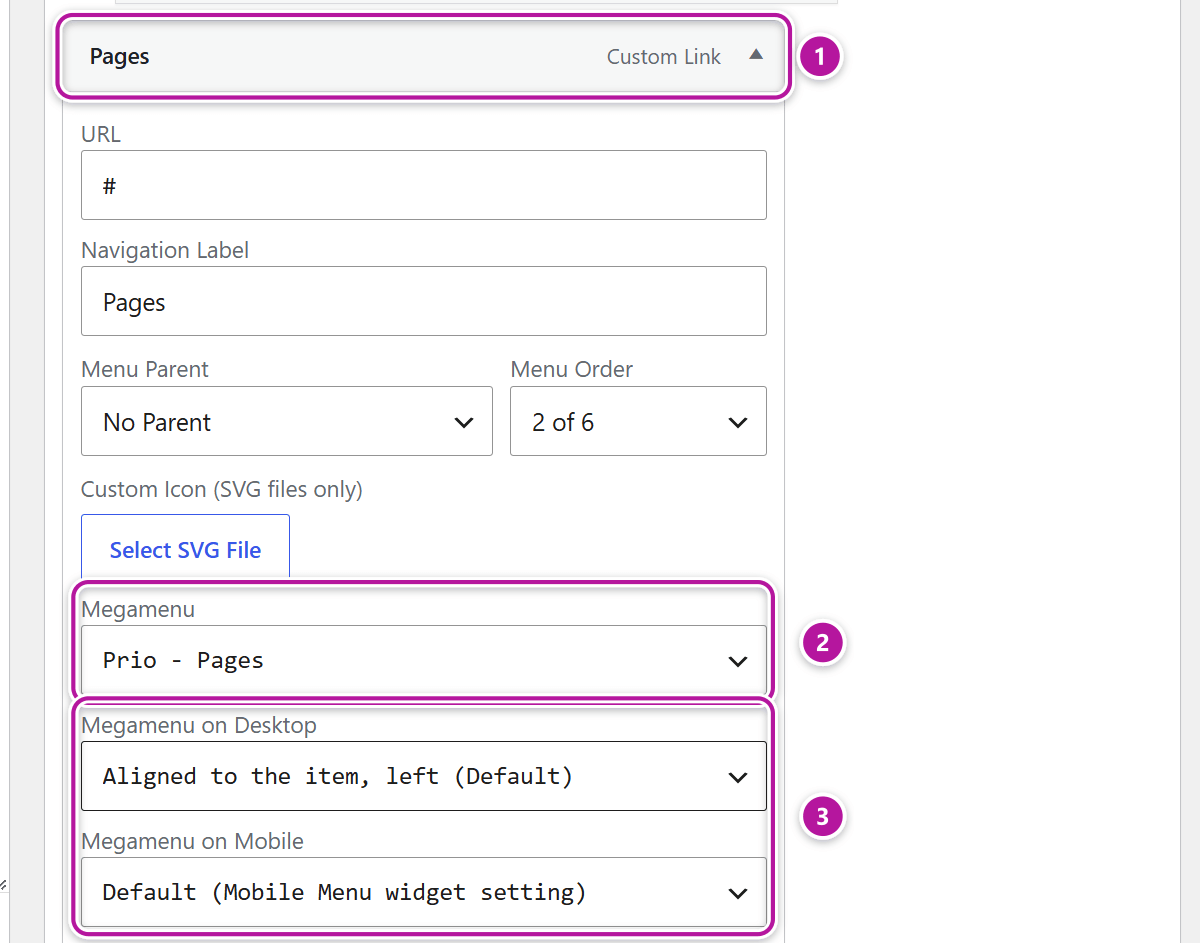
- Go to Appearance → Menus and select your menu.
- Expand a top-level menu item. The fields only appear on top-level items, not on sub-items.
- In the Megamenu field, pick your panel from the Select a Megamenu dropdown.
- Click Save Menu.
On your site, that menu item now opens your designed panel on hover — or on click, if the Menu widget's Submenu Trigger is set to Click. To detach a panel, set the field back to Select a Megamenu and save the menu.
Note
The Megamenu fields appear once you've published at least one panel. Until then, a menu item shows no mega menu fields at all.
Choose its width and position on desktop
The Megamenu on Desktop field, right below Megamenu on the same menu item, sets how the panel sits under the menu bar.
| Option | Result | Good for |
|---|---|---|
| Aligned to the item, left (Default) | The panel keeps the width you gave its container in Elementor and starts at the item's left edge. | Compact panels on items at the left of the bar. |
| Aligned to the item, centered | Same width, centered under the item. | Mid-size panels on items in the middle of the bar. |
| Aligned to the item, right | Same width, ending at the item's right edge. | Panels on items at the right of the bar. |
| Container width | The panel spans your site's content width, lined up with the header's logo and icons. | Large multi-column panels, such as a Shop menu. |
| Full width | The panel spans the whole screen, edge to edge. | Full-bleed bands. Set the panel's main container to Boxed in Elementor so the content stays on your site's grid while the background runs edge to edge. |
Whatever you choose, a panel never runs off the screen. When it would, it slides back in — and narrows if the screen is smaller than the panel — so there's nothing to fix per screen size. On right-to-left sites, left and right are mirrored.
Tip
With the three Aligned to the item options, the panel's width is the width you set on its main container in Elementor. A container left at 100% has no width of its own, so the panel uses your site's content width instead.
Choose how it behaves on mobile
By default, the same panel is rendered inside the mobile menu, under its item, when the visitor expands it. The mobile menu is much narrower than a desktop dropdown, so a panel designed for desktop often doesn't survive the move. Either design the panel responsively, or change what happens — in one of two places.
For the whole menu — the Mobile Menu widget
Edit your header, select the Mobile Menu widget and open Content → Behavior → Megamenu Items. It sets the rule for every item of that menu. The setting is available when the widget's Menu Source is Registered Menu.
| Megamenu Items | What visitors get on mobile |
|---|---|
| Render the Megamenu (default) | The panel, inside the mobile menu. |
| Hide the Megamenu, keep the item | A plain link — or the item's regular sub-items, if it has any. |
| Hide the item | Nothing: the item leaves the mobile menu, and only the regular menu items remain. |
For one item — Appearance → Menus
The Megamenu on Mobile field on each top-level menu item overrides the widget rule for that item alone.
| Megamenu on Mobile | Result |
|---|---|
| Default (Mobile Menu widget setting) | Follows the Mobile Menu widget. |
| Render the Megamenu | Always shows the panel for this item. |
| Hide the Megamenu, keep this item | Shows this item as a plain link, or with its regular sub-items. |
| Hide this item | Removes this item from the mobile menu. |
That lets you keep one mobile-friendly panel while hiding another.
Warning
If you hide a mega menu item on mobile, make sure its links exist somewhere else in the mobile menu. Don't keep essential navigation only inside a panel you've hidden.
Tip
An item that exists only to open its panel — one whose link goes nowhere — becomes a dead link if you keep the item and hide the panel. Use Hide this item for those, and add the important links as regular menu items.
Show panels beside a vertical list
The Vertical Megamenu widget is a second way to show your panels. Instead of a horizontal menu bar, it's a single button — labeled Shop By Categories by default — that drops a vertical list of items, and any item can open one of your panels in a flyout beside the list. It's the classic store "departments" menu, at home in a header bar or next to a hero banner.
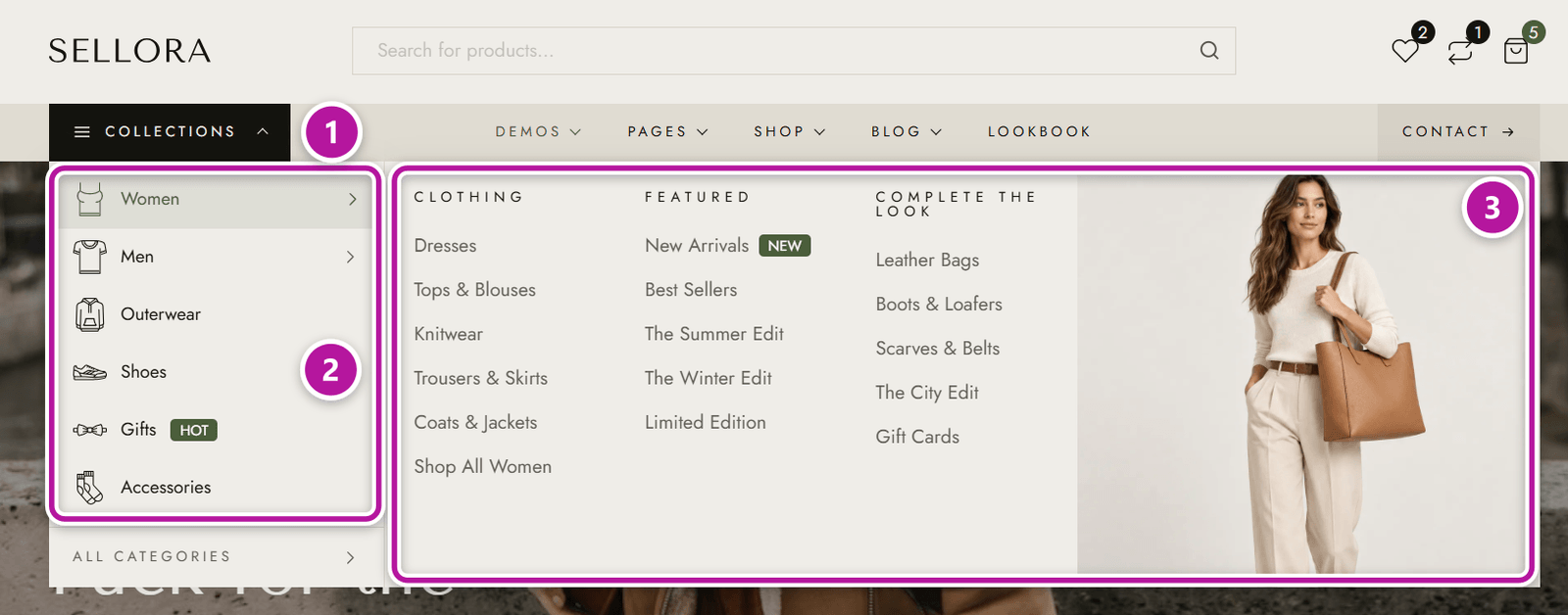
It doesn't use Appearance → Menus: you build the list in the widget and pick a panel for each item. You'll find it in the Themeasy — Header category when you edit a header, and in Themeasy — Blocks & Cards on regular pages — see Header & footer widgets.
| Section (Content tab) | Setting | What it does |
|---|---|---|
| Trigger | Label, Icon, Toggle Arrow | The button that opens the list. |
| Items | Label, Link, Icon, Badge | One row of the list. |
| Items | Megamenu | The panel this item opens. Leave it on None (link only) for a plain link. Only published panels are listed. |
| Items | Visible Items | Shows only that many items and folds the rest behind a "More" toggle. |
| Layout | Panel Width | Up to the Container Edge (default), Template Width or Custom. |
| Settings & Interactions | Open the List On, Open Megamenus On | Hover or Click, set independently. Touch screens and the keyboard always use a tap or Enter. |
| Settings & Interactions | Initial State | Collapsed, Expanded, or Expanded on the Front Page — open on your homepage, collapsed everywhere else. |
| Settings & Interactions | Small Screens | Megamenus as an Accordion opens a panel below its item; Hide Megamenus, Keep the Links leaves the panels out. |
Note
The Megamenu on Desktop and Megamenu on Mobile fields on Appearance → Menus apply to panels opened from the Menu and Mobile Menu widgets. The Vertical Megamenu has its own Panel Width and Small Screens settings instead.
Where to go next
Was this article helpful?