Product custom fields
Product custom fields add a single, optional text field to the product page so shoppers can personalize what they buy — a name to engrave, a short message to print, and so on. Whatever they type travels with the product into the cart, the order and the order emails.
The feature is off until you turn on Enable Product Custom Fields in Themeasy → Settings → WooCommerce, under Product Custom Fields. See the WooCommerce settings.
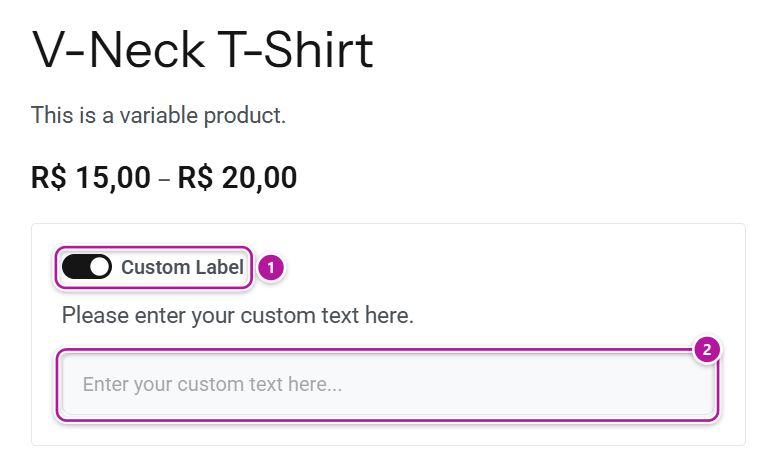
On the product page
When the field is active for a product, it appears in the summary, just above the add-to-cart button:
| Part | What shoppers see | Setting |
|---|---|---|
| Switch | An on/off switch, on by default, with a label beside it. Switching it off hides the text input for shoppers who don't want personalization. | Field Label |
| Description | An optional line of helper text under the switch. | Field Description |
| Text input | A single-line text box with a hint inside it. | Input Placeholder |
The settings start you off with generic wording — replace it with text that fits what you sell, such as "Add a name to engrave?".
The field shows on simple and variable products that are in stock.
From cart to order
Whatever the shopper types follows the product through the whole order:
- It shows on the cart and checkout line under the product name, written as Field name: value — for example "Custom Name: Anna".
- It is saved with that line item when the order is placed, so you see it in the order in your WooCommerce admin.
- It appears on the customer's order details page and in the order emails.
The "Field name" part is the Field Name setting, which starts as "Custom Name".
Who gets the field
Custom Field Location sets the scope for the whole store, and each product can then follow or override it. On a product's edit screen, open the Custom Field tab in the Product data box and set its own Custom Field Location to Global, Override or Disable.
| Store-wide setting | Product set to Global | Product set to Override | Product set to Disable |
|---|---|---|---|
| Enable for All Products | Shows the field with the store-wide wording | Shows the field with the product's own wording | No field |
| Enable Per Product (Set Individually) | No field | Shows the field with the product's own wording | No field |
A product set to Override can supply its own Field Name, Checkbox Label, Field Description and Input Placeholder in the same tab. Anything you leave empty there falls back to the store-wide wording.
Tip
Selling only a few personalizable products? Choose Enable Per Product (Set Individually), then set just those products to Override. Every other product stays untouched.
Where to go next
Head back to Themeasy for WooCommerce, or see where the field sits on the single product page. To switch the feature on or change the store-wide wording, open the WooCommerce settings.
Was this article helpful?